Plug in, pair up, and stream quietly with Roku and Fire TV private listening
Plug in, pair up, and stream quietly with Roku and Fire TV private listening
Take control of sound by using private listening on for true solo streaming.


Whether it’s late at night at night, or you just want to tune out the world, both Roku and Fire TV offer private listening features that let sound travel straight to your headphones instead of your living room speakers. So, there’s no need to argue over volume or disturb anyone’s sleep. This tech trick turns your favorite shows into a personal experience that’s crisp, quiet, and completely under control.
Here’s how to set up and use private listening mode on both platforms, step by step.


Private listening on Roku
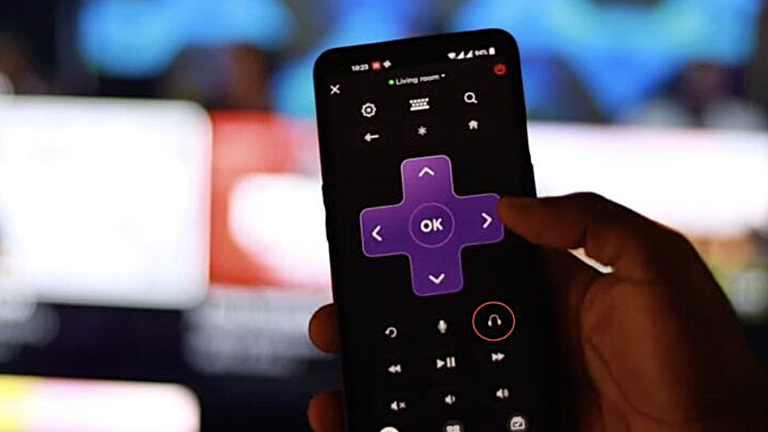
Roku’s private listening feature lets you connect headphones to your phone or Roku remote and stream sound directly. It’s built for convenience and works across all Roku streaming devices and TVs.
Step 1: Download the Roku mobile app
Head to the App Store or Google Play and download the free Roku app. It’s the hub for everything, including the remote control, search, and private listening, right from your smartphone or tablet.
Step 2: Connect the app to your Roku device
Make sure both your Roku and mobile device are connected to the same Wi-Fi network. Open the app and let it automatically detect your Roku player or Roku TV. Once connected, your phone becomes a remote and sound controller.
Step 3: Plug in or connect your headphones
You can use wired or Bluetooth headphones connected to your phone.
- Wired headphones: Plug directly into your phone or tablet
- Bluetooth headphones: Pair them with your phone before using the Roku app
Step 4: Activate private listening
Within the Roku app, tap the headphone icon to enable private listening. The sound instantly transfers from the TV to your headphones. You can toggle it off the same way.
Bonus: Up to four mobile devices can connect simultaneously, allowing multiple listeners to enjoy private listening together without disturbing others.
Step 5: Adjust volume and enjoy
Once connected, use your phone’s volume controls to adjust your sound level to your preferred setting. Whether you’re rewatching a favorite series or catching up on the latest movie release, private listening keeps every detail crystal clear.
Roku pro tip: Make the app your second screen
The Roku app can do more than just private listening:
- Use it as a virtual remote with a keyboard and touchpad
- Cast photos, videos, or music from your phone straight to the TV
- Create custom screensavers using your favorite images
- Try voice search by tapping the microphone icon and saying what you want to watch
Private listening on Fire TV

Amazon’s Fire TV devices don’t use a mobile app for private listening. Instead, they connect directly to Bluetooth headphones, keeping setup quick and easy.
Step 1: Access settings on Fire TV
From your Fire TV home screen, scroll to Settings, then select Controllers and Bluetooth Devices.
Step 2: Choose “Other Devices”
Select Other Bluetooth Devices to see a list of devices you’ve already paired, or add new ones.
Step 3: Add Bluetooth headphones
Click Add Bluetooth Devices. Your Fire TV will enter discovery mode.
Now, put your Bluetooth headphones into pairing mode. (Refer to your headphone manual if you are unsure how.) Once your headphones appear on the screen, select them to complete the pairing.
Step 4 (optional): Pair using Alexa remote
If you have an Alexa Voice Remote Pro or Voice Remote, press the headphone button or say, “Pair Bluetooth headphones.” Then follow the same pairing steps above.
Step 5: Control your sound experience
Once paired, Fire TV automatically routes all sound through your headphones. Adjust the volume with your headphones or the Fire TV remote. You can now stream movies, shows, or music without any external noise or complaints from anyone nearby.
Choosing the best headphones for private listening
Both Roku and Fire TV are compatible with most Bluetooth or wired headphones, although some pairs work better than others.
Here’s what to look for:
- Low-latency Bluetooth: Reduces delay between audio and video
- Comfortable fit: Great for binge-watching sessions
- Long battery life: Keeps the stream going
- Integrated mic: Handy for Alexa or Roku Voice commands
Popular options include the Sony WH-1000XM5, Apple AirPods Max, and Bose QuietComfort Ultra.
Troubleshooting Tips
For Roku:
- If audio cuts out, check that both the TV and phone are on the same Wi-Fi network
- Restart the Roku app if the headphone icon doesn’t respond
- Ensure your phone’s volume is up
For Fire TV:
- If your headphones won’t connect, unpair them and try again
- Keep your headphones within a few feet of your Fire TV for the best signal
- Disable other Bluetooth devices that might interfere
Streaming in Silence
Private listening has transformed the simple act of watching TV into something smarter and more personal. Roku and Fire TV now give streamers the power to control every decibel, shifting sound from living room speakers to sleek wireless headphones with just a few taps.
It’s a small feature with a big impact! Perfect for late-night marathons, crowded households, or anyone craving an immersive experience without background noise.