Lock content fast on Roku and Fire TV with PIN-protected parental controls
Lock content fast on Roku and Fire TV with PIN-protected parental controls
Stream smarter and have total control over what your kids are watching.


Streaming devices have opened up a world of entertainment, but they have also made it easier than ever for kids to stumble upon content meant for older audiences. There’s an increasing amount of content popping up on streamers every day, making it harder to know what your kids should or shouldn’t be watching. Thankfully, both Roku and Amazon Fire TV make it simple to set boundaries and create a safer viewing experience for families. From PIN-protected movies to blocked live channels, here’s a fun, easy-to-follow guide to getting those parental controls set up.


Roku parental controls
Roku’s parental control system helps manage what can be watched or added to your device. It offers flexibility without the confusion by allowing you to set up restrictions on The Roku Channel, lock down Live TV, or create a PIN for purchases.
Quick overview of Roku parental controls
- Applies to: The Roku Channel and Howdy
- PIN required for: Watching restricted content or adding apps/subscriptions
- Not available in: Guest Mode
- Controls apply to: Roku device only (not web or mobile apps)
- Additional support: Live TV input restrictions and content blocking
Parental controls on Roku streaming devices
Roku allows parental controls on The Roku Channel and Howdy, giving control over what’s watchable based on movie and TV ratings.
For streaming devices like the Roku Streaming Stick or Roku Ultra, parental controls can be found through your account settings at https://my.roku.com. Once there, choose PIN/Parental controls under Device Settings to set up a PIN and any restrictions.
Supported ratings include:
- Movies: G, PG, PG-13, R, NC-17
- TV: Y, Y7, G, PG, 14, MA
How to set parental controls on Roku TV
Parental controls are available directly through the settings menu on Roku TV devices.
To set it up:
- Sign in to your Roku account
- Go to your PIN preferences under account settings
- Choose to require a PIN for adding apps, making purchases, or watching content above certain ratings
- Save your settings
All titles will still appear in search results, but playback will be locked behind the PIN for restricted ratings.
Note: Parental controls only affect The Roku Channel and Howdy on your Roku device. Other streaming apps have their own systems for restricting content.
How to set parental controls on Live TV input
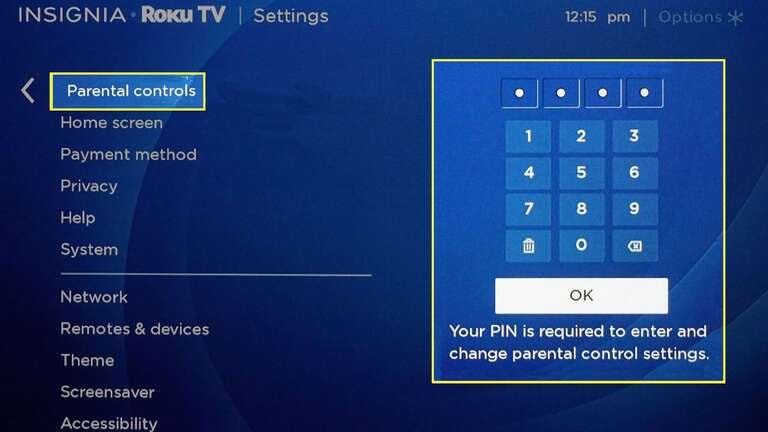
If your Roku TV includes an antenna input or uses the Live TV Channel Guide, you can block content directly from those sources.
- Press the Home button on your Roku remote
- Scroll to Settings and select Parental controls
- Create a 4-digit parental control PIN (this is separate from your Roku account PIN)
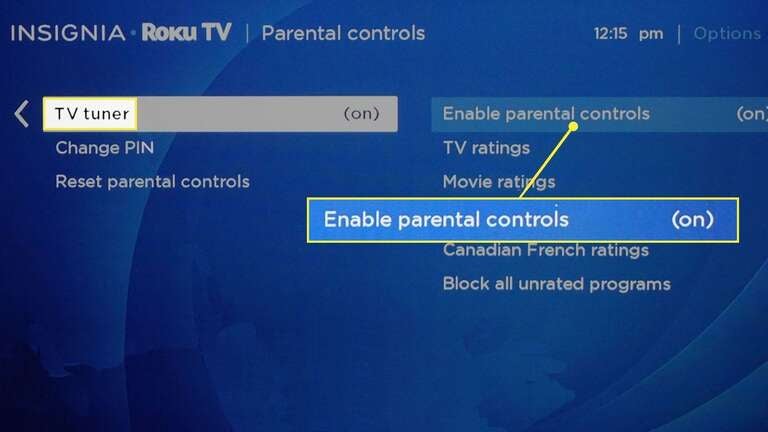
Once the PIN is created, more options appear:
Enable parental controls: Turn restrictions on or off
TV ratings: Limit programming by US TV ratings (Y, Y7, G, PG, 14, MA) or specific content types like violence (V), sexual content (S), language (L), or dialogue (D)
Movie ratings: Restrict by US film ratings (G, PG, PG-13, R, NC-17)
Canadian ratings: Configure limits by English (C, 8+, 14+, 18+) or French (G, 8+, 13+, 16+, 18+) systems
Block unrated programs: Hide all content that lacks a rating
If a program is blocked, both the video and audio are muted, and the guide will not display the title or description until the correct PIN is entered.
How to set up the TV tuner for parental controls
Before blocking shows, Roku needs to detect channels:
- Go to Settings > TV tuner
- Allow your TV to scan for available channels
- Once scanning is complete, parental control settings become available
Changing or resetting the Live TV PIN
To update your 4-digit Live TV parental control PIN:
- Open Settings > Parental controls > Change PIN
- Enter a new code
To clear all settings and start fresh:
- Choose Reset parental controls
- Follow on-screen instructions to remove restrictions and reset the PIN
Fire TV parental controls
Amazon Fire TV also offers powerful tools for controlling what plays on your screen. Whether it’s blocking purchases or preventing access to mature-rated content, everything can be protected by a single PIN.
Quick overview of Fire TV parental controls
- Applies to: Fire TV devices and Echo Show with Fire TV
- PIN required for: Purchases, videos, app launches, Amazon Photos
- Found in: Settings > Preferences > Parental Controls
- PIN type: 5-digit Fire TV PIN
How to turn on parental controls on Fire TV
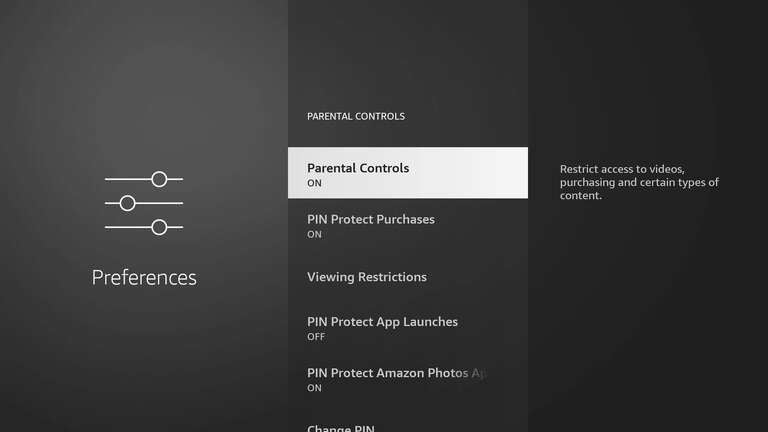
- From the Fire TV home screen, select Settings
- Choose Preferences, then Parental Controls
- Select Parental Controls again to toggle it on
- Enter a PIN when prompted
Once enabled, the system lets you decide what’s restricted and what’s open.
Protect what matters: Fire TV PIN options
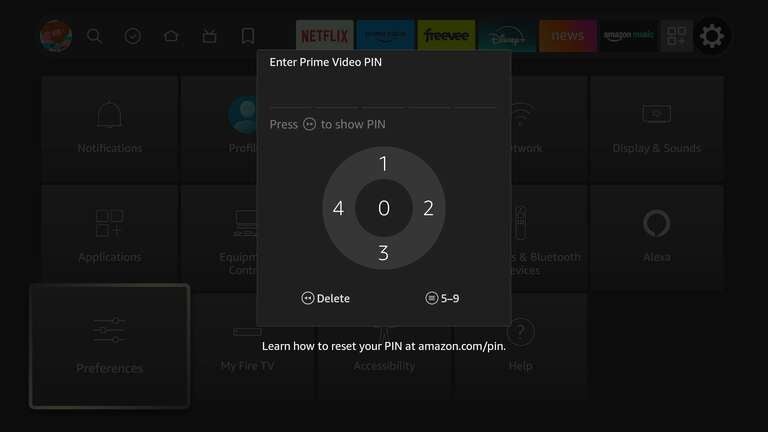
Fire TV allows customization of how and where the PIN applies:
Purchases: Require a PIN before buying or renting movies and shows
Viewing Restrictions: Limit playback by rating category (G, PG, PG-13, R, etc.)
App Launches: Prevent apps from opening without the PIN, perfect for restricting certain streaming platforms
Amazon Photos App: Control access to personal photo collections stored in the cloud
If restrictions are turned on, the Fire TV prompts for a PIN before playing any video or opening protected content.
How to manage and update your Fire TV PIN
To update or reset your Fire TV parental control PIN:
- Go to Settings > Preferences > Parental Controls
- Select Change PIN or follow the steps to reset if forgotten
- Enter the new code and confirm
Parental controls on Echo Show devices
If using an Echo Show with built-in Fire TV, parental controls are found in the Echo Show Settings rather than Fire TV’s main interface. The same restrictions apply for purchases, apps, and viewing content.
Peace of mind for streaming
While Roku and Fire TV offer robust parental controls, they do not automatically manage restrictions across every app. Each streaming service, like Netflix, Hulu, or Prime Video, has its own parental control dashboard. It’s worth taking a few minutes to configure each app to ensure consistent limits across all platforms.
Between Roku’s content PINs and Fire TV’s customizable parental controls, both systems provide parents with the tools to create a family-safe entertainment environment. It takes just a few minutes to set up, but it can make a significant difference in what appears on screen. Whether you’re blocking mature content, managing purchases, or locking live channels, these settings turn streaming from a guessing game into a controlled experience that everyone can enjoy together.