How to delete apps and channels from your Roku streaming device
How to delete apps and channels from your Roku streaming device
Don’t want old apps hanging around your Roku? Here’s how to get rid of them for good!


No matter how much you love streaming your favorite shows and movies, you may occasionally want to remove certain apps for your steaming player of choice. Whether you no longer subscribe to a certain service, just wrapped up a free trial, or just want to clean things up a bit, deleting apps will remove them from your device and make browsing your menu a much easier process. Fortunately, when it comes to your Roku device, the process to remove apps — or as Roku calls them, “channels” — is simple; while adding channels to your Roku takes only a few clicks, deleting them is equally as easy — here’s how to do it!
How to delete channels and apps from your Roku streaming device
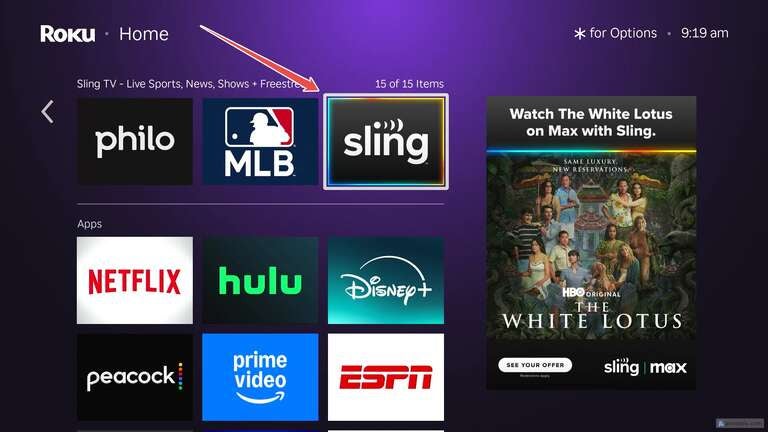
- From your Roku home screen, highlight the app/channel you wish to remove.
![]()
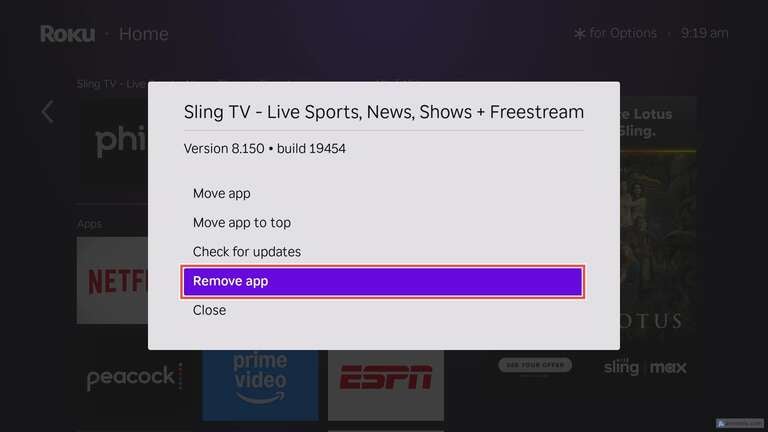
- Press the star (*) button on your Roku remote. Scroll down, and select “Remove app.”
![]()
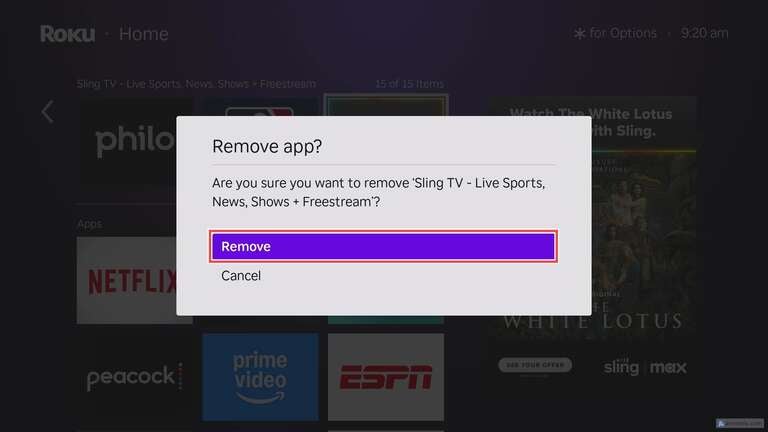
- Confirm you want to remove the app/channel by selecting Remove.”
![]()
There are various reasons you may want to delete a Roku channel. First and foremost, you may not use the app. Maybe it’s a sports-centric streamer that’s out of season or something with an expired trial that you won’t be keeping. Whatever the reason, you can easily delete a channel using the steps above. You don’t need to worry either, as you can easily add channels back without a hitch as often as you need. I typically keep my Roku menu fairly clean and never like to have apps lingering around longer than need be (thanks OCD!).
If you’re stuck on deleting apps or anything else with your Roku streaming device, you can always solicit more help in the Roku community forums.


