Roku vs Google TV: Pick the best device for you
Roku vs Google TV: Pick the best device for you
Both Roku and Google TV offer easy access to top streaming apps. What else do they have in common, and what are the differences?

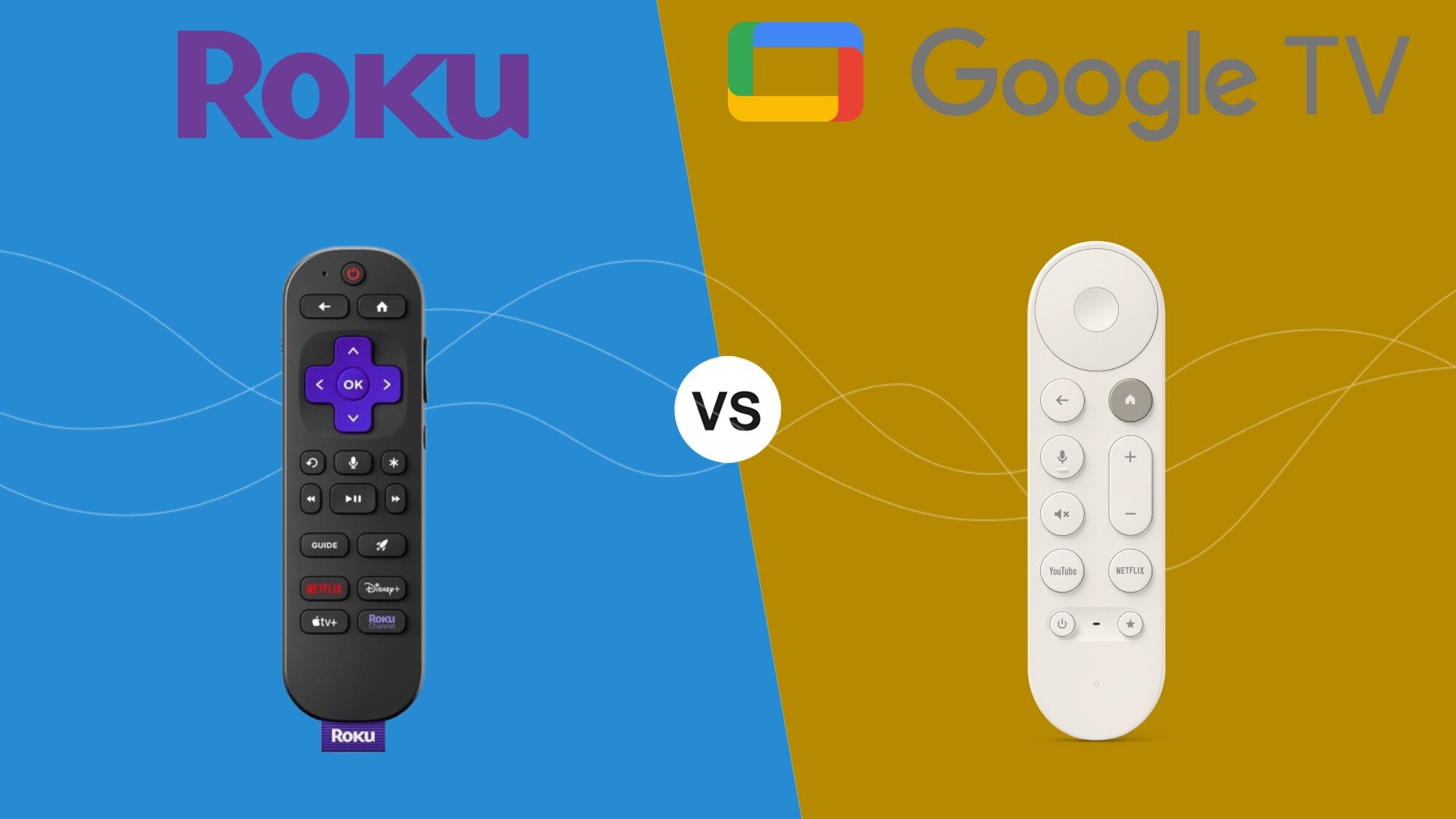
The phrase “Streaming Wars” is traditionally employed to refer to the battle for supremacy between on-demand services like Disney+, HBO Max, and Netflix. But there’s another battle raging in streaming: the war between streaming device manufacturers to be the top device used in American households.
Roku has worked hard to make a name for itself as a reliable, device-agnostic streaming player that will fit into just about any living room. Whether customers need only a simple HD streaming player or want a device with all the bells, whistles, and other features they could ask for, Roku makes a dongle for everyone.
Google licenses its Google TV operating system to other manufacturers for use on their smart TVs, just as Roku does. But unlike Roku, Google is only selling one model of streaming player directly: the Google TV Streamer 4K. It’s a higher-end device, specifically made for serious TV watchers.
So, which of these TV operating systems is the best choice for your needs? At The Streamable, we believe in making such choices as easy as possible. Find out everything you need to know to make your choice between Roku and Google TV below!
Roku vs Google TV: Which is right for you?


2026 devices
Roku
- Roku Streaming Stick HD
- Roku Streaming Stick Plus
- Roku Streaming Stick 4K
- Roku Ultra
- Roku Streambar SE
| Stick | Stick Plus | Stick 4K | Ultra | Streambar | |
|---|---|---|---|---|---|
| Audio | Digital Stereo | Dolby Pass-through | Dolby Pass-through | Atmos Decode | Built-in |
| Video | 1080p HD | 4K HDR10 | 4K Dolby Vision | 4K Dolby Vision | 4K HDR10 |
| Remote | Voice Remote | Voice Remote | Voice Remote | Voice Remote Pro 2 | Voice Remote |
| Storage | 2GB | 4GB | 4GB | 4GB | 4GB |
| Connectivity | Wi-Fi | Wi-Fi | Wi-Fi | Wi-Fi & Ethernet | Wi-Fi & Bluetooth |
Google TV
| Google TV Streamer | |
|---|---|
| Audio | Dolby Atmos |
| Video | 4K HDR and Dolby Vision |
| Remote | Google voice remote |
| Storage | 32GB |
| Connectivity | Wi-Fi & Ethernet |
Comparing remotes
The Roku remote doesn’t overload an owner with buttons, but it also offers all the essentials. It comes with a D-pad for navigation, Home and back buttons for a quick step back to the last page, or to the home screen, as well as playback controls. A built-in settings button cuts down the need to scroll through menus, and dedicated shortcut buttons let the owner open streaming apps like Disney+, Netflix, and others with just a click. A volume rocker on the side allows viewers to adjust their sound output, and a prominently placed microphone button helps viewers access the Roku voice assistant with ease.
The Google TV remote is laid out in a similar way, with fewer shortcut buttons near the bottom of the device. The power button is also at the bottom of the Google TV Streamer’s remote, but it has one advantage that many Roku remotes lack: a programmable button that allows users to pick the shortcut activated by its use.
Programmable shortcut buttons are only available on the Roku Voice Remote Pro, which comes standard with the Roku Ultra. That’s the most comparable Roku device to the Google TV Streamer 4K in price, so it makes sense that the remote features are so similar.
With the exception of programmable buttons, there aren’t many differences between the Roku remote and the Google TV Streamer’s. Both will make navigation around your streaming player’s operating system easy, so don’t let your decision between one device or the other rest on the remote.
UI and navigation
While there are some differences between the Google TV user interface and that of Roku, there are a lot of similarities as well. Either will be easy enough to get used to after a few days of use, even if it feels a little strange at first.
Roku makes it clear that your downloaded apps are the most prominent items to display. Turning on a Roku device calls up its user-friendly, customizable grid of app badges that will help the owner find their favorite streamer quickly. A vertical menu on the left will help take you to options like “Search” and “Live TV,” while scrolling to the right will bring you to a horizontal grid displaying installed apps.
Simplicity is the name of the game with the Roku operating system, and it plays the part well. It’s easy to change the layout of your apps, and few stumbling blocks that will stand in your way. But this commitment to apps themselves can leave some viewers feeling as if the Roku operating system doesn’t surface enough new TV show and movie recommendations.
The Google TV interface is much more committed to calling up recommendations for its subscribers. Its interface is more tech-forward and more dynamic in general, and though it’s two-dimensional like Roku’s, it feels like a completely different experience.
Instead of a left-hand menu, Google places system-level navigation tabs at the top of the screen. For You is the default page, but there are tabs for Live, Apps, and Library as well. A hero carousel scrolls through new releases and ads at the top of the screen, followed by a row of recommendations for you (including on-demand titles and live TV). Then comes a row of your most-used apps. Scrolling further will surface other recommended content, top sellers, and more videos.
The Live guide may well be the crown jewel of the Google TV operating system. Opening it shows viewers all the live TV channels available from subscription services like Sling TV and YouTube, as well as hundreds of free streaming channels from apps like Pluto TV and Tubi, and Google TV Freeplay. It’s a grid-style channel guide that sorts channels by category, making it easier for users to browse and narrow down the channel they’re looking for.
The Apps tab will help you browse and search for apps; nothing terribly surprising here. The Library tab also allows viewers to sort through their purchased TV shows and movies, and other owned media available through their Google TV. All in all, Google TV offers a more advanced user experience than Roku, but if Roku’s OS can be criticized for being too simple, Google’s might be thought of as too complex. But Google TV allows viewers to rearrange apps, hide content recommendations, and even enable an “Apps Only Mode” to clean up their view if it gets too busy.
User experience can definitely be a deciding factor for customers in picking between streaming devices, and Google TV and Roku are two different ends of the spectrum. Roku’s interface is simple and effective, while Google’s is ultra-modern. There’s an audience for both, to be sure, so make sure you know your own preference when choosing between the two.
Voice
As with its user interface, Roku keeps its voice remote quite straightforward. Quick navigation takes priority over an AI agent that will allow for conversational inquiries with the Roku voice assistant. The Voice Remote Pro has a highly useful remote finder that can be triggered by saying, “Hey Roku, where’s my remote?”
There may be nothing terribly fancy about the Roku voice assistant, but it opens apps, switches HDMI inputs, and finds specific titles very quickly. It doesn’t try to gum up the works by piling on cumbersome AI tools for more nuanced search options.
Once again, Google TV takes the opposite approach. Google TV devices leverage Google Assistant for streaming device control, meaning its AI-powered searches can turn up highly specialized results. The Google Assistant will also aid with smart home device control, allowing users to switch to their connected Google Doorbell or other devices with a simple voice command.
But some Google TV owners report that Google Assistant sometimes needs inquiries to be entered more than once, and general inconsistency seems to be a bigger problem with Google TV devices than with Roku. Google TV devices have a feature-forward voice assistant, but that can lead to some performance problems from time to time.
Features
Free TV
Both Roku and Google TV devices come with easy access to a large selection of free TV. As mentioned above, the Google TV operating system allows viewers to find hundreds of free ad-supported streaming TV (FAST) channels by clicking on its live tab, which collates channels from various sources in one place.
Roku devices do things a little differently. Clicking the Live TV tile on the Roku homescreen will whisk viewers to The Roku Channel, with more than 400 FAST channels, and even on-demand originals.
Viewers can also navigate through programming hubs like the Sports Zone on The Roku Channel, which will show viewers live sports they can watch on subscriptions available through Roku, free sports content, schedules, and more in one place.
App Ecosystems
Instead of being a more neutral path to your streaming apps, such as Roku is, Google TV feels more like the nerve center of your smart home setup. Any device powered by Google Home will integrate well with your Google TV device, and the more devices you connect, the more control you can exert. Import photos and videos from your Google account, connect your Android phone and make video calls using your Google TV and Google Meet, and download all the top streaming apps on the market.
Roku works well with all home assistant devices, since it doesn’t have nearly as big a presence in the smart home market as Google. But you can also use it to download top streaming apps, and its Private Listening mode is an awesome way to turn your streaming session into a more cinematic experience.
Gaming
Roku customers won’t be able to use the streaming device to download cloud gaming services and play without needing a console, as streaming players like Amazon Fire TV and Apple TV can do. But Roku Pro Series TV sets are a perfect monitor for any gaming setup, with a 120Hz refresh rate and an auto game mode with incredibly low input lag.
The Google TV Streamer 4K can absolutely be used for game streaming, with services like NVIDIA GeForce Now available. Customers can connect a game controller to the Google TV Streamer 4K via Bluetooth and transform it into a powerful — though not as powerful as traditional consoles — gaming device.
Which should you choose?
As we’ve mentioned, there’s a clear customer base for both Roku and Google TV devices. Customers who love an easy-to-access TV experience that allows them to jump into their favorite apps as fast as possible will love what Roku brings to the table. It provides a simple experience that has made its devices incredibly popular in the U.S., without asking too much of owners.
The Google TV experience follows a more-is-more philosophy. It packs in features like AI assistants and gaming integrations, and provides a more modern, tech-first user interface. Some may feel that the Google TV OS tries to do too much, but others will love how advanced Google TV devices are.
There’s certainly no wrong choice between Google TV and Roku, but there is a clear market for each device. If you value simplicity, Roku is the winner for you. If you’d rather have an ultra-modern experience every time you turn on your player, go with Google TV.