How I use smart home tech to create the perfect streaming experience
How I use smart home tech to create the perfect streaming experience
Having a smart home is so much more than just video doorbells and automated lights.


I’ve been a smart home nerd for as long as I can remember. My first real taste of geekdom came around 2012 with a Nexia hub — a modest start, but it was enough to spark a fascination that’s only grown stronger over the years. Eventually, I transitioned to SmartThings, slowly building a more capable system. I added connected locks, cameras, and door sensors, gaining more control and visibility throughout my home. It was a solid setup, but everything changed when I discovered Home Assistant.
With Home Assistant, I wasn’t just replicating what I had done before — I was unlocking a whole new level of customization and automation. Suddenly, the possibilities were nearly endless. From detailed presence detection to multi-condition automations, I could fine-tune my smart home in ways I hadn’t imagined before. However, one of the biggest game-changers came when I learned how it could help enhance my streaming experience. Here’s how I went full nerd and transformed my smart home into the ultimate companion for watching TV and movies.


Many people enhance their streaming experience to some extent — be it with a larger TV, surround sound, projector, or even fancy bias lighting to set the mood. These are all great options to make your streaming more enjoyable, but as a smart-home fanatic, I couldn’t get by with just the basics. Let’s take a spin through all of my current enhancements and how they’ve taken my streaming to the next level.
What is Home Assistant?
Home Assistant is an open-source smart home platform that works across multiple ecosystems. Unlike Apple HomeKit or Samsung SmartThings, you can use almost any manufacturer’s product, from eero and Amazon to Sonos and Philips Hue. That being said, Home Assistant (HASS as it’s typically called) isn’t for the faint of heart. It’s much more of a full-time hobby than a part-time smart home setup, so it requires a commitment. I consider myself a pretty techy guy, and I put off switching from SmartThings to Home Assistant for nearly two years because of how intimidating it was, but once I was bold enough to try it, I never looked back.
→ Find out more about Home Assistant and how to get started here
Screens
My current TV of choice is the Hisense 75” U6G 4K TV (it’s since been discontinued from what I can tell, but updated models are available. This replaced an old 56” Samsung TV that slowly died on me, and I’ve been extremely happy with it. It’s an Android TV, but surprisingly, I don’t use the smart features very often, mainly because I’m a roku guy through and through. The TV has just enough settings that I can tweak the picture to my liking, and I think it looks great.
I have a Valerion VisionMaster Pro 2 for movie nights that projects directly on the wall over my TV at about 170” x 100”. I thought the jump from my 56-inch TV to a 75-inch one was huge until I got this projector. (Check out the image below to get an idea of the picture’s size compared to my 75” TV.)
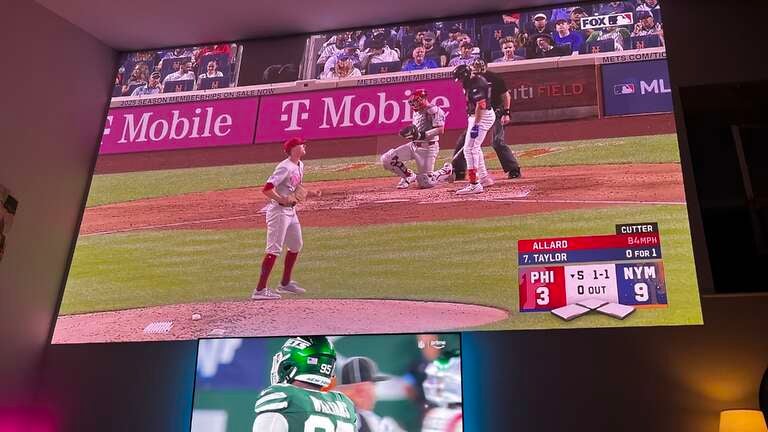
And unlike what you probably expect from a projected image of that size, it’s not a dark, unclear, out-of-focus picture, either. The image is fantastic and wows me every time I fire it up (more on the projector in an upcoming review). For the tech geeks, the Valerion VisionMaster Pro 2 is a 4K RGB triple laser projector with 2500-3000 ISO lumens, 10% Rec.2020 color gamut, and 15,000:1 contrast ratio. It’s a beast. It’s powered by Google TV, which is fine for my use. Since I’m really only firing it up for movie nights or sports, I haven’t bothered to pop a Roku in it, though with my new Roku Streaming Stick on hand, I just might do that soon.
I’ll get into it more later, but the project is connected to Home Assistant as well, letting me create whatever automations I need based on the state of the media that’s playing. I also have a smart switch connected to the projector outlet, so I can power it off when not in use, as the Roke remote for my soundbar also controls the projector, and I was constantly turning both on or off when I didn’t want to.
Sound
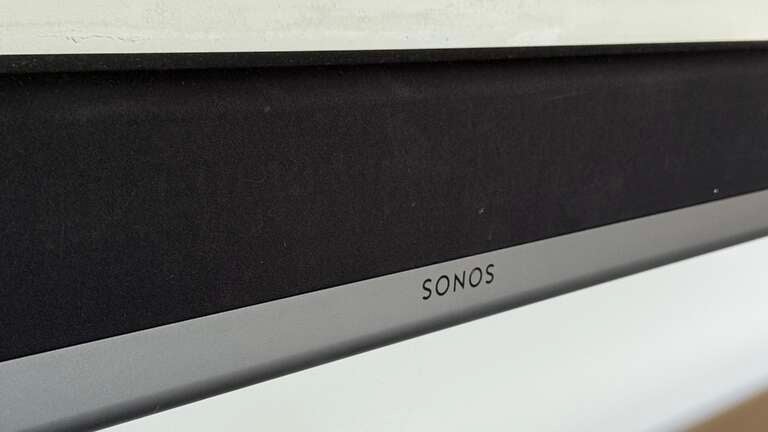
To get the best sound out of both the TV and projector, I’ve gone all-in with Sonos (for better or worse), and honestly, I have very few complaints. My current surround-sound setup includes the original Playbar as the front soundbar, a pair of Play:1s as dedicated rear surrounds, and the first-generation Sonos Sub for low-end punch.
While the Playbar is definitely showing its age — it lacks support for Dolby Atmos and only connects via optical — it still delivers solid, room-filling sound, especially when paired with the sub and surrounds. I’ll continue using the Playbar until it stops working, but a better option for those getting into it would be the Sonos Arc.
Sonos has had its ups and downs lately regarding software updates and product transitions, but it performs reliably for my setup. Once it’s initially dialed in, there’s virtually no maintenance or fiddling aside from adjusting audio output settings on whatever streaming device I’m using (usually Roku, in my case). The convenience of wireless multi-channel audio combined with the spatial immersion of surround sound really enhances the overall viewing experience, whether I’m watching a movie on the projector or catching up on shows through the TV.
The subwoofer was the game-changer in this setup, but even just adding rear surrounds can make a huge difference.

Sonos also connects to Home Assistant and gives plenty of control and integration. I can toggle nearly anything on my Sonos system through HASS and set up integrations to play or pause music, change the volume, group or ungroup speakers, and more. I can to toggle on speech enhancement or night audio (both great Sonos features), but I don’t need to remember to turn them off either. I have an automation set up through Home Assistant that automatically toggles them back off at 2 a.m. daily and resets the volume and any groupings from the previous day.
Beyond streaming, I can also use the Home Assistant app to control my music throughout my house, which is a lifesaver given the current state of the Sonos app.
Lighting
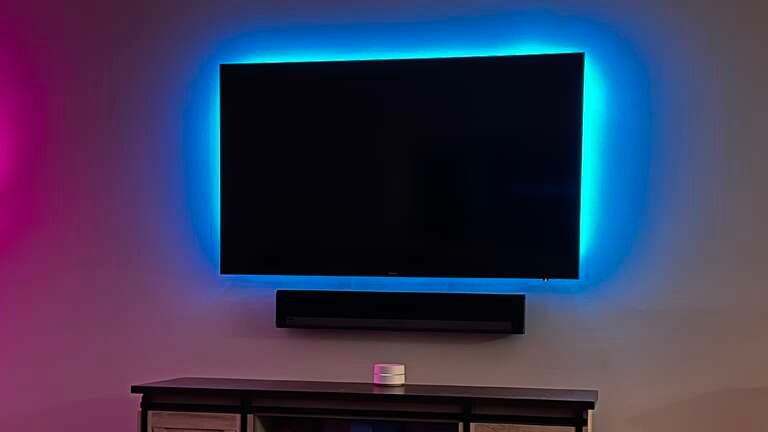
I don’t have anything too crazy for lighting. I use a cheap LED strip as bias lighting behind my TV, and it powers on and off with the TV. I haven’t yet made this smart; I typically leave it on a subtle teal to give the TV a sleeker look. There are plenty of options to add a smarter LED strip to change colors through various automations.
My living room has two lamps on either side of the TV that illuminate the whole room, but they can be a bit too much at night, which was my first deep dive into how to automate my streaming experience. When I play anything via Roku on my TV or through the Android-powered projector, Home Assistant recognizes that it has changed from idle to active and will trigger my lights to automatically dim after about 10 seconds. This keeps the room perfectly lit for watching movies and shows at night, and I don’t have to manually change the lights at all. When I stop or pause whatever I’m watching, the lights automatically trigger back to their previous state, illuminating the room again.
Some other nerdy flags are within this automation, like not triggering any of this before 8 p.m. or, If I have friends over, I can toggle a virtual button within Home Assistant to disable this automation altogether if we’re watching sports, for example, and don’t want the lights to dim when anything is playing. I also have the ability to trigger any of my other smart home devices, or even do things like pause the TV when the doorbell rings or the dog needs to be fed. Endless possibilities.
Universal Remote
Years ago, I used the Harmony Ultimate Home to control various things across my dwelling, but Home Assistant now serves as the perfect customizable replacement for any universal remote. I can control everything from my TV to projector to Roku to Sonos speakers and set up a dashboard customized precisely for what I need, always ready on my phone, tablet, or computer. All my controls are at my fingertips, and I can easily swap between services, change the volume, turn my lights on or off, and much more.
Within my Home Assistant dashboard, I have a visual display of what’s playing on my devices and the audio format. This display also gives me easy access to controls for the Roku (or Google TV) and my Sonos Playbar, so I can play and pause whatever I’m watching and adjust volume, toggle speech enhancement or night mode, and more, all from one place.
I could go the extra step and get any sort of HASS-compatible remote as well. I already use various remotes for lighting around my house, so there’s no reason I couldn’t do the same for a TV remote. Not quite there yet, but it’s on my to-do list!
Automating the future
The beauty of the all-in-one Home Assistant ecosystem is that I can automate nearly anything within my smart home to enhance my streaming experience further. If I had motorized shades for my living room window, I could easily make them close when playing media. Or stop playing whatever I’m watching and turn on the lights if the doorbell rings. Maybe even pause what I’m watching if one of my kids happens to open their door after bedtime.
I have a millimeter wave sensor that I’ve been toying around with that will know if (and how many) people are sitting on the couch, from which I can also create automation. Get up from the couch to go to the kitchen and grab a snack? Instantly pause my movie and turn on the kitchen lights, then turn them off and resume once I sit down. The list goes on and on.
As I said earlier, Home Assistant isn’t just a smart home solution but a full-time smart home hobby. You can’t get into it without expecting to treat it as such, but it’s certainly upped my streaming (and my nerd house) 1000%.
Shop Home Assistant