How do you use Amazon Music on your Alexa device?
How do you use Amazon Music on your Alexa device?
Want to use your Amazon Music subscription with Alexa devices? We’ll explain what you need to know here.

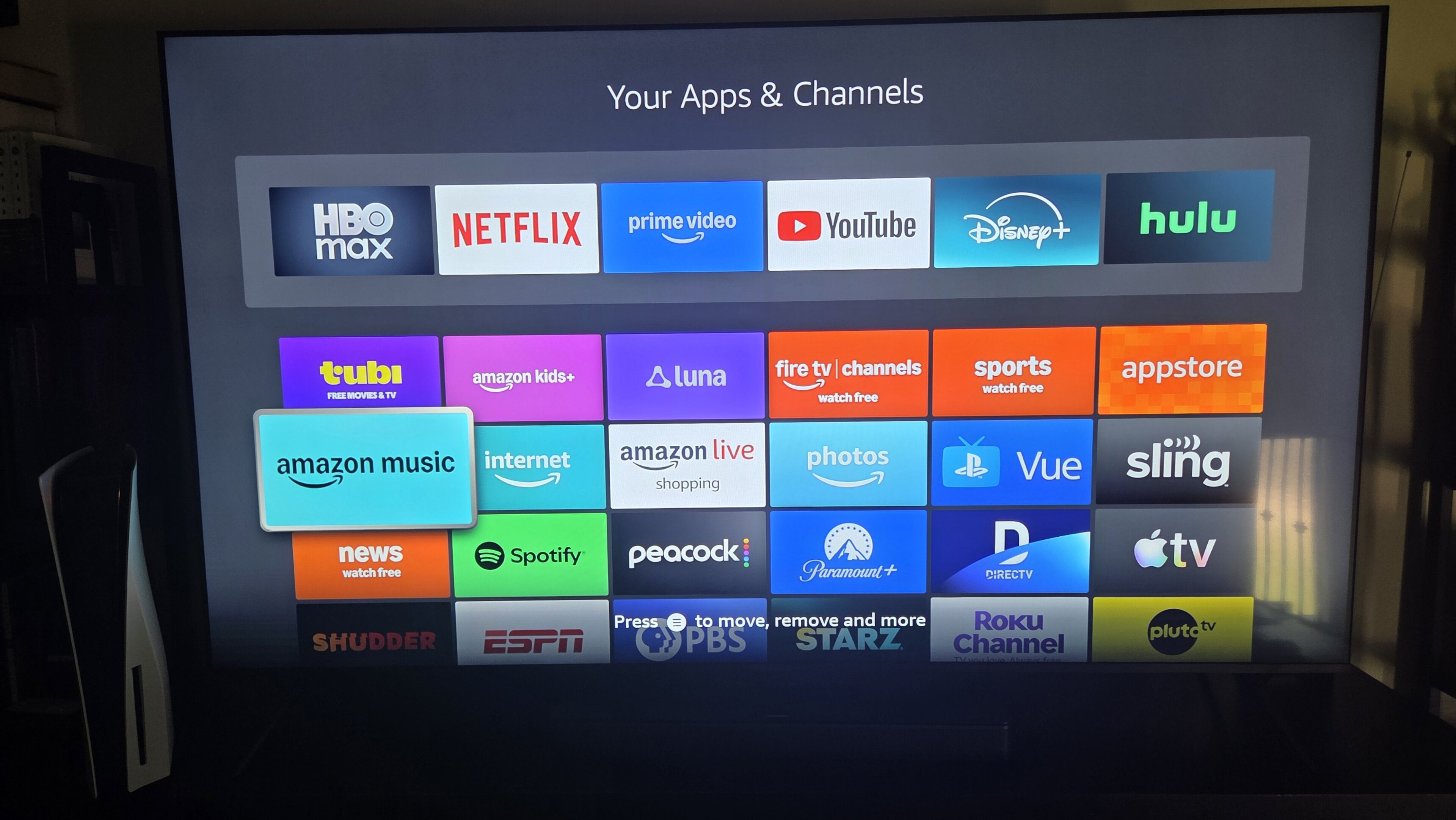
One of the main advantages of purchasing all your smart devices from a single company is knowing that they’ll all work well together. Amazon makes a host of smart gadgets that are made to communicate; its Fire TV smart TVs and streaming players work quite well with Amazon Echo speakers to help create a surround-sound feel when watching TV.
Does other Amazon software work as well with Amazon hardware? What about Amazon Music? Can you listen to your account using the Amazon Alexa home assistant? We’ll explain everything you need to know below.
Everything you need to know about using Amazon Music with Alexa
How to connect Amazon Music to your Alexa devices
You can absolutely use Alexa-equipped devices such as Fire TV sticks and players, and it only takes a few steps. Make sure you have the Alexa app downloaded on your mobile device.
- Open the app.
- Click More in the bottom-right corner.
- Select Settings.
- Scroll to Alexa preferences, then Music & Podcasts.
- Tap Link New Service, and choose Amazon Music.
- Follow on-screen prompts to link your account.
How to listen to Amazon Music on Fire TV

You can easily listen to the Amazon Music app on your Fire TV; in fact, many Fire TV devices have the app preinstalled. If it isn’t, you’ll have to download it from the Fire TV app store.
- Open the app using your remote.
- Log in with your Amazon credentials if prompted.
- Start listening!
What commands can you give Alexa when using Amazon Music?
If you have an Echo speaker or an Amazon Fire TV remote that comes installed with the Alexa voice assistant, you can use it to control your Amazon Music account without having to fumble with your remote to listen.
Use Alexa to give the following commands with Amazon Music:
- Play, pause, or rewind tracks.
- Skip sings.
- Adjust volume.
- Shuffle tracks.
- Search for specific songs, artists, or albums.
- Play genres of music.
- Create playlists, including AI-generated lists.
Can you play Amazon Music on multiple Alexa devices at once?
Yes, you can stream Amazon Music on multiple Alexa devices using its Multi-Room Music feature. This will let you play the same song on multiple Alexa-equipped devices at once.
Here’s how to set that up:
- Open the Alexa app on your mobile device.
- Select Devices, then the Add icon.
- Choose Combine Speakers, then Multi-Room Music.
- Select the devices you want to group for multi-room playback.
Then, just tell Alexa to start playback on the song you want to pipe across your home. If you want to be able to listen to different songs on multiple Alexa devices at once, you’ll have to have an Amazon Music Unlimited Family plan. Then, each individual user will have to link their account to the Echo device they want to use, as instructed above.
Can you make Amazon Music your default music app on Alexa?
Yes! It’s quite easy to make Amazon Music your default music app with Alexa. Doing so means you can give generic commands like “play romantic music,” and Alexa will automatically pull its chosen track from Amazon Music.
To make Amazon Music your default music service on Alexa:
- Open the Alexa app on your phone.
- Tap More, then Settings.
- Select Music & Podcasts.
- Under Default Services, tap Change, then select Amazon Music.
Do you need an Amazon Music subscription to listen on Alexa?
You will need an Amazon account to use Amazon Music with Alexa-powered devices. Otherwise, you will not be able to link that account to your Alexa and listen to it on your devices. However, you will not need to sign up for a paid Amazon Music Unlimited subscription to listen with Alexa; the Amazon Music free tier is also compatible with the home assistant.