How to use your iPhone as a Roku remote
How to use your iPhone as a Roku remote
Want to start using fewer devices when you watch TV? We’ll explain how to use your iPhone as a Roku remote here.

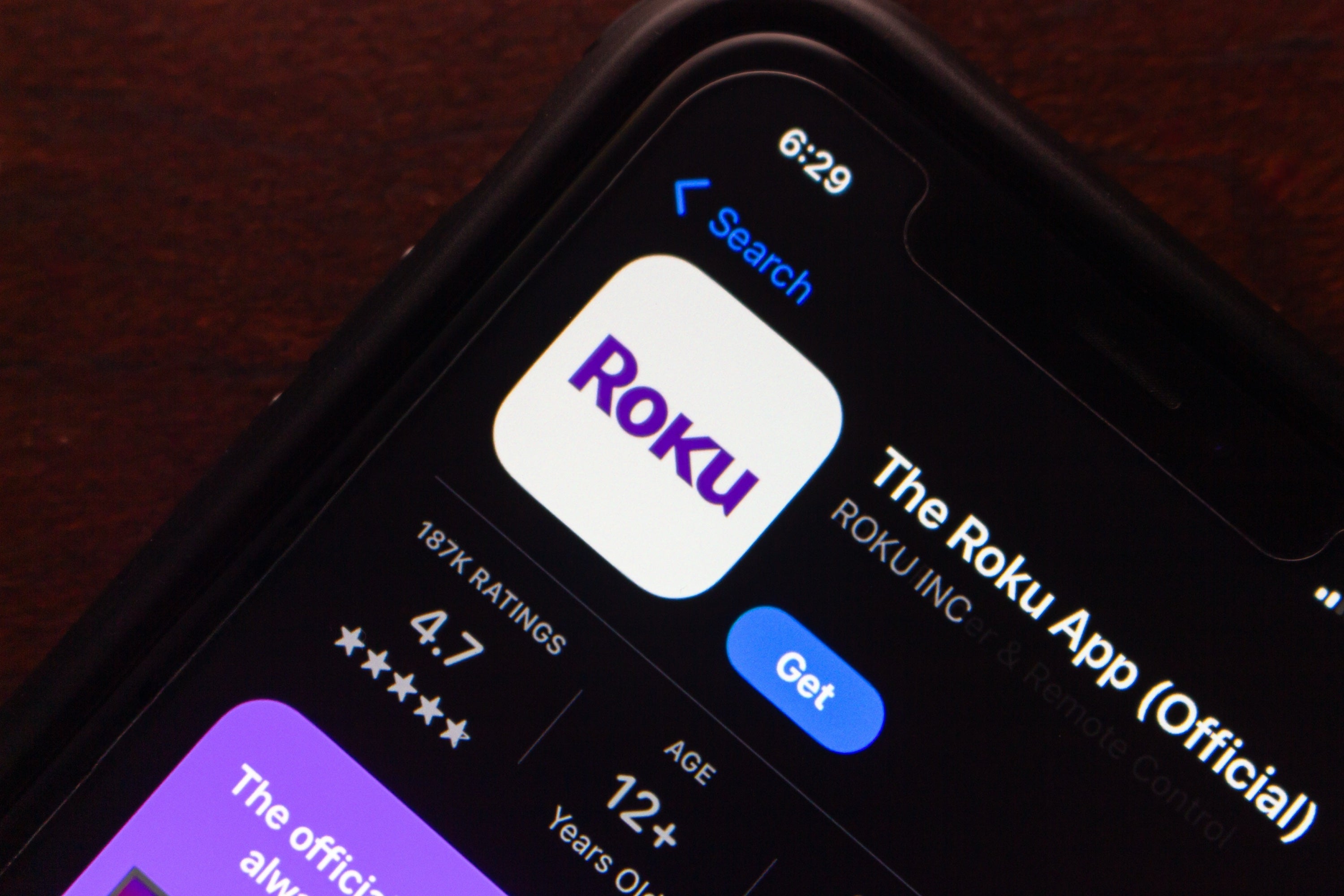
Modern technology is a wonderful thing. Not only can you use a modern smartphone like the iPhone to make voice and video calls and send texts, but you can use it to browse the web, take professional-grade photos and video, and even control other smart devices around your home. Roku streaming players come with a decent amount of cross-device compatibility; viewers can connect wireless headphones to Roku devices to listen privately via Bluetooth, for example. But can you use your iPhone to control your Roku device? We’ll explain what you need to know below.
What you need to know about using your iPhone as a Roku remote
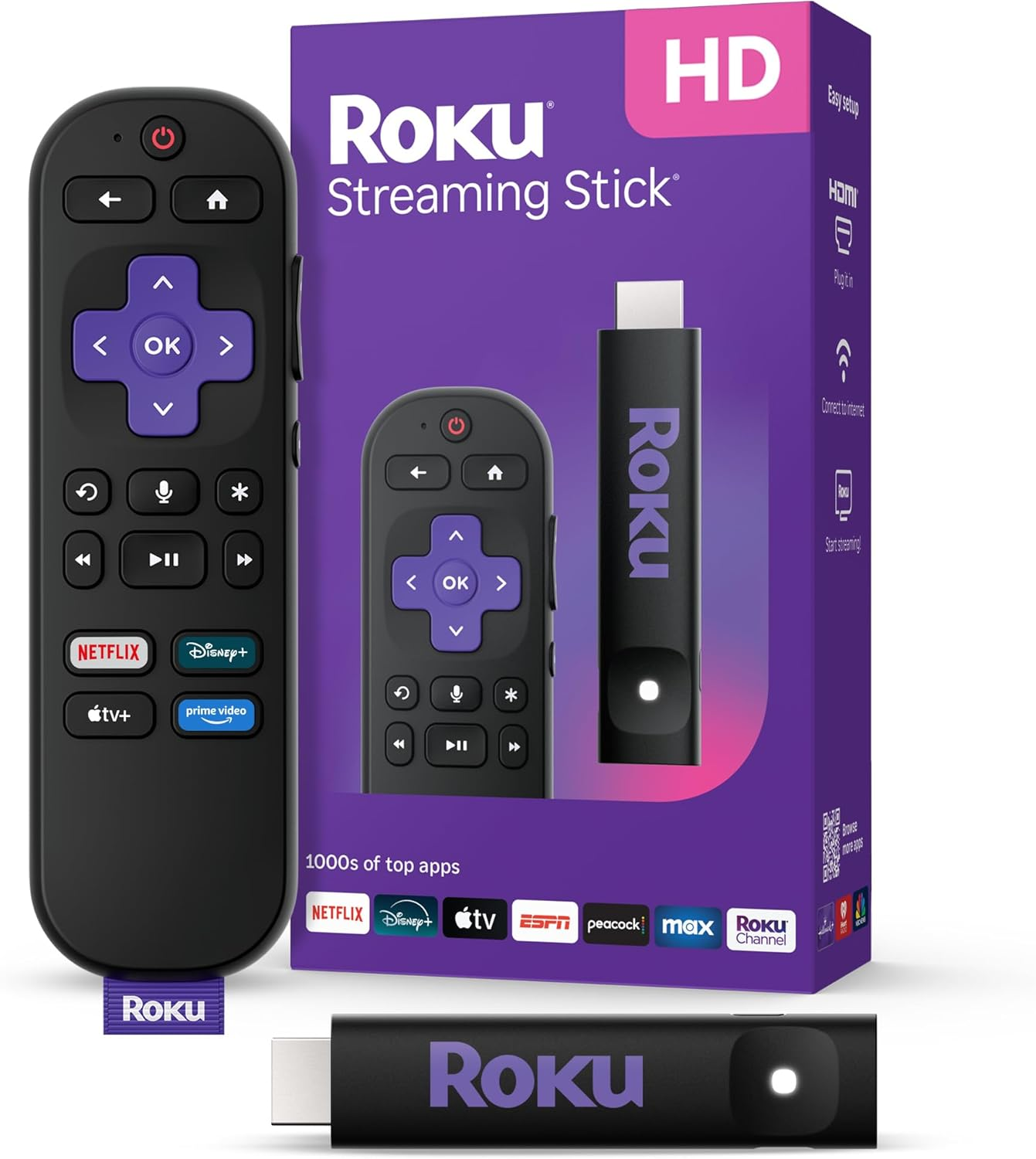
Roku streaming players
From $40
Can you use your iPhone as a Roku remote?
Yes, you can easily use your iPhone as a Roku remote if you download the official Roku Remote app on the device. You’ll need iOS 14 or newer to support the Roku Remote app, but it’s free to download from the Apple App Store, and usually installs in just a few minutes.
Can you control TV volume with an iPhone Roku remote?
Yes, the iPhone version of the Roku remote has volume controls. As long as your TV supports HDMI-CEC, you will be able to turn your TV up and down while using your iPhone as a Roku remote.
How to set up the Roku remote in your iPhone
- Download the official Roku remote app from the Apple App Store.
- Make sure your phone is using the same Wi-Fi network as your Roku.
- Open the Roku remote app on your iPhone.
- Sign in to your Roku account.
- Allow the app to access your local network.
- Tap Devices at the bottom of the screen to select your Roku device.
What controls does a Roku remote on iPhone have?
The digital iPhone Roku remote will have as many controls as the traditional remote. This includes:
- Directional pad and remote button.
- Home, Guide, and back buttons.
- The Star button.
- Private listening mode.
- Playback controls and volume controls.
- Voice search and keyboard buttons.
Can you use Siri with your Roku remote on iPhone?
Yes, you can use Siri voice commands while using your iPhone as a Roku remote.
Once your iPhone is connected to your Roku device:
- Tap the settings icon in the top-right corner.
- Select Siri Shortcuts.
From there, you can choose available actions like launching the remote, playing or pausing content, or controlling the Roku’s power with Siri. You can even set a custom activation phrase to turn on the Roku with whatever voice command you want.
Why you might want to use your iPhone as a Roku remote
There are several advantages to using your iPhone as a Roku remote, including the ability to input text on your TV screen with your phone’s keyboard instead of having to use the traditional remote to navigate around a big, clumsy keyboard on the TV.
Using your iPhone as a Roku remote also streamlines your watching experience, negating the need to search for the Roku remote when it’s lost or hiding. Use voice search, private listening, and launch your apps from a grid with ease with the Roku remote app on iPhone.
It’s a simple process to download the Roku remote app on any modern iPhone, and connecting your phone to your device is just the process of a few minutes. Use the instructions above, and soon you’ll be controlling your Roku device with your iPhone like a pro.
Roku streaming players
From $40
Roku streaming players make it easy to access your favorite streaming apps in one simple interface. With options for HD and 4K viewing, there’s a Roku device for every budget and setup.