What is HDMI-CEC?
What is HDMI-CEC?
You may never have heard of HDMI-CEC, but it’s a great way to control mutliple devices through a single remote!

The humble HDMI cord makes so much of home theater construction possible. HDMI connections have a wide range of uses, including allowing viewers to connect streaming players, video game consoles, soundbars, and more to their smart TVs, to arrange their media suite to their exacting specifications.
But you may not know that devices that are all connected via HDMI speak a similar digital language, at least in a specific sense. Viewers who enable HDMI-CEC can actually control key functions of multiple HDMI-connected devices with a single remote for a much more integrated experience. But what is HDMI-CEC really, and what else do you need to know about it? We’ll explain it all below.
Everything you need to know about HDMI-CEC
What is HDMI-CEC?
HDMI-CEC stands for “high-definition multimedia interface - consumer electronics control.” It allows viewers to use one remote to control multiple devices that are connected to a TV using HDMI cables; HDMI-CEC is what allows viewers to control the volume or power on their TV with their Amazon Fire TV or Roku streaming remote.
Another great feature is that HDMI-CEC can even switch inputs on supported TVs. If you turn on a gaming console or streaming player without powering on the TV first, HDMI-CEC will not only turn on the TV for you, but also switch to the input of the activated device without requiring you to do it.
What is HDMI-CEC called on your device?
HDMI-CEC can be labeled differently on your smart TV or streaming player, depending on what brand you own. See the table below to find out what name HDMI-CEC settings will be listed under on your device.
| Manufacturer | Terminology for HDMI-CEC |
|---|---|
| Amazon Fire TV | HDMI-CEC Device Control |
| Apple TV | Control TVs and Receivers |
| Google TV | HDMI-CEC or Control Other Devices (CEC), depending on device |
| Sony | Bravia Sync or Bravia Link (older devices) |
| LG | SimpLink |
| Samsung | Anynet+ |
| Panasonic | VIERA Link or HDAVI Control (older devices) |
| VIZIO | CEC |
| Roku | 1-Touch Play |
| Philips | EasyLink |
How to toggle HDMI-CEC on top devices
HDMI-CEC ability is usually enabled through your smart TV’s settings. Check out how to turn on HDMI-CEC on each of the varying TV operating systems below. TV operating system menus can change from time to time, so instructions can vary by software version and device.
-
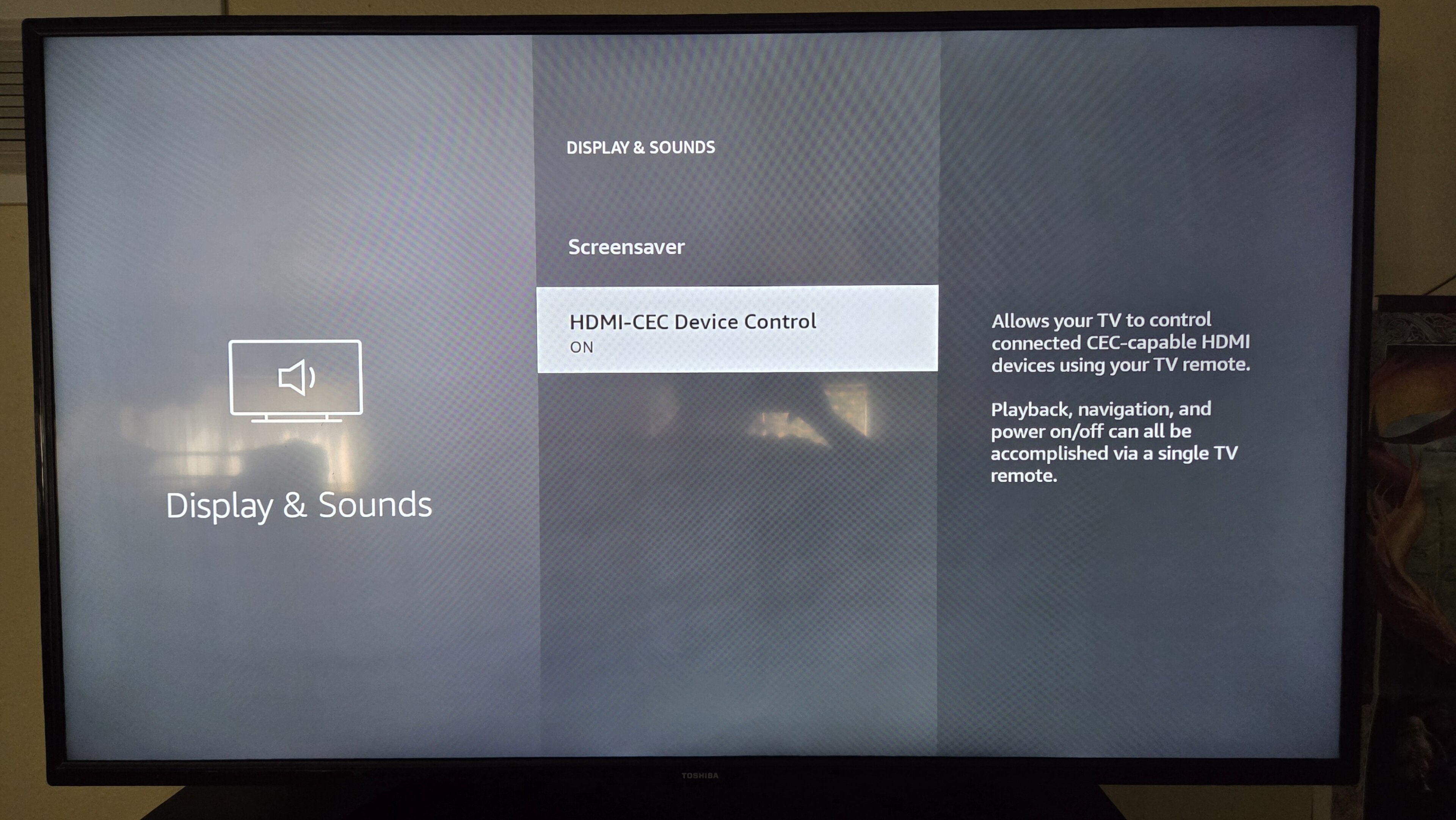
Amazon Fire TV: Open the Settings Menu > Displays & Sounds > Scroll down to Toggle HDMI-CEC Device Control.
-
Apple TV: Go to Settings > Remotes and Devices > Home Theater Control > Control TVs and Receivers, and toggle it to on.
-
Google TV: Open Settings > Channels & Inputs > Inputs, then scroll down to Control Other Devices (CEC)
-
LG: Hold Settings on the LG remote for five seconds > All Settings > General > SIMPLINK (HDMI-CEC) > Toggle to on.
-
Panasonic: Press Menu on the Panasonic remote > Use directional buttons to find Setup > HDMI control > CEC function > On.
-
Philips: Press Home on your Philips remote > Setup > TV settings > Installation > Preferences > EasyLink > Set Master EasyLink, Auto TV, and RC key forwarding to On.
-
Roku: Select Home on your Roku Remote > Scroll to Settings > System > Control other devices (CEC) > 1-touch play
-
Samsung: Press home on the Samsung remote > Navigate to Settings > System > Expert Settings > Anynet+ (HDMI-CEC) > Toggle to on
-
Sony Bravia: Click Home on your Sony remote > Highlight Settings and click > Choose Watching TV > External inputs > Bravia Sync settings > Bravia Sync control
-
VIZIO: Press Menu on the VIZIO remote > Choose System > CEC > Enable.
Which devices support HDMI-CEC?
Nearly all smart TVs, streaming devices, Blu-ray players, video game consoles, and AV receivers built with HDMI ports in the last 10 years or so support HDMI-CEC. The ability is spread across a wide range of consumer electronics and home theater hardware, including:
- Smart TVs and some gaming monitors
- Top streaming players
- Video game consoles
- Soundbars and AV receivers
- Blu-ray players and set-top pay-TV boxes
It’s important to note that desktop and laptop computers do not typically support HDMI-CEC. If you connect a computer to your TV set via HDMI, you should not expect your TV’s remote to control any functions on the computer.
What are the benefits and downsides of HDMI-CEC?
The most obvious upshot of HDMI-CEC use is the ability to use all of your devices with a single remote. No need to keep a basket full of remotes in the storage space of your living room table, and no need to purchase an expensive “universal” remote with too many buttons that has to be programmed. Control the power and volume of your TV, navigate supported menus, and more for several devices with just a single control.
Using HDMI-CEC also negates the need to switch between HDMI inputs and pairs wonderfully with HDMI ARC or eARC for soundbar control. Using ARC or eARC with a soundbar automatically passes audio through the device, bypassing your lower-quality TV speakers. and HDMI-CEC lets you control the soundbar’s power and volume with one remote.
But HDMI-CEC isn’t perfect. Devices being able to power each other on can lead to rogue signals from one or the other; a software update on your console can unexpectedly wake up your TV at 3 a.m. without your say-so, for example. And using HDMI-CEC can lock you into an all-or-nothing control experience; sometimes, you don’t necessarily want to turn off all devices with the press of one button, but with HDMI-CEC, you may find yourself with limited control over which features are enabled individually.
Where to buy HDMI cables
You can purchase HDMI cables from many top retailers, including Amazon, Best Buy, Target, and Walmart. Follow the links below to start browsing deals from these retailers: