Why YouTube TV is still my go-to live TV streaming service
Why YouTube TV is still my go-to live TV streaming service
I’ve used nearly every major live TV streaming service, and YouTube TV is the one I’ve had the hardest time giving up

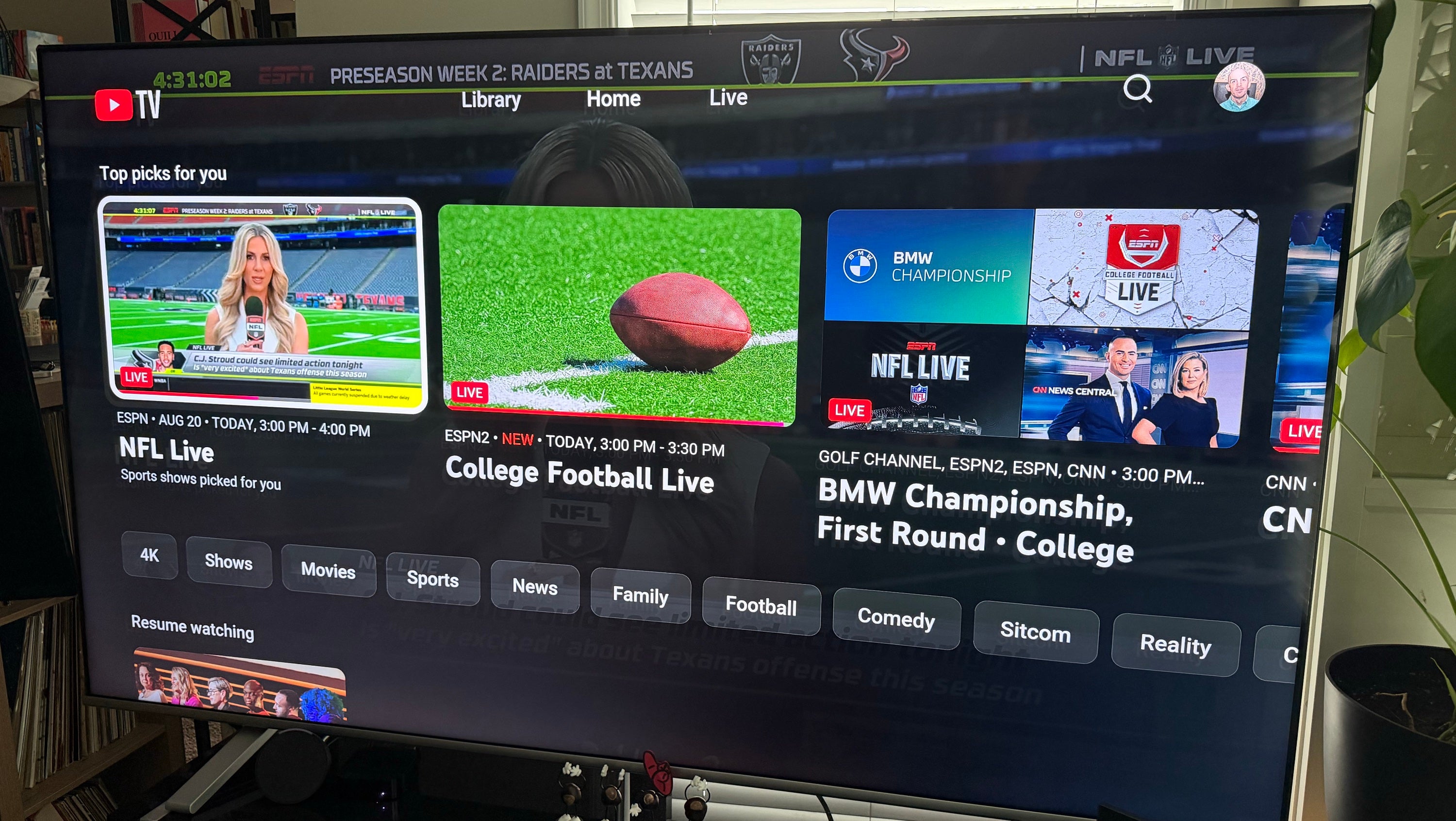
Both in my personal and professional lives, I have at least sampled every major live TV streaming service on the market, at one point or another. I have dabbled with Sling TV and have given considerable time to Hulu + Live TV, DIRECTV (back when it was still DIRECTV STREAM), and YouTube TV. So, whenever people ask me which one I would recommend for them, I feel like I have a fairly substantive level of industry and first-hand expertise to draw from. Obviously, each individual cord-cutter’s needs are going to be different, so I try to tailor my response to their content, budgetary, and use-case specifics.
I have been subscribed to YouTube TV for the last few years, and while I rarely watch live TV outside of sports, I was initially drawn to the service due to its trend-setting multiview. While other services have caught up, to varying degrees, the flexibility to watch up to four college football games per screen (and I have three TVs in my living room during the season), is what has kept me signed up, despite the fact that other platforms offer cheaper, more sports-focused subscription options.
YouTube TV remains the service I recommend most often because its live-TV experience, sports features, and reliability outweigh its baffling approach to DVR and navigation.
Everything you need to know about YouTube TV
The basics you need to know
When it comes to YouTube TV’s core subscription plan, it runs $83 per month and includes more than 100 channels, both of which are fairly standard across the industry at this point. Like the majority of its competitors, a subscription comes with unlimited cloud DVR, three simultaneous streams, and up to six individual household accounts. That is a far cry from the $35 per month that the service charged when it launched with 40 channels in early 2017, but today, YouTube TV’s channel lineup remains one of the most comprehensive available without moving back to a traditional pay-TV provider.
| Feature | YouTube TV |
|---|---|
| Price per month | $55 to $83 per month |
| Genre-specific plans | Yes |
| Local Channels | Yes |
| Sports Channels | Yes |
| Regional Sports Networks | Limited selection |
| DVR | Unlimited for nine months |
| On-Demand streamers included? | No |
For the most part, I find YouTube TV incredibly easy to use, especially when I am doing the things that I imagine most subscribers are doing 90% of the time: opening the app, finding a live channel, or jumping back into something that I have already been watching. The basic Library, Home, and Live setup is clean, familiar, and relatively intuitive, and I generally prefer YouTube TV’s presentation to the busier interfaces on some competing live TV streaming services.
That said, the deeper you get into the app, the more I start to miss the simplicity of an old-school cable remote. YouTube TV tends to tuck a lot of functionality into on-screen menus, so things that should feel instantaneous — jumping back to a previous channel, changing certain playback settings, navigating DVR controls, or moving around a live broadcast — can take more clicks than I would like. It’s not difficult, exactly, but there are plenty of moments when I find myself pressing down, over, down again, and selecting another menu just to accomplish something that used to require only a single keystroke when I was a kid. For someone like me who watches a lot of live sports and tends to bounce between games, channels, and recordings, those extra button pushes are probably the biggest recurring annoyance with the service.
Where YouTube TV has consistently impressed me more is with the actual streaming experience. On a strong internet connection, I rarely think about the fact that I am streaming television at all, which is probably the best compliment I can give any live TV service. Channels generally load quickly, the picture is stable, and sustained buffering is not something I regularly deal with.
Of course, the quality of the feed still depends on the network itself, so not everything is suddenly going to look like pristine 4K just because you are watching it on YouTube TV; plenty of channels are still delivered in 720p or 1080p. I will occasionally see a brief drop in resolution, a hiccup after fast-forwarding through a recording, or the odd buffering issue, but those have been the exception in my experience rather than the rule. Admittedly, it does help that I stream on my main TV with arguably the best streaming device available, an Apple TV 4K box.
The bigger consideration for me, especially with sports, is the live delay. YouTube TV intentionally keeps a little bit of a buffer between the actual broadcast and what reaches your screen, which helps keep playback smooth, but it also means that score alerts and social media can sometimes beat your television to the next touchdown or home run by 15 to 30 seconds. There is an option to decrease the broadcast delay, and I appreciate having it, but doing so can make the stream a little more susceptible to interruptions. For everyday viewing, though, I have found YouTube TV to be one of the most consistently reliable live streaming services I have used.
YouTube TV finally embraces the skinny bundle
Earlier this year, YouTube TV began rolling out more than 10 genre-based plans built around four primary programming categories: Sports, News, Entertainment, and Family. Instead of forcing everyone to subscribe to the entire main package, customers can now choose various combinations of those genres.
That includes Sports; Sports + News; Sports + Entertainment; Sports + Family; Sports + News + Entertainment; Sports + News + Family; Sports + Entertainment + Family; News + Entertainment; News + Family; News + Entertainment + Family; Entertainment; and Entertainment + Family.
The standalone Sports Plan costs $65 per month and includes 34 channels, including the major broadcast networks ABC, CBS, Fox, and NBC, the ESPN family of networks, FS1, NFL Network, NBA TV, Big Ten Network, SEC Network, and more. The Entertainment Plan is $55, while Sports + News is $72 and News + Entertainment + Family is $70.
I really like this approach. The frustrating thing about the live TV streaming industry has always been that it was created as an alternative to the bloated cable bundle, only for most services to eventually recreate the bloated cable bundle. At least YouTube TV is now giving customers a meaningful way to shave some money off their bill if they know they aren’t going to watch entire categories of channels.
Even better, these cheaper packages don’t sacrifice the features that make YouTube TV good. They still include unlimited DVR, family sharing, and, most importantly for me, multiview.
Now, a few things to keep in mind: these prices are the regular monthly rates. However, YouTube TV regularly runs rather substantive discounts for new customers. For example, currently, it has the Sports Plan discounted to $55 per month for the first 12 months, before settling in at the $65 rate.
There is also a bit of diminishing returns when stacking these plans. Once you get to one of the $78 three-category plans, you’re only saving $5 per month compared with just taking the entire 100+ channel lineup for $83.
What are all of YouTube TV’s skinny bundle plans?
| YouTube TV plan | Price per month | Channels included |
|---|---|---|
| YouTube TV | $82.99 | 100+ |
| YouTube TV Entertainment | $54.99 | 60+ |
| YouTube TV Sports | $64.99 | 30+ |
| YouTube TV News + Entertainment | $62.99 | 70+ |
| YouTube TV News + Family | $62.99 | 60+ |
| YouTube TV Entertainment + Family | $62.99 | 70+ |
| YouTube TV Sports + News | $71.99 | 50+ |
| YouTube TV Sports + Entertainment | $71.99 | 75+ |
| YouTube TV Sports + Family | $71.99 | 50+ |
| YouTube TV News + Entertainment + Family | $69.99 | 85+ |
| YouTube TV Sports + News + Entertainment | $77.99 | 90+ |
| YouTube TV Sports + News + Family | $77.99 | 70+ |
| YouTube TV Sports + Entertainment + Family | $77.99 | 90+ |
YouTube TV’s multiview is the best in streaming
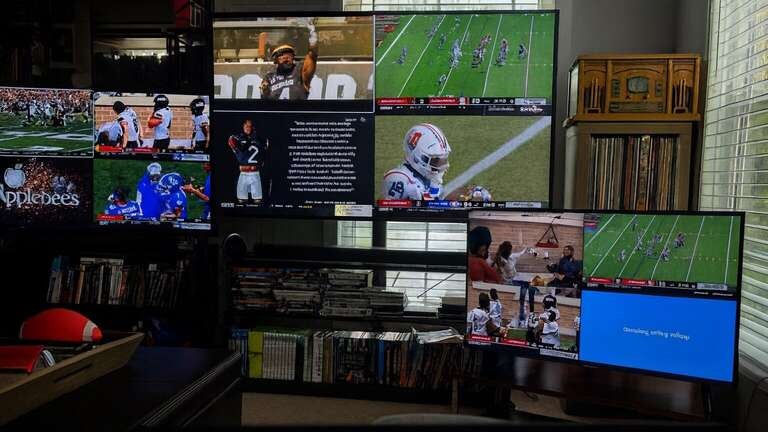
If you watch a lot of sports, I don’t think any YouTube TV feature — or potentially any live TV streaming feature anywhere — is more valuable than Multiview. You can watch up to four live streams on the screen simultaneously, and YouTube expanded the feature this year to allow users to build their own combinations rather than relying entirely on the predetermined groupings the service offered previously.
I realize that this might sound hyperbolic to some, but I simply could not live without this on college football Saturdays. When my beloved Ohio State Buckeyes are playing, obviously that game gets the big screen treatment. But during the 12 noon and 3:30 p.m. ET windows when there are four games that I theoretically need to watch for professional reasons — and definitely not because I have a deeply unhealthy emotional relationship with college football — being able to put all four on one screen is incredible.
The ability to move between games quickly, select which one gets the audio, and then jump into a game full-screen when something important happens, completely changes how I watch sports. Now that YouTube TV lets you build your own multiview with essentially any eligible live programming, it is easily the best implementation of the feature in the industry.
Other services offer their own versions of the Multiview. Fubo has been offering it longer than YTTV has, but because of how much computing power it requires, it has only ever been available with either Apple TV or Roku external hardware.
DIRECTV just announced the launch of its version of multiview, but it only allows fans to stream games in predetermined combinations. Again, this is undoubtedly due to the streaming power required to make this technology work, but YouTube TV has figured out a way to make it work, so that’s where I will be streaming sports for the foreseeable future.
The customizable guide is great; using the guide is not
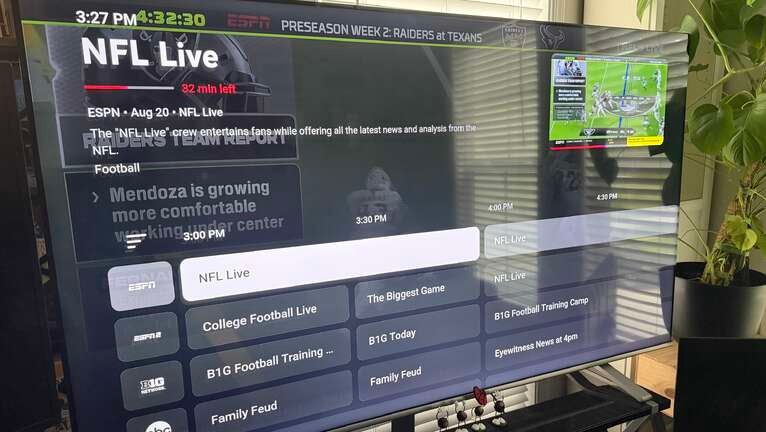
Another feature I love is the ability to customize the channel grid. Instead of accepting whatever arbitrary order YouTube decides channels should appear in, you can rearrange your custom guide and hide networks that you never watch. For me, that means I have my local affiliates and sports networks (and the Hallmark Channel) at the top, and then everything else that I might have some reason to watch underneath them, and then all of the channels that I will never have reason to watch are removed from the lineup altogether. Since I am currently signed up for the 100-plus channel plan, that makes the service dramatically easier to use.
Unfortunately, the actual act of navigating the live guide still isn’t particularly elegant or efficient. There are no traditional channel numbers to punch in, jumping quickly across a long guide can be cumbersome, and going in and out of a specific title in the guide often moves me back to the top, so I have to scroll all the way down just to get back to where I was.
My biggest complaint is about wanting to record something a few days away. This requires me to hold down the right arrow on my remote as the guide slowly meanders to the date and time I am looking for. It’s not a major problem, but it is at least a not-so-minor inconvenience. This is where YouTube TV sometimes feels like Google built an excellent streaming product without fully appreciating some of the boring things that cable boxes figured out decades ago.
YouTube TV’s DVR is both fantastic and infuriating
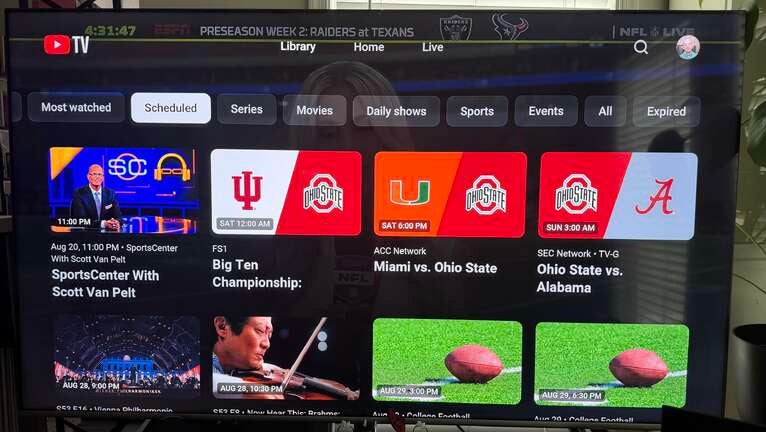
On paper, YouTube TV’s DVR is phenomenal. There is no storage limit, so you can essentially tell it to record everything you might conceivably want to watch and never worry about running out of space. The problem is finding said recordings when you get around to watching them. YouTube TV’s Library mixes recorded and on-demand programming into an interface that can sometimes make locating a particular episode, movie, or game far more difficult than it should be. There is also the regular hassle of recordings not appearing where you expect them to be, only to realize they were saved under a random title that you never would have guessed on your own.
One of the biggest annoyances to me is the difficulty distinguishing between the DVR version of a title and a VOD version. Now, you might initially think, “As long as you have access to the thing you want to watch, why does it matter if it is recorded or VOD?”
Well, my friend, let me tell you. The main reason is that while both almost assuredly have commercials, the DVR version allows you to fast-forward through them, as you would expect for recorded content. However, the VOD version almost always does not. This becomes especially inconvenient when you are not able to watch something from start to finish, as can happen regularly in our busy day-to-day lives. If you watch a VOD version, suffer through half of a movie without being able to fast-forward through the ads, and then come back to finish it later, trying to return to where you left off can force you to sit through all of those commercials again before you finally reach your stopping point.
At that point, I almost always simply give up in protest. I have never been able to figure out how the Library organizes these two disparate types of programs, and I honestly have stopped recording things on YTTV because it has become too much of a pain to navigate.
The recording controls are also strangely outdated. You essentially add a series to your Library, at which point YouTube TV records every current and upcoming airing. There isn’t a normal cable-style option to record only new episodes, keep a certain number of episodes, or establish more granular recurring-recording rules. This is another reason why I have essentially stopped watching any recorded content on YTTV; the platform makes far too much work for me to find what I want to watch for me to deal with. So, I will just go somewhere else and either find it or something else to watch. I understand the philosophy: Storage is unlimited, so why should anybody care how many episodes are recorded? But that misses the point. The issue isn’t storage; it’s organization. Recording 150 reruns of a show doesn’t bother me because they take up virtual hard-drive space; it bothers me because I just want to find last week’s episode without having to wade through a dozen other episodes that I’ve already seen.
Is YouTube TV worth it?
For me, yes. YouTube TV has plenty of annoyances, especially if you are still salty that we have lost the intuitive and effective controls of traditional cable TV. The Library desperately needs better organizational tools, the live guide could be much faster to navigate, and the recording options are surprisingly primitive for a service that otherwise feels technologically ahead of its competitors.
But the things YouTube TV does well are things that I use constantly. Its channel lineup is extensive, the new genre packages finally offer customers some legitimate flexibility, and the customizable guide allows me to build a lineup around what I actually watch. That is all great, but it is simply the icing. The cake is the fact that the streaming quality is consistently solid and the multiview has become such an integral part of how I consume live TV that I genuinely don’t want to watch sports without it.
YouTube TV isn’t perfect. In fact, some of its shortcomings are frustrating precisely because the solutions seem so obvious. But as an actual replacement for cable television — particularly for people who watch a lot of live sports — it remains the live TV streaming service that I would have the hardest time giving up. However, with a few weeks left before the start of the season, I do plan to dive deeper into the Sports skinny bundle to see if the reduced channel lineup is worth it.

YouTube TV
YouTube TV is a live TV streaming service with more than 60 channels for $82.99/month. This plan includes local channels 32 of the top 35 cable channels, and regional sports networks (RSNs) in select markets. The base plan includes more than 100 live channels, including major broadcast networks like ABC, CBS, FOX, and NBC, as well as popular cable channels such as ESPN, CNN, FX, USA Network, and TNT. Local channels are included in most markets, making YouTube TV a full replacement for traditional cable for many viewers.