How to make sure your Apple TV Siri remote always has power
How to make sure your Apple TV Siri remote always has power
The Apple TV remote doesn’t come with changeable batteries, so we’ll show you how to make sure it’s always in working order.

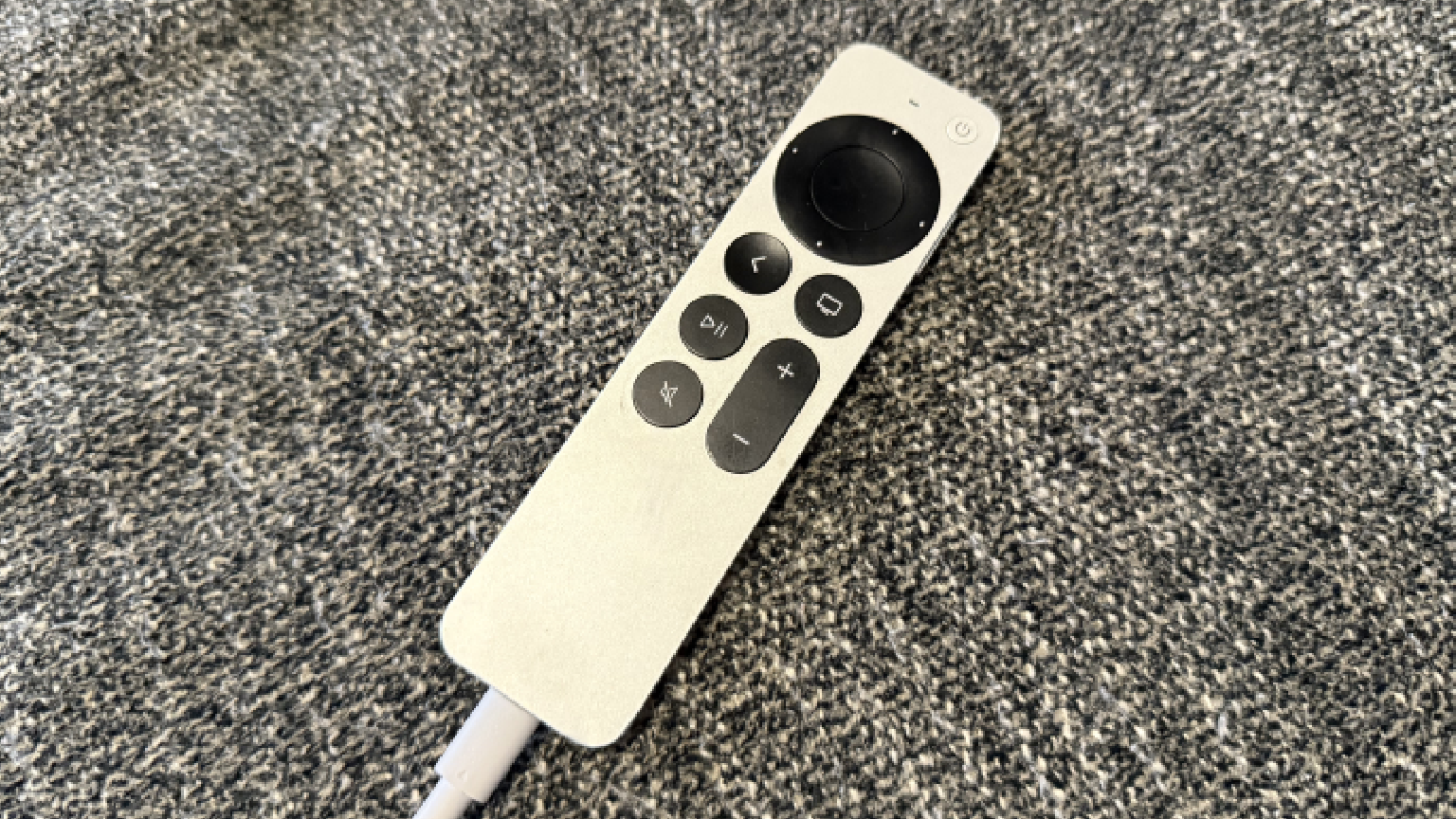
Owning an Apple TV HD or 4K means you have a tech-forward streaming player that allows you to stream top apps, connect additional devices via Bluetooth, rent and purchase top movies, and a lot more. Each new Apple TV comes with a Siri voice remote that will help viewers navigate the device’s interface and control playback.
Having a fully powered Apple TV device is critical to using your streaming player. But how is the Apple TV remote powered? Does it have changeable batteries like Amazon Fire TV and Roku remotes? We’ll explain everything you need to know below.
What you need to know about keeping your Apple TV remote powered

How is the Apple TV remote powered?
The Apple TV remote is powered by an internal rechargeable battery. That puts it in contrast to Fire TV and Roku streaming remotes, which are usually powered by replaceable AAA batteries instead of an internal power source.
This offers both advantages and disadvantages. Obviously, it means owners don’t have to keep an inventory of disposable batteries available to keep their device powered. However, if something goes wrong with the internal battery, it often means that owners have to replace the entire remote, instead of just the batteries.
How to charge your Apple TV remote
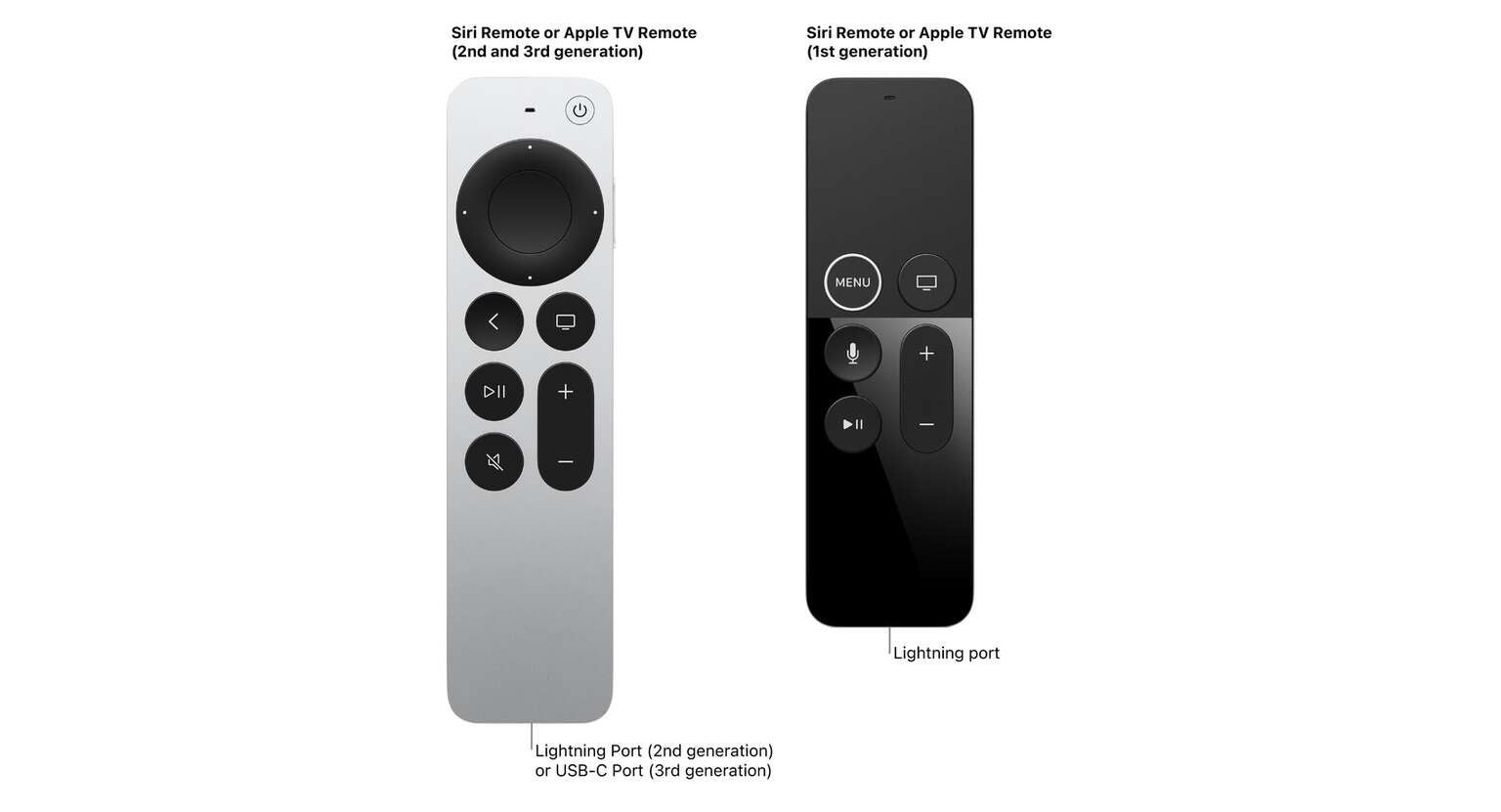
Click image to expand to full size.
The type of charging cable you’ll need for your Siri remote will vary depending on the generation of player you have. Apple TV HD players, as well as first- and second-generation Apple TV 4K devices, use Apple’s Lightning connector. Things changed with the latest model of Apple TV player; the Apple TV 4K 3rd generation remotes use a USB-C port to charge.
To charge your Apple TV remote, simply:
- Connect your charging cable to the wall with a charge block.
- Plug the cable into your Apple TV remote.
How to check the battery level of your Apple TV remote
- Turn on your Apple TV
- Navigate to the Settings menu
- Find Remotes and Devices.
- Click Remote to see the battery level of your device.
In addition, your Apple TV will display a warning message automatically on your screen when its battery is running out.
How often will you have to charge your Apple TV remote?
The internal battery on your Apple TV remote will probably only need to be charged to 100% a few times a year with typical usage. This is more or less equivalent to how often customers with remotes that use changeable batteries find they have to replace those batteries.
Can you use your phone as an Apple TV remote?
If you’re having trouble with your Apple TV remote for whatever reason, you can always use your iPhone as a remote for your player instead. Third-party apps exist for Android devices that will allow you to use your phone as an Apple TV remote as well, but these are often of dubious quality.
To set up the Apple TV remote in Control Center:
- Swipe down from the top-right corner of your phone screen to open Control Center.
- Tap the Add Controls button.
- Tap Add a Control.
- Scroll down to Remote.
- Go back to Control Center, and tap the Apple TV Remote button.
- Tap your Apple TV or smart TV from the list.
- If prompted, enter a four-digit passcode on your iPhone or iPad. Follow any on-screen prompts.