How to use your iPhone to find an Apple TV remote
How to use your iPhone to find an Apple TV remote
Is your Apple TV 4K Siri remote lost? We’ll explain how to find it using your iPhone below.

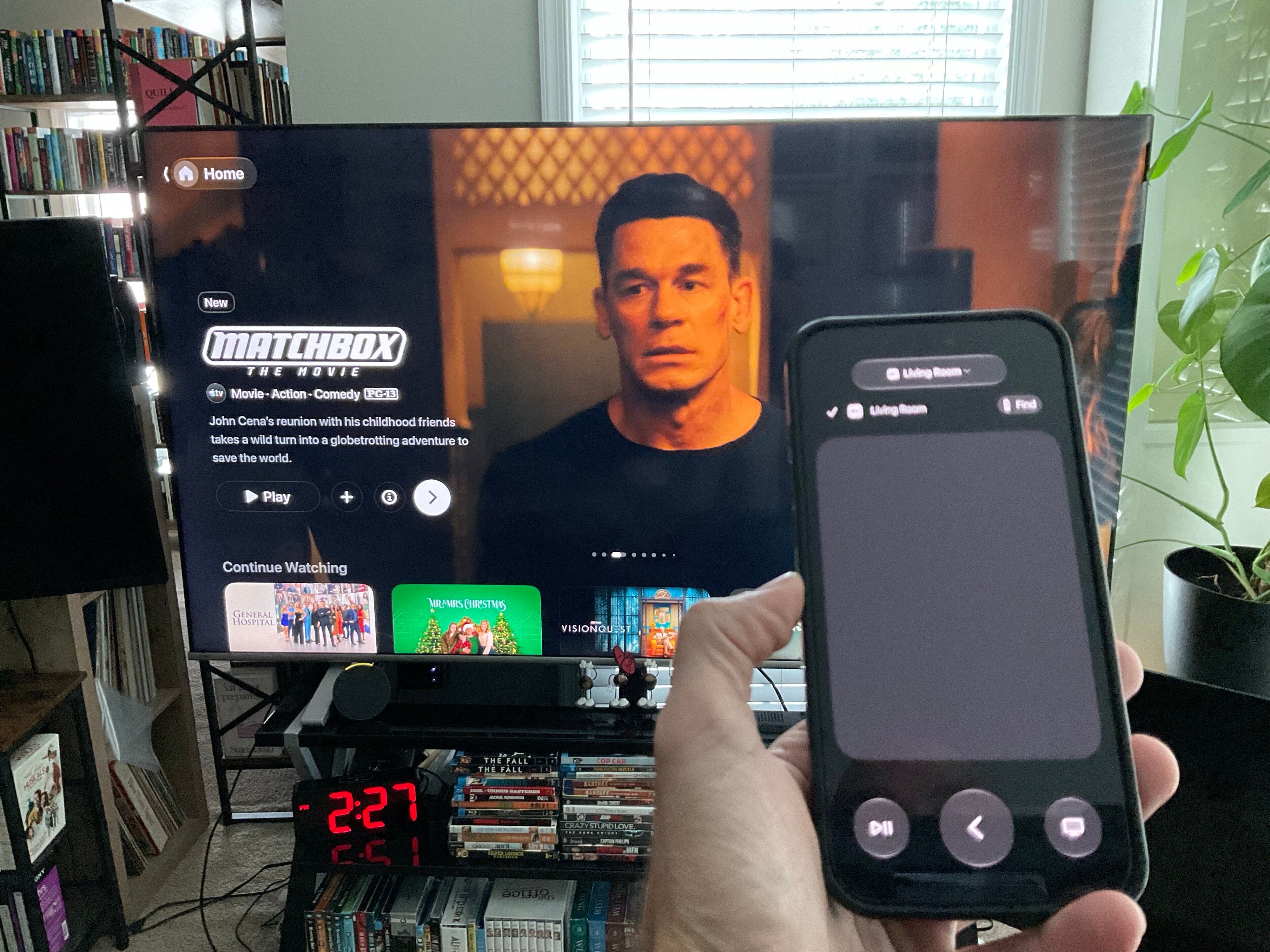
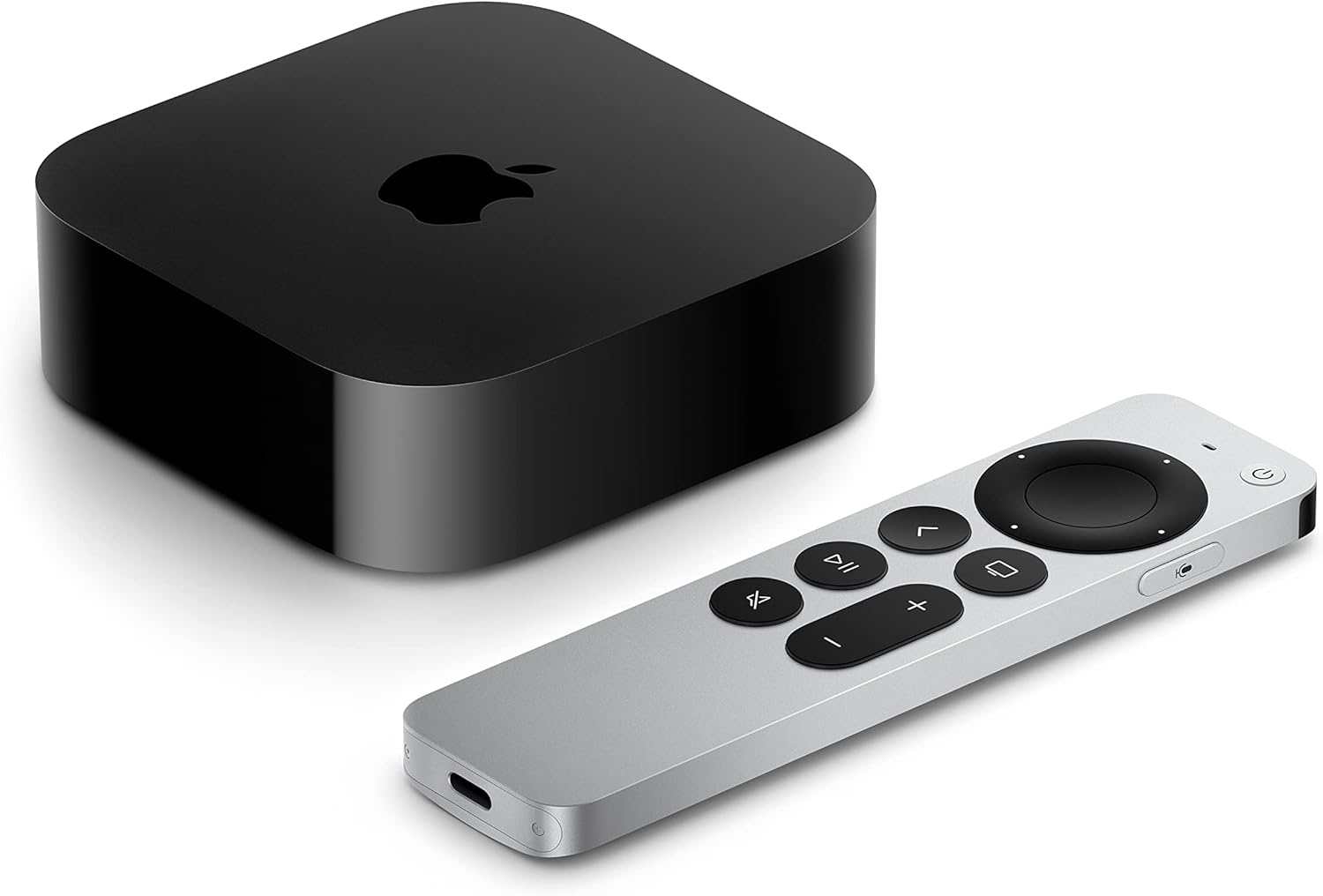
The Apple TV 4K is one of the most technologically advanced streaming devices on the market, and that certainly carries over to its remote. The Siri remote allows viewers to navigate their Apple TV with nothing but voice commands, or use its buttons for a more tactile control experience.
There is one downside to the Apple TV remote — it’s pretty small, and it can slip between couch cushions or under living room rugs pretty easily. If you’ve misplaced your Apple TV remote and you have an iPhone, however, it’s actually pretty simple to find again. We’ll give you step-by-step instructions for using your iPhone to find your Apple TV remote below!
Everything you need to know to find your Apple TV remote with an iPhone
Apple TV 4K devices
Shop now
How to find your Apple TV remote with your iPhone
In order to use the following steps to find your Apple TV 4K remote with your iPhone, your devices must be running current software; your iPhone must be using iOS 17 or later, and your Apple TV must be using tvOS 17 or later. Only Apple TV 4K remotes 2nd Generation and later are supported.
To find your Apple TV remote with your iPhone:
- Open the Control Center on your iPhone.
- Tap the Apple TV Remote icon.
- Select your Apple TV by choosing the device name at the top of the screen.
- Tap the Find button.
- Walk around the room with your phone to establish the Bluetooth connection.
- Follow the on-screen circle to your remote. It gets larger as you get closer. Text on the screen will tell you if you’re near or far from it.
- Tap the Finish icon when you locate the remote.
Can you play a sound to find your Apple TV remote?
No, there is no built-in speaker that allows the Apple TV 4K remote to make a tone that will help owners locate it. However, the upcoming 4th Gen Apple TV 4K remote will be able to emit a beeping tone that will help guide users to it if it’s lost.
Can you find an Apple TV remote without an iPhone?
Without an Apple device, there is no way to find an iPhone using a digital sensor that translates into visual cues to guide the user to it. If you don’t have an iPhone and you’ve lost your Apple TV remote, there are other methods for using your Apple TV until you can find it again, including:
- Using another remote that supports HDMI-CEC.
- Using third-party apps that create an Apple TV digital remote on Android phones.
- Pair a standard Bluetooth keyboard to the Apple TV.
If you have an iPhone, but the remote finder isn’t working, you can also set up your phone as an Apple TV remote and control the streaming box with it.
Apple TV 4K devices
Shop now
The Apple TV 4K streaming player is a highly advanced device that allows owners to watch top streaming apps, navigate using the Siri voice remote, enjoy high-quality video and audio, and integrate seamlessly with other Apple devices. Preorder the 4th Generation Apple TV 4K now; the device becomes available starting Nov. 13.