Google Cast 101: Everything you need to know
Google Cast 101: Everything you need to know
Get all the details on what Google Cast is, how to use it on various devices, and more here!

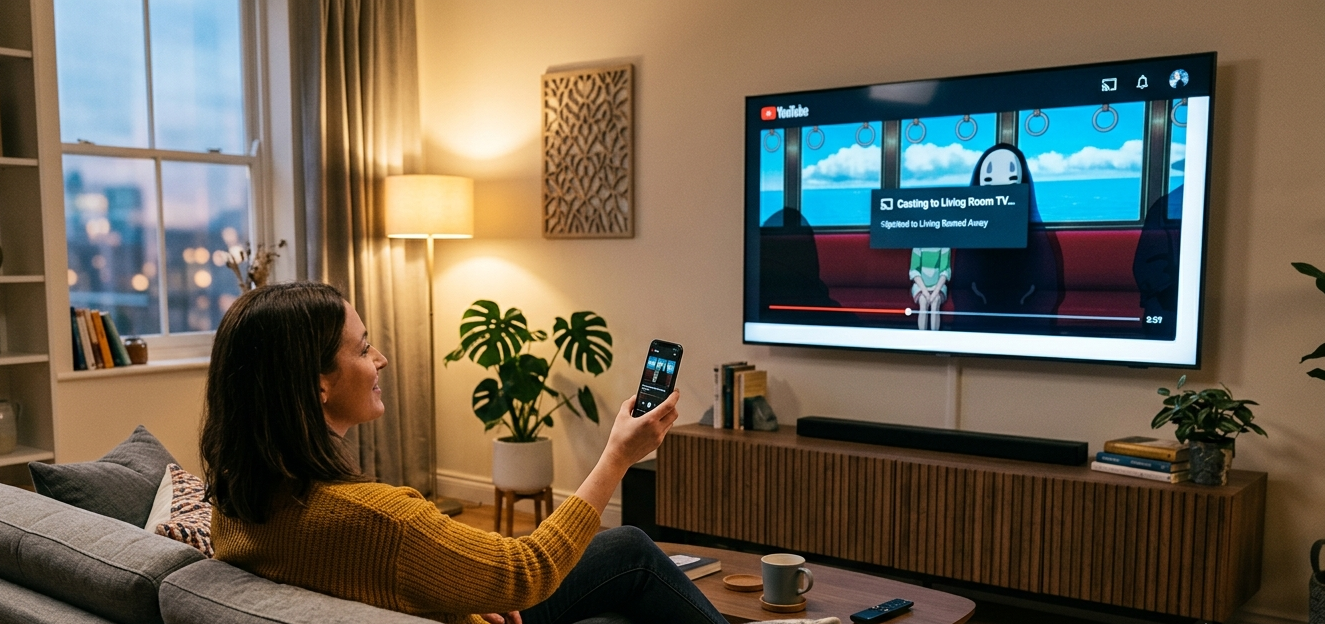
Although there are sometimes reasons to wish we were less connected to every corner of the known world, the ways that modern devices can communicate with each other can create some highly convenient efficiencies. For example, it is now incredibly easy to move the stream of a video you are watching on your mobile device to the much larger screen of your smart TV.
Google devices call this feature Casting, and many modern smart TVs and streaming devices are capable of linking with a smartphone via Google Cast to stream media. But if you’ve never used Google Cast before, it may be a little intimidating to try to get started.
The Streamable wants to help any readers who aren’t sure about how to use Google Cast get the basics down. Learn everything you need to know about Google Cast, including what it is and how to use it on your favorite devices, in our beginner’s guide below.
Google Cast 101: Everything you need to know
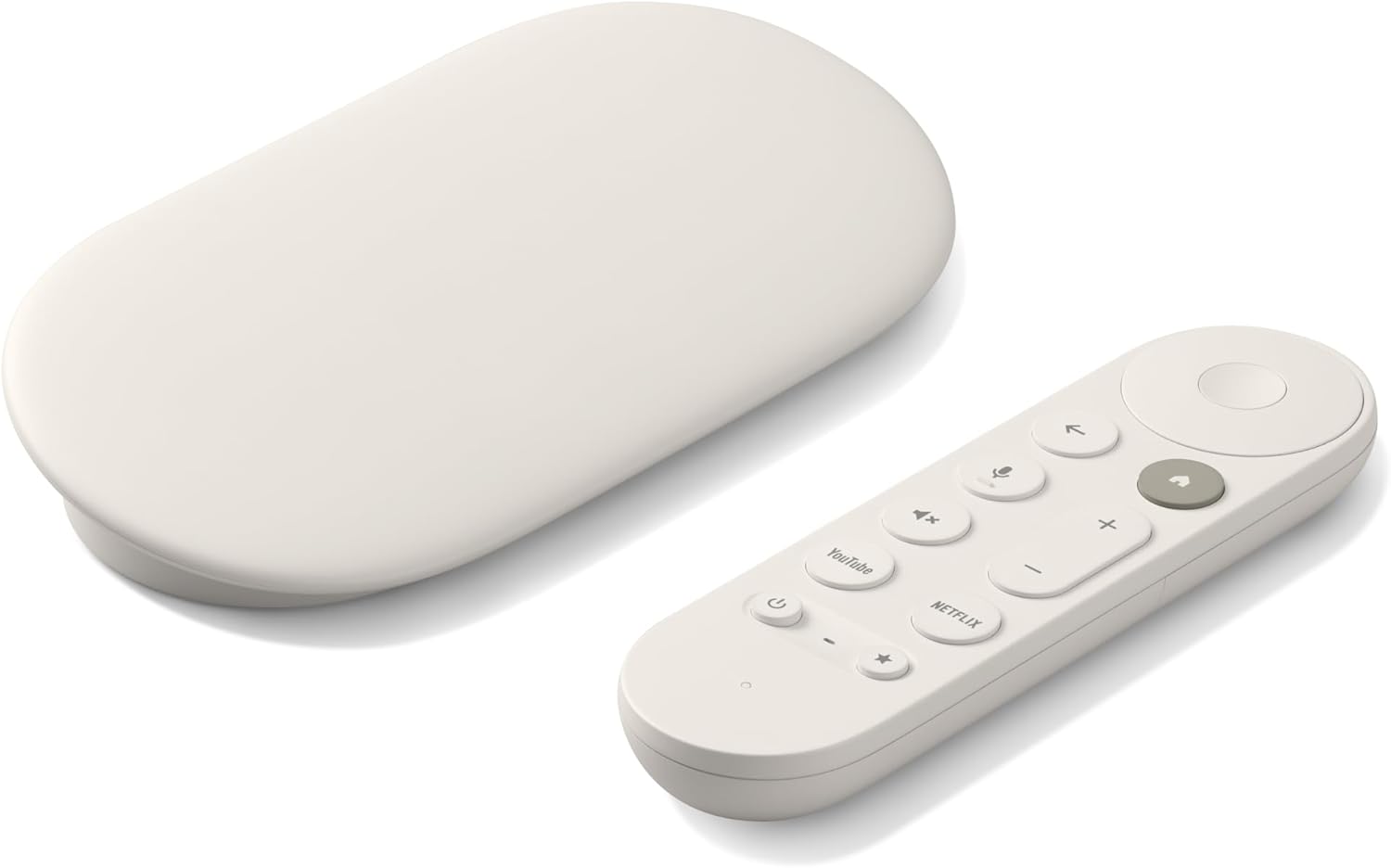
Google TV Streamer 4K
Normally $150
The Google TV Streamer 4K is a high-quality streaming player. It uses the Google TV operating system and allows viewers to download top live and on-demand streaming apps, as well as hundreds of free streaming channels.
What is Google Cast?
Google Cast is a wireless streaming protocol developed by Google that allows users to wirelessly transmit video, music, or photos from one device to another. It’s a feature built into many smart TVs and streaming devices, as well as various apps, for a smooth digital handoff of data from device to device.
What can you use Google Cast for?
Google Cast has two main functions. The first is casting from supported apps, which allows the owner to transfer a video or music stream, or photos from display to display. This is a great way to leverage the superior display and audio capabilities of a TV to level up a media session.
Google Cast also allows customers to mirror the screen of their Android device to the TV, which is more useful for presentations, sharing websites between screens, and apps that don’t include native Casting support.
Can you use Google Cast with non-Google devices?
Yes, a long list of devices not made by Google is compatible with Google Cast. However, most of these smart TVs and streaming players use the Android TV or Google TV operating systems. Customers can even use Google Cast with iPhones through third-party apps, though devices that run Google software natively are the most compatible with Google Cast.
Some major manufacturers, like LG and Samsung, have begun natively including Chromecast support in some of their newest TV models, despite not natively offering the Android TV or Google TV operating systems. Availability can vary by model and year.
Which devices support Google Cast?
A wide range of devices support Google Cast, including:
- The Google TV Streamer 4K
- Chromecast with Google TV
- Legacy Chromecast models
- Smart TVs from Sony, TCL, Hisense, and others using Android TV or Google TV
- VIZIO SmartCast-enabled TVs
- Google Nest speakers
- Google Home devices
- JBL, Bose, and Sony soundbars and smart audio systems
Since Google Cast is a proprietary technology of Google, it does not work with some major streaming player operating systems. Amazon Fire TV, Apple TV, and Roku devices are not compatible with Google Cast itself, though there are workaround options for Roku players and Fire TV devices, and Apple TV customers with supported devices can use AirPlay.
How to use Google Cast on your devices
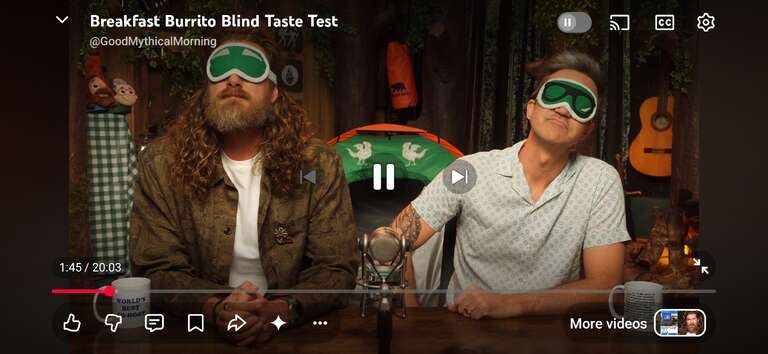
Cast from an Android phone or tablet
- Connect your Android mobile device and the receiving device to the same Wi-Fi network.
- Open a Cast-enabled app like Disney+, Netflix, Spotify, or YouTube.
- Tap the Cast button (a TV with semicircular waves in one corner).
- Choose the TV, speaker, or other receiver from the list that appears.
- Press play on your phone, and the content will begin playing on your receiver.
Cast from the Google Chrome Browser
If you want to cast browser tabs or your computer desktop from a laptop or desktop computer:
- Open the Chrome browser.
- Click the three vertical dots icon in the top-right corner.
- Look for Cast, save, and share (it may be listed as simply Save and share).
- Choose the device you want to share to.
Mirror an Android screen
If you want to display an app that doesn’t support a built-in Casting button, you can mirror your entire Android screen by following these instructions:
- Swipe down from the top of your Android screen.
- Look for Screencast, Cast, or Smart View (name can vary by manufacturer).
- Tap it and select a compatible TV.
Cast from an iPhone or iPad
- Connect your iPhone or iPad to the same Wi-Fi network as the Google Cast-receiving device.
- Open an app that supports Google Cast.
- Tap the Cast button.
- Choose your compatible receiving device.
- Start playback.
What are the benefits of using Google Cast?
Google Cast is a highly convenient way to transfer content from one screen to another without having to connect cables. With just a tap, users can transfer media from their phone to a compatible receiver, transforming their phone into a remote controller for media while simultaneously leaving it free to receive texts, open and browse other apps, and more while Casting.
For TV and movie lovers, the advantages of using Google Cast are clear. Doing so lets viewers transfer streaming video from the small screen to the big one without an HDMI cable, turning what could be an inferior watching experience into a premium one. Plus, the phone or mobile device can be used as a remote to control playback and adjust the volume.
Music and podcast listeners can also use Google Cast to transfer audio to smart speakers and soundbars that dramatically improve the sound quality. And screen mirroring makes it easy to share vacation photos and web pages, or even display presentations directly from a phone to a larger screen in work situations.
Casting also generally uses less battery life than traditional screen mirroring, as the phone or mobile device isn’t transmitting video constantly. And with Google Cast, customers can stream in premium video and audio formats like 4K, HDR, and Dolby Atmos when supported by their chosen apps and devices.
Can you use Google Cast while traveling?
You can use Google Cast while traveling if you are staying in a hotel or other accommodation in which the TV has Chromecast or Google TV built in. If so, customers will be able to cast from their Android device to the TV to stream their favorite media.
Customers can also bring their own Google TV-equipped streaming device with them to use Google Cast, but that can come with complications in some hotels. Many hotel Wi-Fi networks require a sign-in process to access the internet, and some older Chromecast hardware can’t complete that login process.
Is Google Cast similar to AirPlay?
Google Cast and Apple’s AirPlay feature have a lot of things in common. Both allow viewers and listeners to stream video and music from a mobile device to a compatible smart TV, streaming player, speaker, or other receiver without the need for an HDMI cable or other physical connection.
The main difference in how these protocols work is in the ways they communicate with a receiver device. With Google Cast, the mobile device typically sends the TV or receiver a link to the content the person wants to stream. The receiver device then streams that content directly from the internet.
With AirPlay, on the other hand, compatible apps can stream content directly from the transmitting device to the receiver. AirPlay also supports true screen mirroring, but AirPlay can behave a little differently depending on the app. Neither method is necessarily better than the other, simply different. In general, Apple’s AirPlay is a better choice for users who prefer Apple devices, while Google Cast will be more comfortable for Android and Google device users.
Troubleshooting Google Cast
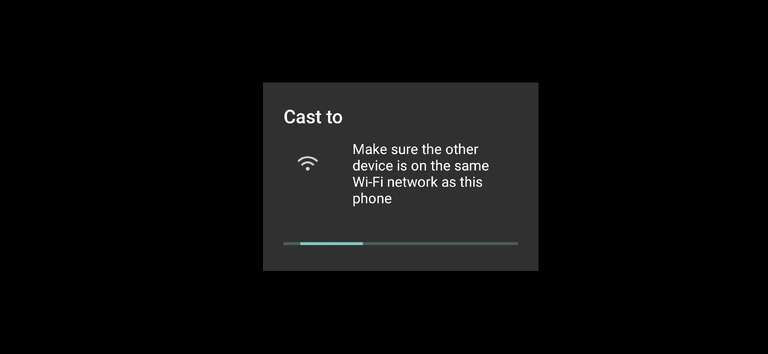
If you’re having some trouble getting Google Cast to work with your devices, you could be experiencing one of several common problems. Find solutions to typical issues experienced in using Google Cast below:
-
Ensure both devices are connected to the same Wi-Fi: Most commonly, if you cannot locate the device you want to stream to using Google Cast, it is because it’s on a different Wi-Fi network than your phone. Check to ensure that both devices are on the same network before using Cast — if your router broadcasts 2.4 GHz and 5GHz networks, ensure your devices are on the same one!
-
Confirm your TV, streaming device, or app supports Google Cast: Unfortunately, Google Cast is not natively supported by all streaming players, as noted above. Google Cast is available on all Google TV and Android TV devices, as well as smart TVs with Google Cast built in, as noted above. Even if your devices support Google Cast, not all modern video and audio streaming apps do. Most of the top apps on the market do support Google Cast, but if you do not see the Cast icon anywhere within the app you want to share between devices, it may not be supported.
-
Ensure all apps and devices are running the latest software: Running out-of-date software on your streaming apps or on your phone, smart TV, streaming player, or smart speaker can keep features like Google Cast from working properly. Make sure the devices and apps you want to use are all running the latest software version before using Google Cast.
-
Turn on Bluetooth: Google Cast often uses Bluetooth on mobile devices to make the initial digital “handshake” with nearby TVs before switching to a Wi-Fi connection. If Bluetooth is turned off on the user’s phone, the device they want to stream to may not appear.
-
Reboot your devices: If all else fails, go with a classic! You can always reboot your phone and receiving device to try again if Google Cast isn’t working for you.
Google TV Streamer 4K
Normally $150
The Google TV Streamer 4K is a high-quality streaming player. It uses the Google TV operating system and allows viewers to download top live and on-demand streaming apps, as well as hundreds of free streaming channels.