How to connect your Apple TV 4K to your smart TV
How to connect your Apple TV 4K to your smart TV
What to know about plugging your new Apple TV into a TV set for the first time.


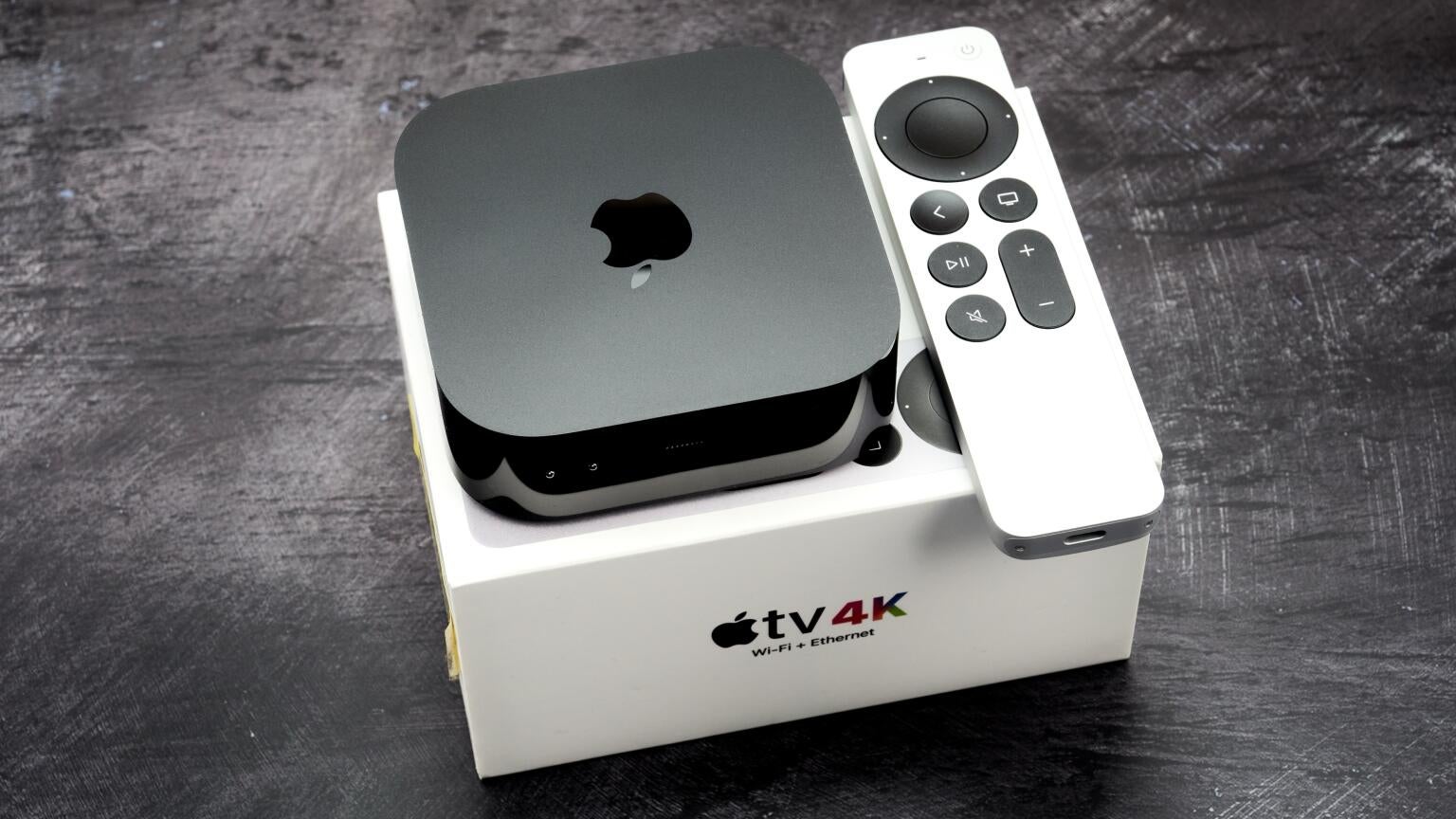
The new Apple TV 4K is finally starting to make its way into the hands of customers, allowing them to test out the new Siri AI, lighting-quick user interface, and other features at long last. Having an Apple TV 4K means owning one of the most advanced streaming players on the market, one that can support highly advanced audio and video formats.
But does having an advanced streaming player mean needing an advanced degree to connect it to your TV and actually start using it? What goes into connecting an Apple TV 4K to your TV, and is it easy or difficult to accomplish? We’ll explain what you need to know below.
Everything you need to know about connecting your Apple TV 4K to your TV
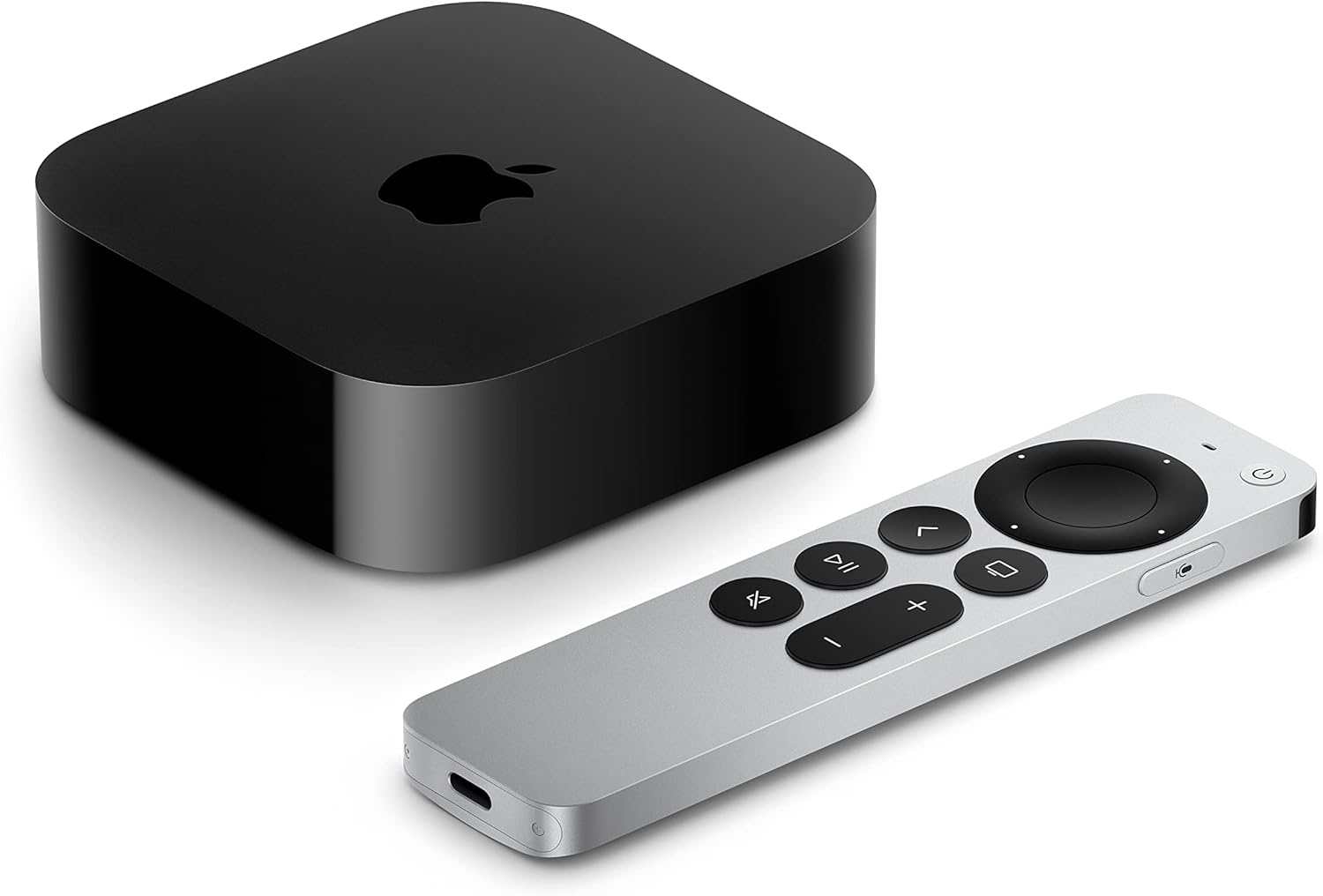
Apple TV 4K devices
Shop now
What you need to set up an Apple TV 4K
Once you’ve unboxed your new Apple TV 4K, you will need the items found in that box, including:
- The Apple TV itself.
- Power cord.
- Siri remote (USB-C to USB-C charging cable typically sold separately).
- Quick start guide.
You will also need a smart TV with a free HDMI port and an HDMI cable that will transmit audio and video signals from your Apple TV 4K to your television. In addition, you will have to have a Wi-Fi connection, or a router with a LAN port that will let you set up a wired connection to your Apple TV 4K.
Setting up your new Apple TV 4K
Plugging things in
It’s a simple process to set up your new Apple TV 4K streaming player once you’ve got all the cables you need.
Follow these instructions to set up a new Apple TV:
- Plug one end of the HDMI cable into the Apple TV and the other into an open HDMI port on the television
- Connect the power cord to the Apple TV and plug it into a wall outlet or power strip
- Turn on the television and use the input or source button on the TV remote to select the HDMI port that matches the Apple TV connection
As long as you’ve chosen the correct input, you should see the Apple TV setup screen appear on your TV!
Setting up your Siri remote
The Siri remote is still the main way to interface with your Apple TV 4K, even though the new device also comes with a hands-free mode. The touch-sensitive clickpad of the Siri remote allows the user to swipe or press, and the remote also has playback controls, a volume button, a mute button, a Home button, and a power button.
Charging the remote:
The modern Siri remote uses a USB-C port to charge, and the Apple TV 4K does not include a USB-C cable in the box. You’ll need to use an existing one to charge your Siri remote if you don’t want to use the Apple TV 4K hands-free.
Pairing the remote: Your Siri remote should connect to your Apple TV 4K automatically on start-up. If it doesn’t, point the remote at the Apple TV and hold the Back and Volume Up buttons for about five seconds until a message confirms the connection.
Connecting to the internet
You can set up a wired connection using an Ethernet cable; the new Apple TV 4K has a dedicated Ethernet port to support connection in this manner. Plug your Ethernet cable into the Apple TV 4K and your router, and you should be ready to go.
If you are connecting your Apple TV 4K to your Wi-Fi, you will see a prompt to make that connection on the Apple TV setup screen.
- Choose your Wi-Fi network.
- Enter the Wi-Fi password.
- Wait for confirmation that the device is connected.
Create an Apple ID, or sign in with an existing Apple ID
As prompted on the screen, viewers can either sign in to their existing Apple ID account using the remote and on-screen keyboard, or sign in or create an Apple ID by scanning a QR code with their phone.
If a new Apple ID is needed:
- Select Create New Apple ID.
- Follow the prompts on Apple’s website to create your new ID and sign in with your Apple TV.
Enable Siri and control privacy settings
The next step in your Apple TV 4K setup process is to enable Siri, which allows viewers to search for shows, adjust volume and control playback, and use the Siri AI. Enable Siri when prompted, and disable the assistant anytime by going to Settings > Siri.
Other optional privacy features include sharing analytics with Apple and allowing location services. These can be adjusted at any time, so it’s fine to skip them during initial setup.
Customize your home screen
Your Apple TV 4K is now online, and it’s almost time to start streaming. But there are still a few quick things to take care of — including customizing your Apple TV home screen so your apps appear in the order you want in the top row.
To move an app around the row, simply press and hold the clickpad until the app badge wiggles on screen. Drag it to its new location, and click again to place it.
Tweak your picture and sound settings
Your Apple TV 4K will automatically detect the best settings to use with most televisions, but you can always get under the hood and tweak for yourself to take even more control. The gear-shaped Settings icon will let viewers choose their resolution, balance color, change audio output settings to add soundbars or speakers, and more.
Download your favorite apps
It’s time to start downloading your favorite streaming apps to your Apple TV device. Search for audio or video streaming apps like Netflix with the magnifying glass icon, and follow on-screen prompts to download the apps to your Apple TV 4K.
Keep in mind, you will still need subscriptions to most streaming services in order to start using them. If you do not have a subscription yet, you will be prompted to create an account when you try to use the app on your Apple TV.
Using Apple TV Channels allows you to sign up for streamers like BritBox, Crunchyroll, and Paramount+ and be billed for those services through your Apple account.
Using your Siri Remote
Once the basics are set up, the Siri remote can make everyday use simple.
Helpful shortcuts:
- Hold TV button to return to the Home screen
- Press and hold Play/Pause to see the sleep option
- Swipe left or right during playback to rewind or fast-forward
- Hold the Siri button to issue commands like “Play the latest episode of Ted Lasso” or “Open Netflix”
If the remote ever feels too sensitive, the clickpad tracking speed can be reduced under Settings > Remotes and Devices > Touch Surface Tracking.
Using an iPhone or iPad as a remote

In case the Siri Remote is misplaced, an iPhone or iPad can serve as a full replacement:
- Open Control Center on the device
- Tap the Apple TV remote icon
- Select the Apple TV name from the list
The screen then becomes a touch controller, complete with volume and navigation functions.
Common troubleshooting tips
Technology doesn’t always cooperate perfectly. These simple solutions fix the most common Apple TV issues:
| Problem | Possible Fix |
|---|---|
| No signal on TV | Check the HDMI cable connection and ensure the correct TV input is selected |
| Remote not responding | Charge the remote, or re-pair by holding Back + Volume Up for 5 seconds |
| Wi-Fi keeps disconnecting | Restart both the router and Apple TV; try using Ethernet if possible |
| Screen looks dim or blurry | Adjust resolution in Settings > Video and Audio |
| Apps won’t load | Check internet connection and restart the Apple TV |
If problems persist, holding Menu and Home on the remote for 10 seconds restarts the device safely.
Making the most of Apple TV
Apple TV offers more than streaming movies. It also includes apps for fitness, music, podcasts, and even smart home control through HomeKit.
Fun things to try:
- Use Apple Fitness+ for guided workouts
- Display personal photos as a dynamic screensaver using iCloud Photos
- Connect a Bluetooth keyboard for easier typing
- Pair AirPods for private listening
Each new app expands what the device can do, turning a television into a central hub for entertainment and information.
Keeping software up to date
Apple releases updates that improve performance and add new features.
Checking for updates once a month keeps the operation running smoothly:
- Go to Settings > System > Software Updates
- Select Update Software if an update is available
- Wait for the Apple TV to restart automatically
Enabling Automatic Updates allows the device to handle this step without reminders.
Effortless streaming for every generation
Apple TV turns any television into a streaming hub that feels natural even for those new to modern tech. Once connected, its large on-screen icons and simple layout make browsing through shows or apps easy. Siri voice commands remove the need for typing, and automatic updates keep everything running smoothly. The remote’s small design includes clear, tactile buttons, and built-in microphones on the Apple TV 4K make control simple and precise.
For seniors, the accessibility features stand out. The system connects with Bluetooth hearing aids, offers VoiceOver narration for screen guidance, and allows text size and closed caption adjustments for better readability. Those who already use Apple products will find the setup familiar and uncomplicated, with crisp 4K resolution, dependable Wi-Fi connections, and organized menus.