Everything you need to know about HDMI cords and connections
Everything you need to know about HDMI cords and connections
We’ll explain all the details you need to have to use HDMI cables and connectors, which are crucial for watching TV via streaming.

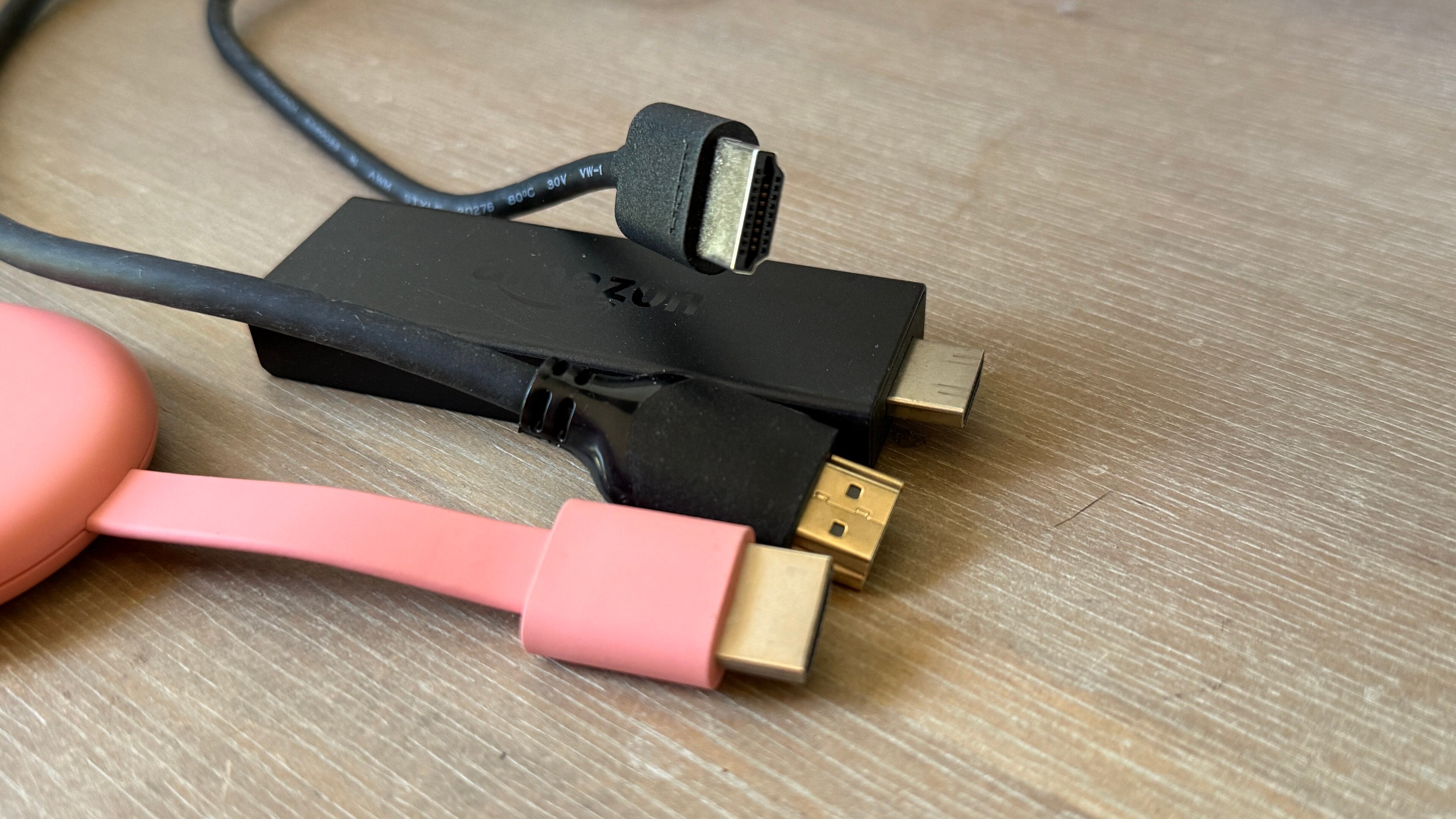
I feel quite lucky to have been born late enough to be able to handle the transition from standard-definition to high-definition television. All the devices that one now must connect to their TV have changed; instead of a rabbit-ears antenna and a VCR, viewers have to contend with high-tech gaming consoles, streaming devices, and surround-sound systems plugged into their sets.
Those hardware evolutions wouldn’t be possible without a corresponding technological advancement. Nearly all modern devices use an HDMI connection to connect to a TV, but what is HDMI? What came before it, and what else do you need to know about HDMI to watch TV in the 21st century? Find out below.
HDMI 101: Everything you need to know
What is HDMI?
HDMI stands for high-definition multimedia interface. It’s used to transmit high-resolution video and high-quality audio signals between devices. It transmits data at a bitrate of up to 96Gbps, and there are now billions of HDMI-enabled devices around the world, making it one of the most widely adopted audio and visual interfaces in the history of consumer electronics.
What’s important to know about shopping for HDMI?
When shopping for HDMI cables, you’ll want to know the maximum refresh rate your TV screen supports, as well as the display it’s capable of. Different HDMI cables offer different specs in this regard (more on that below), so it’s crucial to know what your display is capable of before buying an expensive cable that might not fit what you need.
Maximum refresh rate measures how many times per second your TV screen updates the image on the screen. Faster refresh rates mean a clearer, sharper image with better motion clarity and less blur, which is particularly key for gamers. More budget-oriented TVs usually top out at a refresh rate of 60Hz, while nicer sets can climb to 120Hz.
Most modern TVs support Ultra-High-Definition 4K at a 60Hz refresh rate, with some supporting an even higher rate. Customers can also upgrade to 8K TVs from companies like LG if they’re willing to pay, and connecting devices to these sets requires a better HDMI cable. So, when you are looking to buy a new cable to connect your devices, make sure you know what your TV is capable of first!
What does HDMI replace?
Mainly, HDMI serves as a replacement for analog audio and video cables that were the standard on TVs in the early 2000s. Remember your old TV’s composite video hookups? Those cylindrical red, white, and yellow cables (that were so easy to plug into the wrong spot) are gone, replaced by a singular HDMI plug. Then there were the red, green, and blue component cables that offered signals up to HD, but only carried video, not audio, making them ripe to be picked off HDMI once it became viable.
S-Video was a step up from those video hookups, but it, too, quickly found itself replaced by HDMI. The combination of audio and video transfer in the same cable and port made HDMI the superior option almost as soon as it came on the market.
What different kinds of HDMI are there?
Many viewers may only be familiar with the main type of HDMI, also known as Type A connections. These are the HDMI ports you’ll find on modern smart TVs, and are compatible with gaming consoles (like PlayStation and Xbox), streaming players (such as Amazon Fire TV, Apple TV, and Roku), and desktop or laptop computers.
Type C HDMI connectors are also called mini-HDMI, and are used to connect smaller-sized devices such as cameras and older tablet computers. Type D micro-HDMI connectors are for smaller electronics like GoPro cameras, and Type E HDMI connectors are for automotive use.
- Type A: Smart TVs, computers, streaming players, gaming consoles
- Type C: Mid-sized devices, older tablets, some portable monitors
- Type D: Small devices like action cameras and other compact electronics
- Type E: Automotive-grade connector with a locking tab for use in-car
And yes, I know what you are asking; there technically is a Type B HDMI cable, but it was almost purely theoretical. The cable version was called a dual-link connector and was meant to support higher bandwidth. However, it was never put into production as the other versions covered the vast majority of use cases.
Are some HDMI cables better than others?
HDMI has undergone several evolutions throughout the years, upgrading its hardware in the same way streaming devices update their software from time to time. The standard of HDMI is now HDMI 2.1, which supports 4K resolution at a refresh rate of 120Hz. It’s important to note, however, that not all devices have caught up with the new standard, so it’s important to shop carefully for both devices and HDMI cables to ensure you get the performance level you desire.
A new standard of HDMI - version 2.2 has been announced as the successor to HDMI 2.1, but realistically, devices that are equipped with HDMI ports that support version 2.2 are just now hitting shelves. It may be a little longer before there are enough HDMI 2.2 TVs and source devices to make this the true market standard.
Learn the differences between HDMI connectors in the table below!
| HDMI type | Resolution supported | Maximum refresh rate | Maximum bandwidth |
|---|---|---|---|
| HDMI 2.0 | 4K | 60Hz | 18 Gbps |
| HDMI 2.1 | 8K | 4K at 120Hz or 8K at 60Hz | 48 Gbps |
| HDMI 2.2 | 8K | Up to 480Hz with compatible equipment | Up to 96 Gbps with compatible equipment |
Which HDMI cable should you buy?
- High-speed HDMI cable: Good for 1080p and many older 4K devices.
- Premium high-speed HDMI cable: Supports 4K up to 60Hz.
- Ultra-high-speed HDMI cable: Recommended for PlayStation 5, Xbox Series X, modern gaming PCs, and 4K TVs with 120Hz support.
What can you connect with an HDMI cable?
A Type A HDMI cable will help you connect most of the living-room devices you need to transform your space into a home theater. With HDMI cables, you can connect your TV to a long list of devices, including:
- Streaming devices
- Gaming consoles
- Soundbars and speakers
- Projectors
- Sync boxes for smart lighting
- Laptops
- Blu-ray players
What is HDMI-CEC?
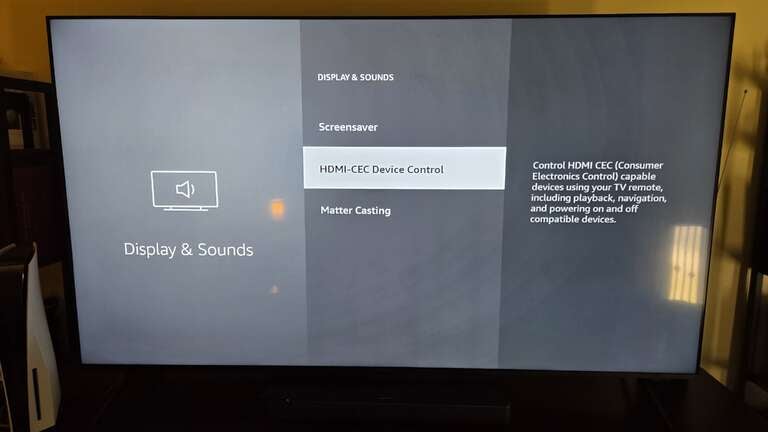
The CEC in HDMI-CEC stands for “consumer electronics control.” It allows you to control multiple home theater devices with just a single remote and can even automatically switch inputs on a TV to a powered-on device when it’s activated.
In essence, it’s a way to control all the HDMI-connected devices plugged into your TV with one remote. If you have a streaming device plugged in, you can press its power button to automatically turn on the TV when HDMI-CEC is enabled. It’s also what allows you to control the volume on a connected soundbar or other audio receiver with the same remote.
HDMI-CEC settings are usually adjusted in the settings menu of your smart TV or streaming player. Fire TV, Google TV, and Roku all call the setting HDMI-CEC, so it’s fairly easy to find it within the device’s settings if you need to search via voice. Other devices have different names for HDMI-CEC, so make sure to consult our guide for more information on this feature.
What are HDMI extenders?
Sometimes, HDMI cables don’t quite reach all the way to a chosen port comfortably within the space of an entertainment setup. For those occasions, customers can use an HDMI extender to help high-quality audio and visual signals travel greater distances without signal degradation.
To learn more about HDMI extenders, including which streaming players come with the devices in the box, use our guide here.
Where to find your TV’s HDMI port
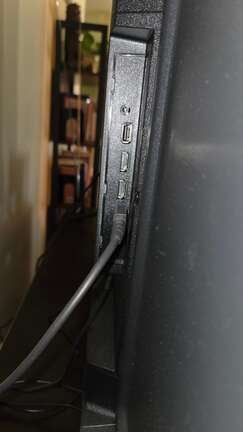
HDMI ports are found on the back or side panel of your TV set. They are never placed on the front; thankfully, manufacturers have more or less standardized the placement of HDMI ports on TVs to make them easy to find when purchasing a new device.
HDMI ports labeled eARC or ARC are the ones you should choose to use when hooking a soundbar to your TV.
What if your TV doesn’t have HDMI?
Almost all modern TVs around the world use HDMI as their connection type. But if you’re not using a modern TV and need to adapt your devices for use, you can find adaptors that will help you connect HDMI-enabled devices to older TVs. Always remember to double-check the source-to-display direction when buying an adapter.
- HDMI to RCA Converter | $10 at Amazon