Is the new Fire TV Stick 4K really fire, or is it a flop?
Is the new Fire TV Stick 4K really fire, or is it a flop?
Read our hands-on review of the new streaming player from Amazon here.

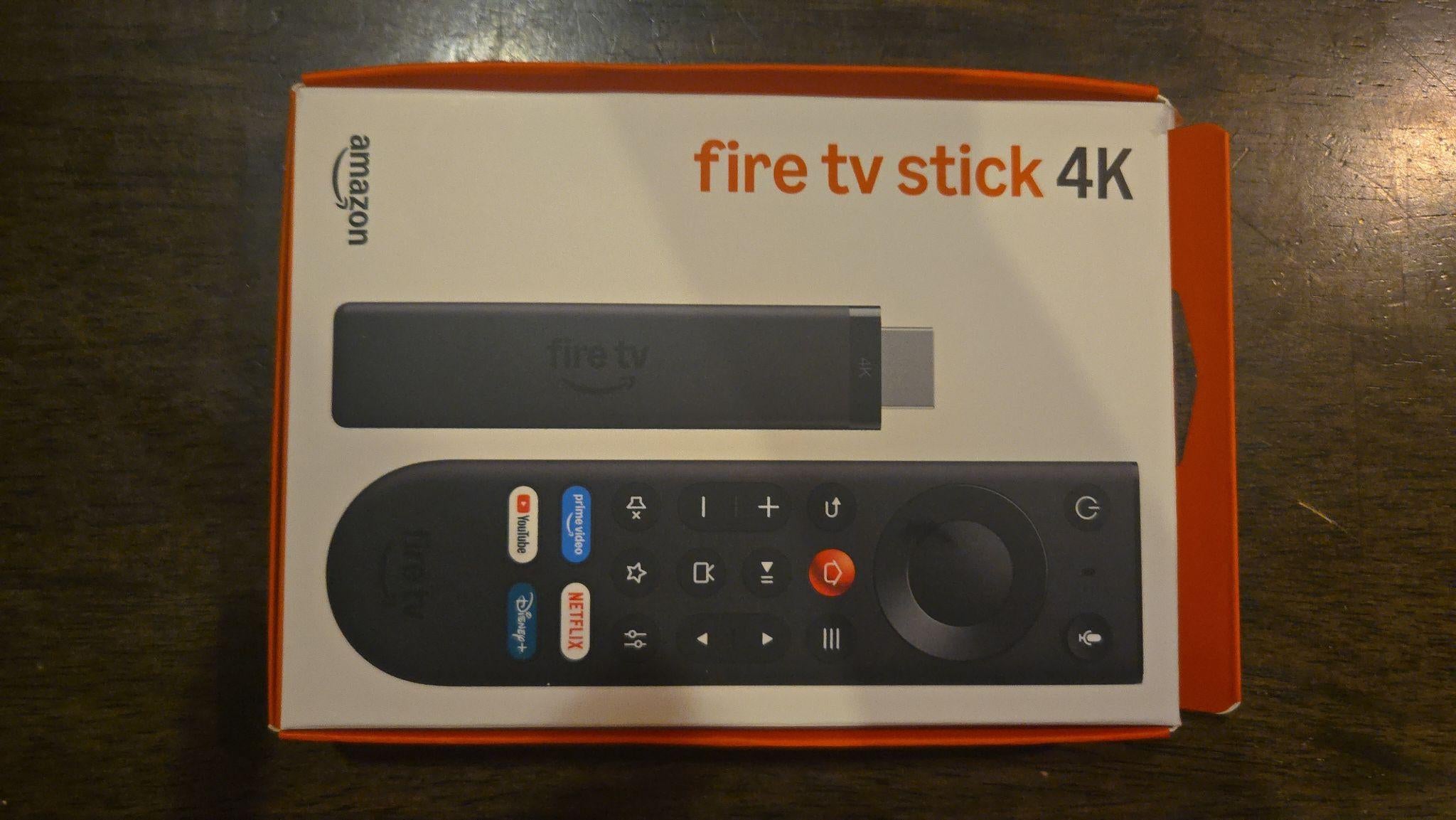
Fire TV has become one of the most-used smart TV operating systems in the United States, and with good reason. I own several Fire TVs myself, though I’ve never actually used a Fire TV streaming stick before; I have always preferred to just use a smart TV instead of opting for a connected streaming stick.
But when the new Fire TV Stick 4K dropped, I wanted to get my hands on it to see if the player was really worth the hype. After receiving and testing out a new Fire TV Stick 4K of my own, I wanted to share my good and bad thoughts on the device with our readers to help them decide if it’s worth picking up for themselves, or for a friend or family member for the holidays.
So, what did I think about the new Fire TV Stick 4K from Amazon? Read a point-by-point breakdown of my thoughts about the new streaming device below, including physical attributes, its user interface, picture quality, and more aspects.
Fire TV Stick 4K review: What you need to know

Amazon Fire TV Stick 4K
$30 for a limited time
Key specs of the new Fire TV Stick 4K
| Fire TV Stick 4K aspect | Detail |
|---|---|
| Retail price | $60 |
| Picture quality | Simple 4K streaming |
| Premium video supported | HDR, HDR10+, HLG |
| Premium audio supported | Dolby-encoded audio (HDMI pass-through) |
| Storage | 8GB |
| Wi-Fi support | Wi-Fi 6 |
Setup and plug-in is easy
The first thing I noticed when I pulled the Fire TV Stick 4K out of the box was the smaller size of the device. That’s a big deal considering I also have a PlayStation 5 that needs an HDMI port; the smaller size of the Fire TV Stick 4K allows me to keep both devices plugged in next to each other, which is convenient.
Setup was a pretty standard process and moved along quickly enough once I connected the Fire TV Stick 4K to my Amazon account. It only took a few minutes, though I have to say that getting used to the new Fire TV home screen took a little getting used to (plenty more on that below).
Props to the new Fire TV remote
The new Fire TV remote is actually one of my favorite features of the Fire TV Stick 4K. The remote does away with the superfluous fast-forward and rewind buttons that my older Fire TV remotes have been equipped with, and moves the navigational pad to the top of the device, which makes for more comfortable use (at least for my stubby thumbs).
The remote is smaller and more streamlined in general, and feels better in the hand as a result. The Home button now comes with a metallic texture, which is a big plus for me; previous Fire TV remotes I’ve owned put the Home button right under the play/pause button, and getting the two mixed up when I’m trying to pause playback and get taken back to the Fire TV home screen instead is no longer an annoyance I have to live with.
Having a programmable button is an update Fire TV remotes have needed for some time, and I’m happy to report that feature has finally arrived with the new Fire TV 4K remote. It’s an easy process to set up the shortcut with the Star button on the remote, and it gives viewers another option if they don’t use the dedicated Prime Video, YouTube, Netflix, or Disney+ buttons on the remote that often.
Navigating the Fire TV interface
One note I have to mention before diving deeper into the interface itself: the navigation speed of the Fire TV Stick 4K is much faster than I’m used to from a smart TV. Having more RAM available to use for opening apps and performing other functions is an advantage streaming sticks have over most smart TVs in general, but I was duly impressed by how fast the Fire TV Stick 4K was able to download and open apps.
New Amazon Fire TV devices like the Fire TV Stick 4K now use the Vega operating system, as opposed to the former Fire TV, which was built on top of a version of Android TV. For me, that meant finding things in some different places when I first started clicking around; instead of a mid-screen navigation bar, Fire TV now keeps things at the top of the screen, with the Search, Home, Movies, TV Shows, Live, Sports, News, and a seasonal Spooktober tab in the navigation bar.
Pressing the three-line button on the Fire TV remote or scrolling all the way to the left of the navigation bar on top pulls up a left-hand menu with Games, Art and Photos, Appstore, My Stuff, Ambient, and Settings options. It’s all reasonably straightforward, though finding the Appstore in the left-hand menu instead of at the top of the screen is taking some getting used to.
The Fire TV Home screen does two things I really don’t care for: first, it minimizes the Your Apps and Channels row, making the app badges significantly smaller than show and movie tiles. The Your Apps and Channels row is probably one of my most-used content rails when I navigate Fire TV, and making it smaller isn’t doing my aging eyes any favors.
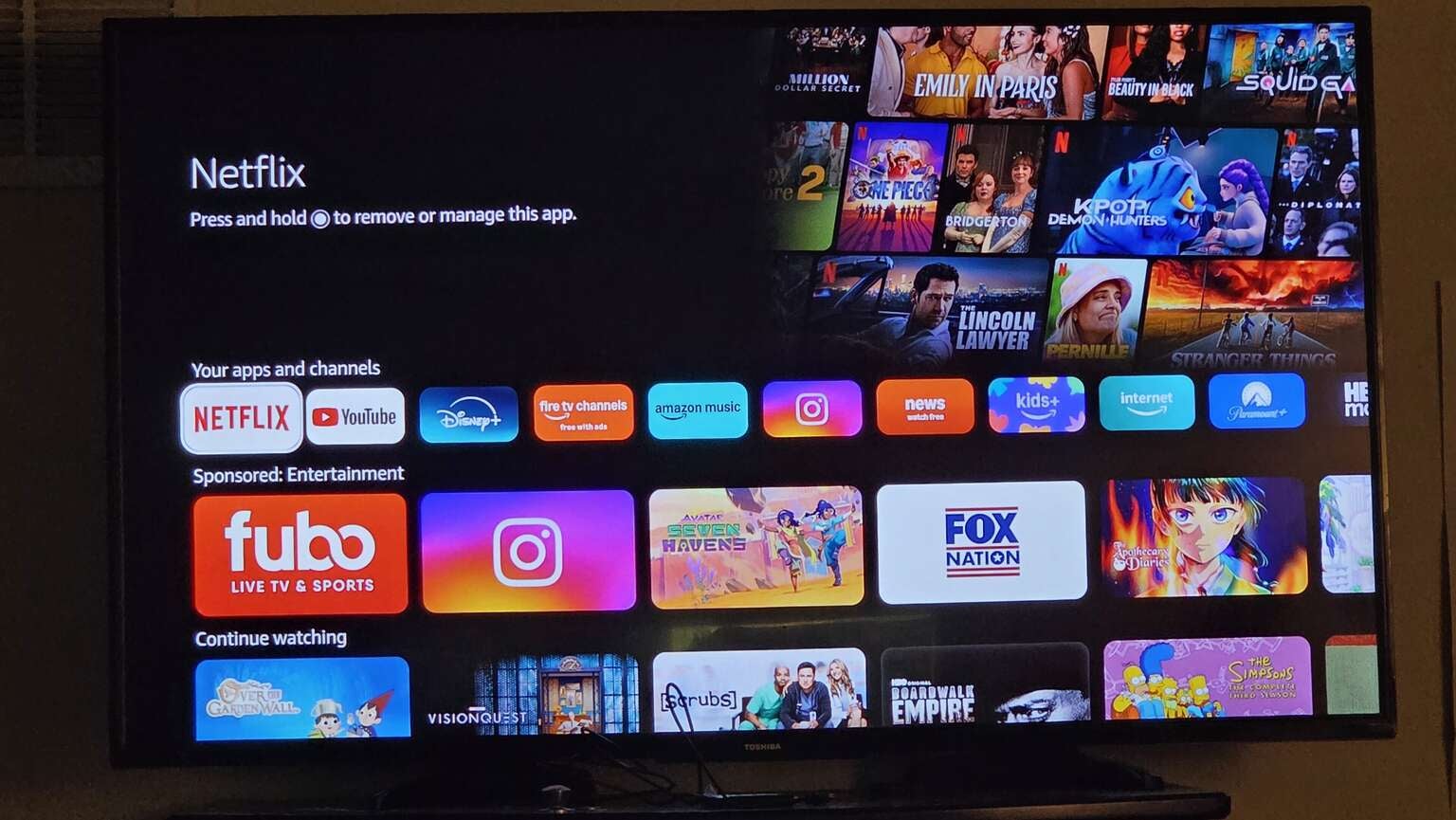
The Fire TV Home screen makes app badges smaller than TV show and movie tiles, which I don’t care for. Click to expand.
Second, the Fire TV home screen puts the Continue Watching row fourth, below Next Up for You, Your Apps and Channels, and a row of sponsored content. I understand that Amazon makes a huge portion of its overall revenue by finding new and creative ways to put ads where no ads were before, but can I please just see the titles I was watching most recently under the apps I was using last, THEN see a row of ads? Please?
The Movies and TV Shows tabs at the top of the screen are predictably filled with recommendations generated by the Fire TV operating system based on past user activity from their Amazon account. Mostly, these recommendations do a good job of offering titles that look at least semi-intriguing.
The Live tab offers a quick shortcut to an electronic programming guide with available channels laid out in a grid. If you’ve got a live TV streaming service, you’ll see available channels here, and the tab also collates free streaming channels from Amazon and other downloaded subscription apps, a useful feature. Scrolling down allows viewers to navigate sports and news rails, including local news options.
I clearly need to spend a little more time teaching the various algorithms in use by my Fire TV Stick 4K which sports teams I like the most. When first clicking onto the Sports tab, I saw a row of live UEFA Conference League games. I’m not much of a soccer fan, and while having a live events row is useful, I wish it were a little more dynamic, rising or falling in the interface depending on whether teams relevant to me are playing. I do have to tip my hat to the Sports tab for assembling so much information in one place, however, including highlights.
Once I got the hang of it, the Fire TV user interface built on the Vega OS is intuitive enough. But it does lose a few points for the Home screen deficiencies I described above; the Home screen is where users spend most of their time for a reason, and Vega fumbles a couple of key aspects of that screen off the bat.
How is the Alexa+ voice assistant?
I’m still getting to know the Alexa+ voice assistant that’s programmed into the new Fire TV Stick 4K remote, but I’ve been pleasantly surprised so far. Alexa executes basic commands far better than I remember it doing in years past; I basically stopped using voice commands when the technology was new because it took so long to do even the most basic things, and the remote often misheard me.
Now, I find it easy to switch inputs, open apps, find new TV show and movie recommendations, and even take deep dives into my favorite titles with Alexa+. I’m not quite converted to using the voice assistant all the time, but it’s made using voice commands an actual option for me again, and that’s saying plenty.
Downloading apps with Vega OS
Another consequence of the use of Vega OS in the Fire TV Stick 4K is the fact that viewers will only be able to download apps that are found in Amazon’s Appstore — no sideloading of other apps is allowed. Amazon says this is for security reasons, but the cynic in me thinks there are more avaricious concerns at work.
One of the first apps my partner and I looked for when using the Fire TV Stick 4K for the first time was Shudder; she’s a big horror buff, and she loves using the Shudder interface specifically. It’s why she’s never signed up for AMC+, and why she doesn’t want to use Shudder through an aggregator platform like Prime Video or The Roku Channel.
Unfortunately, the standalone Shudder app doesn’t appear to be available on the Fire TV Stick 4K using the Vega OS — a problem I’ve not experienced when using other Fire TV devices. Instead, the new streaming stick will only allow us to watch the Shudder channel on Prime Video, which would mean we’d have to cancel our direct Shudder subscription and sign up through Prime Video — losing access to the interface my partner values so highly.
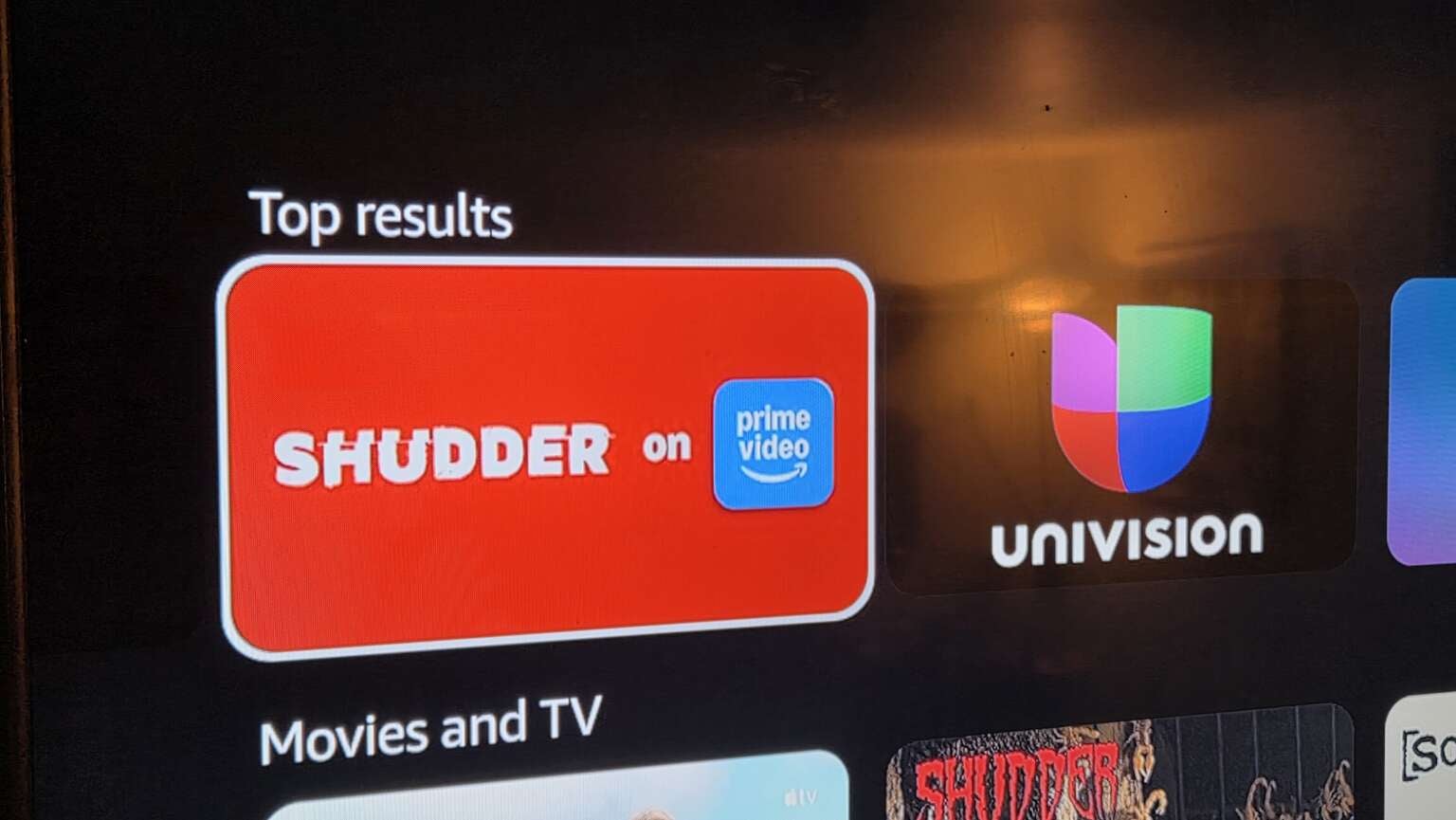
Fire TV’s Vega OS only offers the Shudder on Prime Video channel, not the standalone Shudder app. Click to expand.
The Fire TV Stick 4K loses more points for this issue, and I’m all the more cranky because I suspect Amazon is trying to push more viewers toward Prime Video by making apps for smaller streamers otherwise unavailable through the Fire TV interface. Call it a conspiracy theory if you will, but the end result is that we have to connect another player to watch Shudder in its full glory.
Video and audio features and quality
The video and audio features of the Fire TV Stick 4K aren’t as impressive as some other devices in the Fire TV line, and they aren’t meant to be. The device promises “Simple 4K streaming” on the Amazon website, and that’s more or less the experience I felt I had when watching. There were times when the brightness limitations on the Fire TV Stick 4K were noticeable during my test watches, and fixed frame rates led to a couple of instances of judder, but overall I felt my initial streams on the device were perfectly enjoyable.
The Fire TV Stick 4K also doesn’t support spatial audio from Dolby Atmos or other premium audio formats, opting for traditional channel-based surround. This was more noticeable when watching sports for me, but again, it wasn’t a dealbreaker. Customers who are looking for a more premium audio or video experience when using a Fire TV device will have to upgrade to a Fire TV Stick 4K Max or a Fire TV Cube, but everyday TV watchers will probably be fine with the Fire TV Stick 4K.
The bottom line
While there were some aspects of it that I would change, my overall impression of the Fire TV Stick 4K is that it’s a very solid mid-range streaming player. It’s definitely an upgrade from HD-only streaming players, and the new Fire TV remote deserves a lot of love after introducing some simple, yet welcome changes.
I’m still not sold on the Fire TV operating system built on Vega. The inability to sideload apps onto the Fire TV Stick 4K is irritating, and leaves one with the impression — however untrue — that Amazon is trying to give customers yet another shakedown by steering them toward its Prime Video subscriptions. Apart from the app limitations, however, Fire TV built on Vega is simple and intuitive enough to take viewers where they want to go.
If you’re looking for a truly premium streaming experience every single time you turn on the TV, the Fire TV Stick 4K may not be exactly right for you. But for everyday streaming needs, it’s adequate in every way, and at a retail price of $60, it offers a decent combination of price and features.
Final score: 7.5 out of 10
Amazon Fire TV Stick 4K
$30 for a limited time
The Fire TV Stick 4K upgrades standard television setups by offering fast Wi-Fi 6 performance, 4K HDR10+ visuals, and an easier power-over-HDMI setup without a wall adapter. It features an updated remote, a customizable Fire TV interface with access to thousands of streaming apps, and built-in Alexa+ voice intelligence for smart home controls and personalized recommendations.