Roku vs. Amazon Fire TV vs. Apple TV: Parental controls
Roku vs. Amazon Fire TV vs. Apple TV: Parental controls
Don’t want your kids accessing adult content through your streaming device? Here’s how the top streamers compare in parental controls.


As a cord-cutter, chances are that you want to have access to every type of content that you could possibly want to watch via your Roku, Amazon Fire TV, or Apple TV streaming TV device, but what about your children? When you have a household of kiddies, parental controls to restrict what they can watch when you’re not supervising them are a must. You may have had “The Flintstones” growing up, but now there’s the raunchy “The Righteous Gemstones” to consider.
The parental controls found on these devices aren’t a fix-all solution, of course. In most cases, you’ll have to set up individual age restrictions on YouTube, Netflix, Max, and other apps you may be using, but starting with your streaming devices’ settings is a good first step. Let’s look at the parental control features of Roku, Amazon Fire TV, and Apple TV devices.
Roku
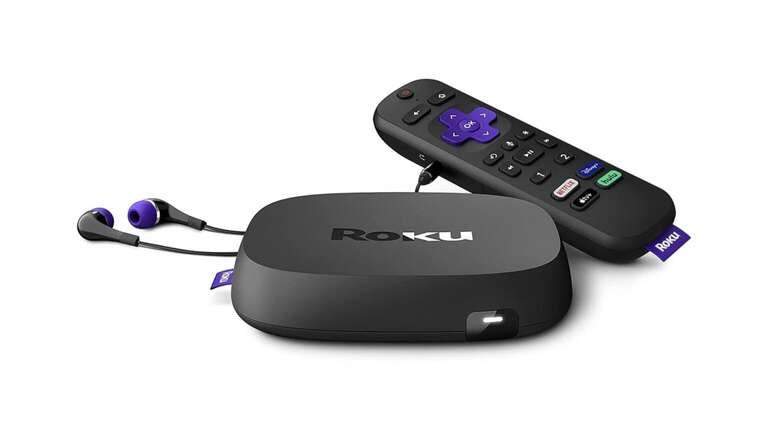
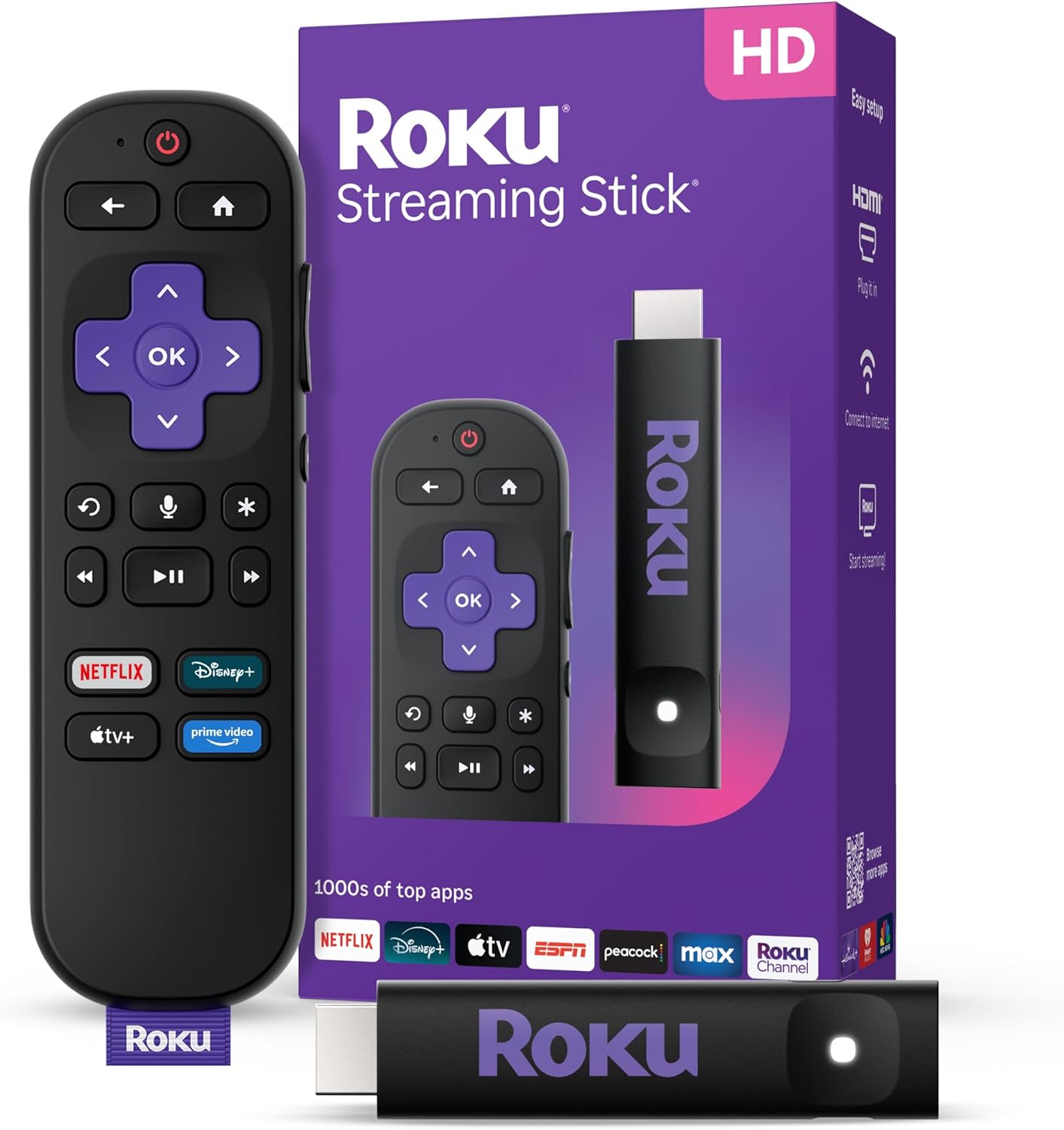
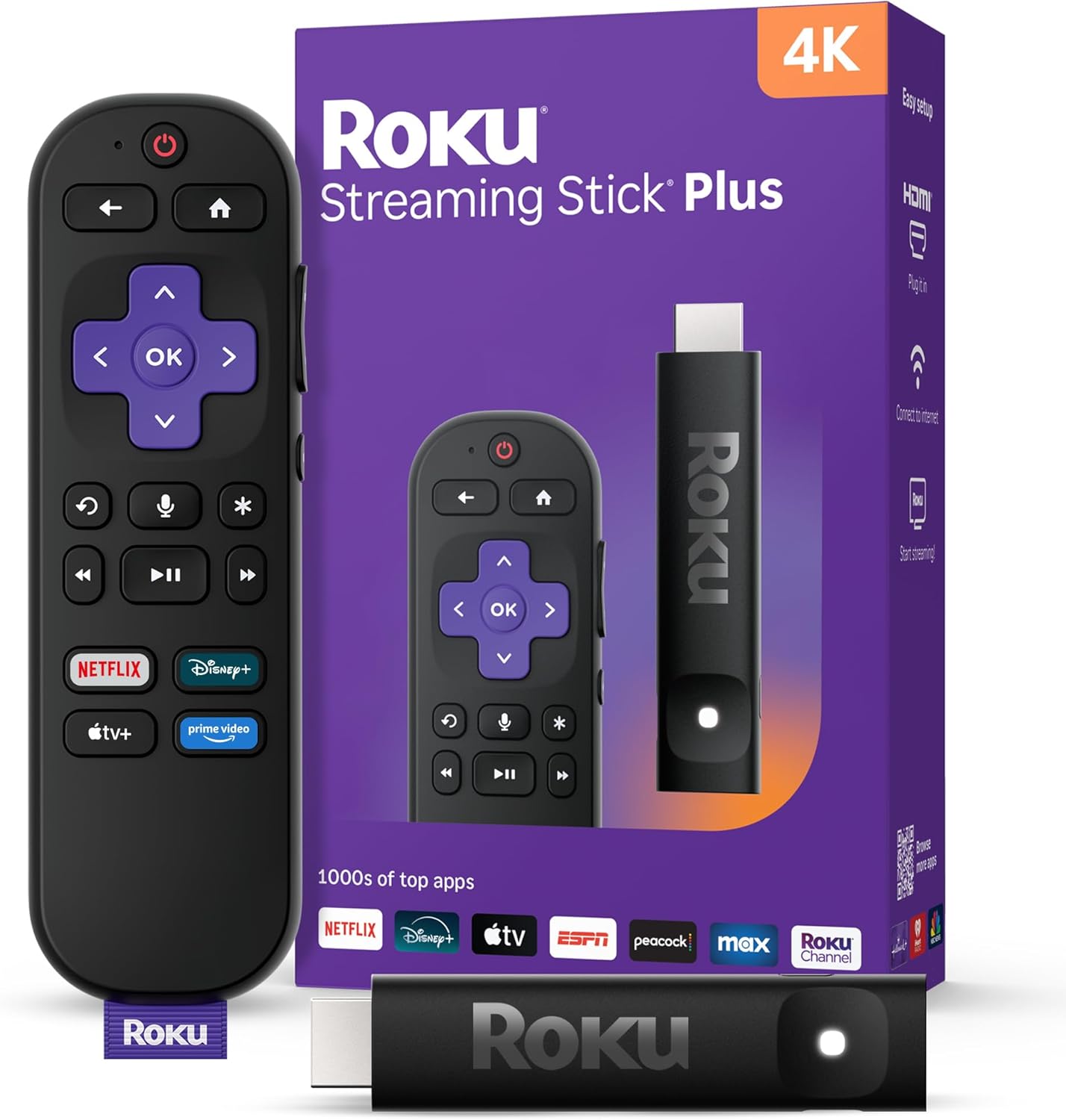
Roku devices (including Ultra, Streambar, and Streaming Stick 4K) don’t offer universal parental control settings or separate kids’ profiles, but you can set up a four-digit PIN in the Roku’s settings to restrict content from being added to your Roku account, such as movie or TV show rentals or purchases, or adult-oriented streaming apps. However, this doesn’t prevent young eyes from seeing apps and purchases that parents have previously added.
Roku devices don’t feature much in the way of parental controls over channels and apps, but the Roku Channel —Roku’s own free ad-supported TV (FAST) platform — does. Using your four-digit PIN, you can set the Roku Channel’s parental control settings to off (no PIN required to watch anything); G, TV-Y, TV-G content only; PG, TV-PG, and below content only; or PG-13, TV-14, and below content only, depending on the needs of your individual family.


Amazon Fire TV
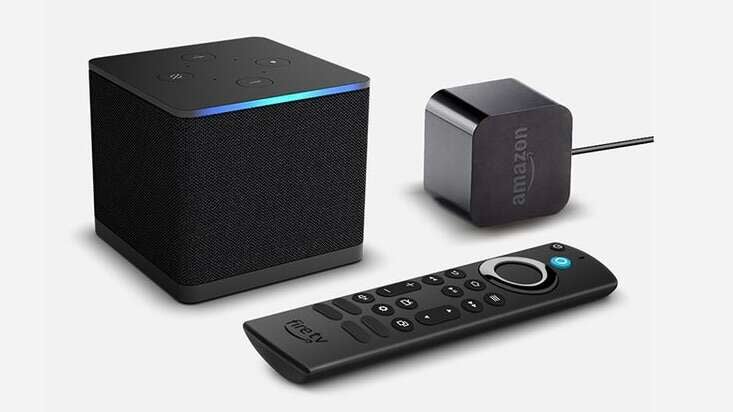
Amazon Fire TV devices (including Fire TV Cube and Fire TV Stick 4K), unlike Roku, do allow for individual kids’ profiles. Out of Fire TV’s six available profiles, up to four can be set as Amazon Kids profiles, and each of those kids’ profiles can be set to different age levels of protection.
Amazon Fire TV devices allow you to set up five-digit PINs to restrict app downloads and TV show and movie purchases. As with Roku devices, this doesn’t restrict children from seeing their parents’ existing channels and purchases.
For an additional $6 a month, you can add an Amazon Kids+ subscription to your account, which gives the kiddies access to thousands of ad-free books, games, videos, and Alexa Skills learning tutorials.


Apple TV
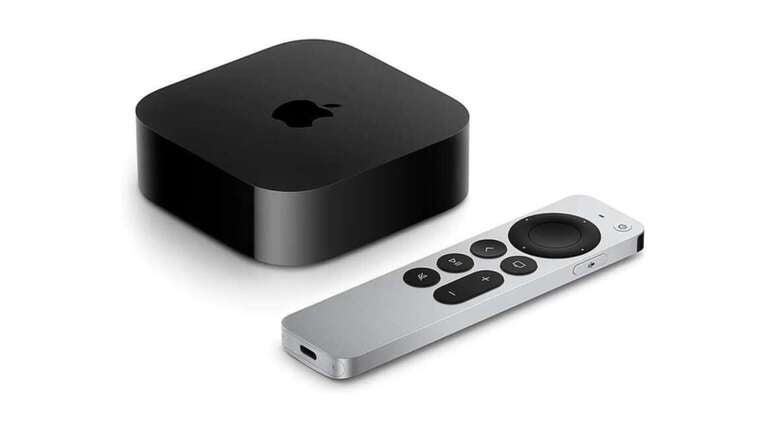
The Apple TV 4K’s parental controls, located in the Control Center’s settings, allow you to set up a four-digit PIN to restrict access to age-rated TV shows, movies, music, or podcasts. The PIN also blocks purchases of TV shows, movies, and apps available on Apple TV.
Access to multiplayer games, the addition of friends, and changing privacy settings can be managed through Apple TV’s Game Center.

Which is right for you?
They’re excellent streaming devices, but Roku and Apple TV are somewhat lacking in parental controls.
Our recommendation: Amazon Fire TV offers the most parental control choices and features, like four available children’s profiles and the optional Amazon Kids+ add-on with ad-free books, games, and videos. Fire TV obviously takes kids’ entertainment and safety as seriously as you do.
Device parental controls
How to set Roku parental controls
Go to MyRoku.com on a web browser and sign in to your Roku account. Then proceed to “Device settings,” then to “PIN/Parental controls.” If you don’t already have a four-digit PIN, create one. Then set when the PIN is required for purchases and app additions.
To set content restrictions on Roku Channel from “PIN/Parental controls,” select content access based on ratings like G, PG, TV-14, TVMA, etc. These preferences can also be set through the Roku device.
To set parental restrictions on outside-Roku apps (Netflix, Hulu, Max, etc.), go to the settings for each individual app.
How to set Amazon Fire TV parental controls
Go to “Settings” on your Amazon Fire TV device, select “Preferences,” turn on “Parental controls,” and then enter or create a five-digit PIN. Then, configure restrictions to require the PIN for purchases, app additions, viewing of rated content, and access to Prime Photos app.
Individual Amazon Kids profiles (up to four) can be set up with unique restrictions for each profile.
How to set Apple TV parental controls
On your Apple TV device, access “Settings,” then “General,” and then “Restrictions.” Enter or create a four-digit PIN. From there, set restrictions on purchases and rentals and age-rated content (including TV shows, movies, and apps).
Apple TV can also set restrictions on explicit music and podcasts, as well as multiplayer and other Game Center features.