Samsung TV 101: What new users need to know
Samsung TV 101: What new users need to know
Hit the ground running with your new Samsung Smart TV with our handy beginner’s guide!

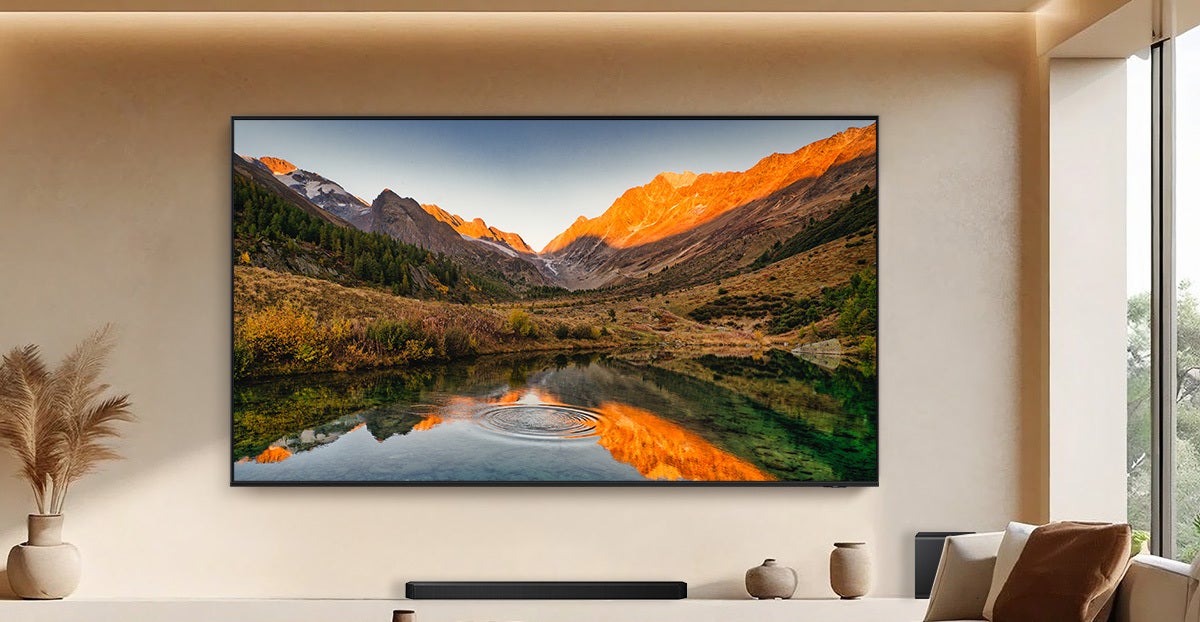
At The Streamable, we know how important it is for viewers to get the right device for their needs — especially after taking the plunge and cutting the cord once and for all. Picking between TV operating systems is especially crucial, as it could mean the difference between relishing every watching session and refusing to watch TV at all because you don’t know how to make it work! Samsung Smart TVs are one of the most-chosen TV brands in the United States, and with good reason. If you’re considering a Samsung Smart TV and want to know more, or if you’ve bought your very first Samsung Smart TV and need some help getting started, we’ll explain everything you need to know below.
Everything you need to know about Samsung Smart TVs
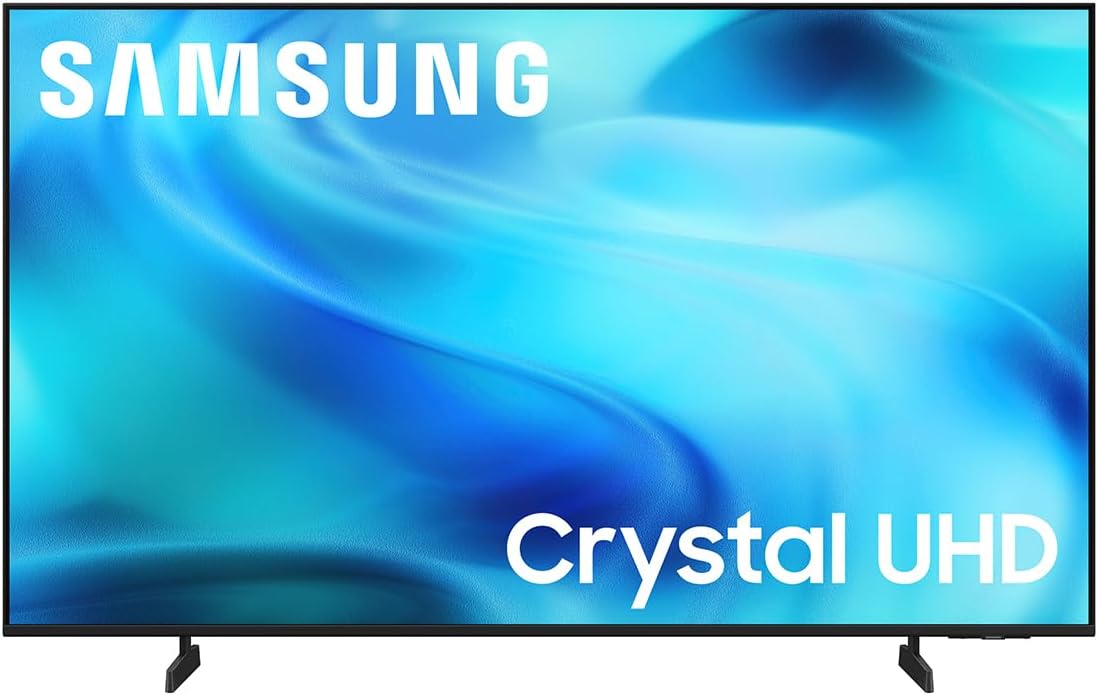
Samsung 65-inch U8000H Series 4K smart TV
From $378 at Amazon
Do you need a streaming device with Samsung TVs?
Nope! Samsung Smart TVs connect directly to your home Wi-Fi and have enough storage space to allow buyers to download TV and music streaming apps directly to the set — no streaming stick or set-top box required.
That gives users the convenience of not having to keep track of multiple remotes, and of not having to worry about buying a new version of their current streaming device when its manufacturer inevitably stops supporting it with software updates.
What operating system do Samsung TVs use?
Samsung Smart TVs always use the same operating system: Tizen. Like most smart TV or streaming player software, Tizen allows viewers to download new streaming apps, see recommended content from their subscriptions, watch live TV, and control connected smart home devices.
Viewers are able to sort their view with the Samsung Tizen OS, which offers tabs including For You, Live, Apps, and Search. With these options, viewers can see recommendations generated by Tizen for their next watch, see available live TV channels, browse downloaded apps and install new ones, or search for movies, TV shows, apps, and more.
The Tizen user interface also has a sidebar menu with account and profile options, a gaming hub, Daily+ for lifestyle and health apps, and Ambient Mode to display art, photos, or other ambient information. They’re fairly standard options, but the layout makes Samsung Smart TVs easy to navigate.
How to set up your Samsung Smart TV for the first time
If you’ve pulled your Samsung Smart TV out of the box and set it up on your chosen wall or TV stand, it’s time to plug it in and get started! Follow these instructions to set up your Samsung Smart TV for the first time.
- Turn on the TV with the power button on the remote, or the physical button on the TV.
- If the remote is not paired with the TV, hold down the Back and Play/Pause buttons for a few seconds.
- Choose a setup method (smartphone or remote control).
- Pick your language and region.
- Connect the TV to your Wi-Fi network.
- Sign in to your Samsung account.
- Wait for system updates.
- Create a security PIN if prompted.
- Select a preferred voice assistant, and begin downloading your favorite apps.
Getting to know the Samsung Smart TV remote
Unlike many streaming devices, a Samsung Smart TV comes with a robust remote, with a number pad, channel and volume rockers, and input buttons in addition to the standard directional pad and power buttons.
That gives the Samsung Smart TV owner much more functionality, including the ability to return to their previously viewed live channel, put the TV to sleep, call up a programming guide, and use dedicated playback control buttons.
How to watch free TV and movies with a Samsung Smart TV
All Samsung Smart TVs come with a free ad-supported streaming service called Samsung TV Plus. This streamer offers hundreds of free ad-supported streaming TV (FAST) channels, as well as on-demand TV shows and movies by the thousands, and is available at no cost on Samsung Smart TVs.
Modern Samsung Smart TVs come with Samsung TV Plus pre-installed, so viewers don’t even have to go to the trouble of downloading it to watch. Start streaming free TV as soon as you’ve got your new Samsung Smart TV set up with Samsung TV Plus.
How to download new streaming apps for Samsung Smart TV
Once your Samsung Smart TV is set up and connected to your home Wi-Fi network and signed in to your Samsung account, you’ll be ready to start downloading your favorite streaming apps. Samsung Smart TVs are compatible with all major American streamers, from Apple TV to Netflix to YouTube TV and everything in between.
To download apps on the Samsung Smart TV:
- Press the Home button on the remote to open the Smart Hub menu.
- Navigate to the Apps icon.
- Browse for the app you want, and start downloading.
Alternatively, viewers can use the Search shortcut on Samsung Tizen to browse for new streaming apps.
Is a Samsung Smart TV the best choice for you?
Samsung Smart TVs are usually an excellent choice. They prevent customers from having to purchase an additional streaming player to watch or listen to their subscriptions, and the Samsung Tizen operating system is intuitive and quick to pick up, making it easy to find old favorites and new streams.
Samsung also makes its smart TVs at essentially every price point and in a huge range of sizes, with features ranging from simple to advanced to help every customer get the right device. If you’re burnt out on trying to pick between the seemingly never-ending device lines from Roku or Amazon Fire TV, a Samsung Smart TV could be exactly the answer you’re looking for.
Samsung 65-inch U8000H Series 4K smart TV
From $378 at Amazon
Get to know the Samsung U8000H Series 4K smart TV with the Tizen operating system built in.