Streaming sticks 101: What beginners need to know
Streaming sticks 101: What beginners need to know
If you’re jumping into streaming for the first time, we’ll answer all your questions about getting your first streaming stick here!

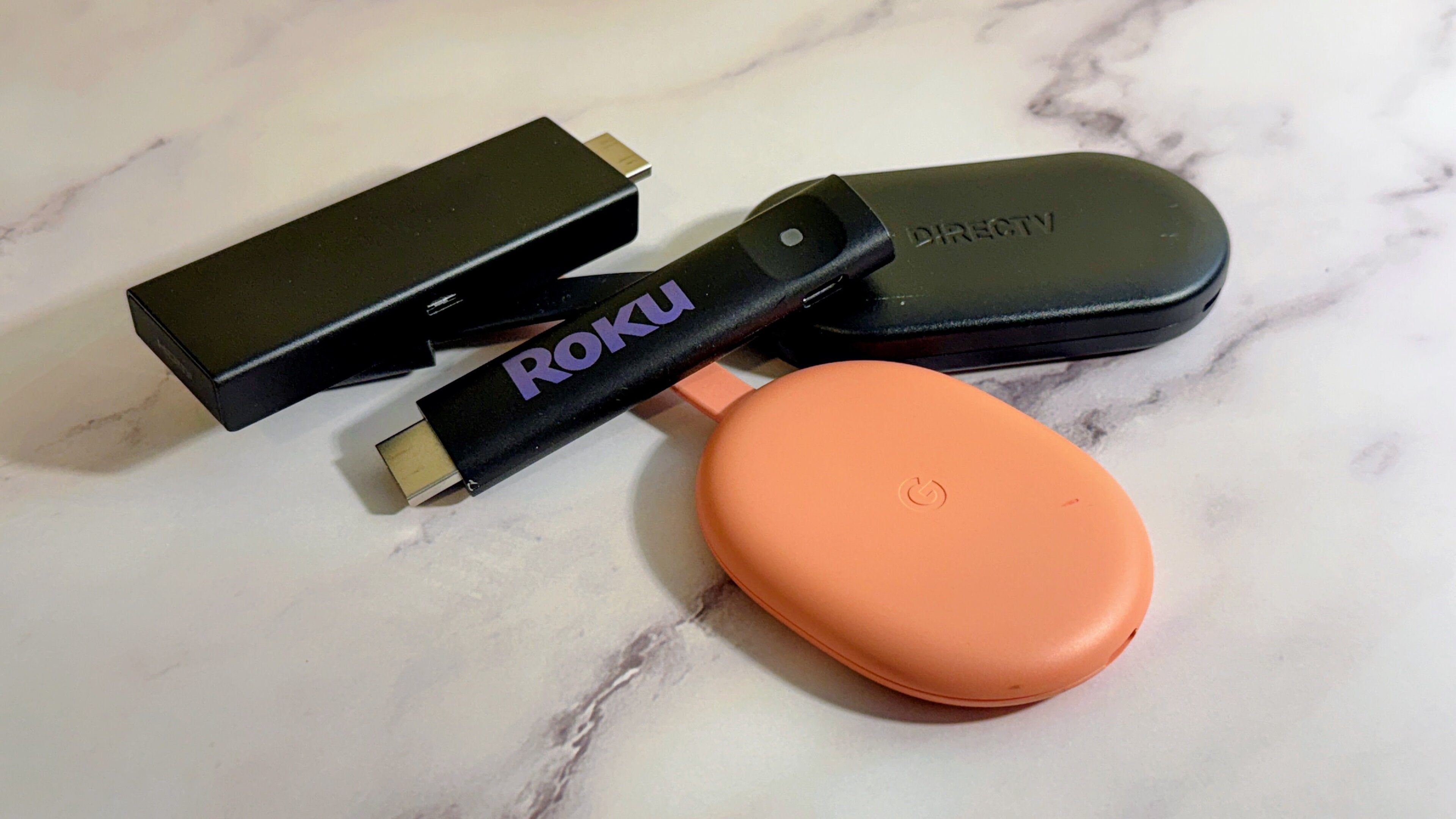
Are you just about ready to cut the cord, but find the world of streaming a little intimidating and hard to access? It’s perfectly understandable if that’s the case; streaming is pretty different than traditional pay-TV, and learning how to use it requires a new set of vocabulary even to understand what people mean when they talk about the differences between live and on-demand streaming, ad-supported streamers versus subscription services, etc.
One of the best places to get started if you’re tentative about entering the world of streaming is to learn more about streaming sticks and devices. These small gadgets can help viewers access a whole universe of entertainment they’ve never tried before, if owners know how to use them.
So, what’s the lowdown on streaming sticks? What exactly are they, why do you need one, and how do you use it? We lay it all out in our beginner’s guide to streaming devices below, to help prepare first-time buyers or streaming-stick-curious readers.
Everything you need to know about streaming sticks
What is a streaming stick?
A streaming stick is a small device that helps viewers stream video via their home Wi-Fi connection. Streaming sticks usually connect to your TV via its HDMI port, which transmits video and audio to the television screen without extra cords.
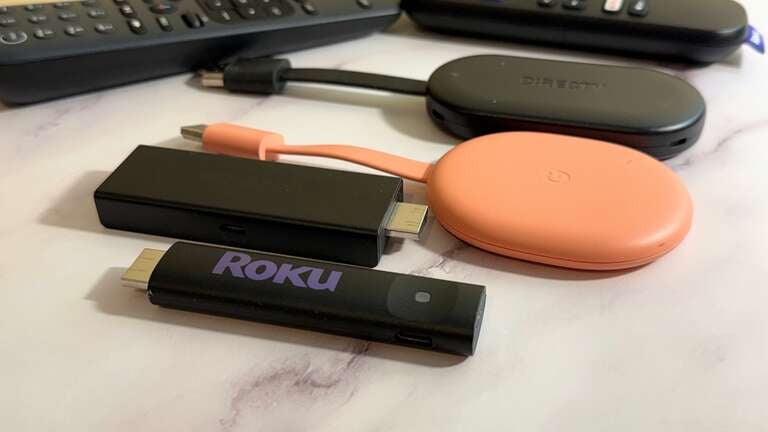
Many streaming sticks are just that: small, stick-shaped objects with an HDMI male connector at one end that are compact enough to be plugged directly into your TV. But it’s important to note that “streaming sticks” is just a generic term; many streaming devices are too large or awkwardly shaped to be plugged into a TV, and must be placed on a surface and connected via an HDMI cable, but they all perform the same function.
Once your streaming player is connected to the TV, you will be able to use it to download apps for your streaming subscriptions and watch them on the biggest screen in your home, without having to cast from a phone or other device. All the top American streaming players support major apps like Apple TV, Disney+, HBO Max, Hulu, Netflix, Paramount+, and Peacock.
Streaming sticks also support major live TV streaming apps that allow subscribers to watch cable channels using their Wi-Fi connection, such as DIRECTV, Hulu + Live TV, Fubo, Philo, Sling TV, and YouTube TV.
Top brands of streaming devices in the United States include Amazon Fire TV, Apple TV, the Google TV Streamer 4K, Roku, and the NVIDIA Shield.
How are streaming sticks different from cable boxes?
If what you’ve read so far leads you to the idea that a streaming stick is a lot like a cable box, you’re not necessarily wrong. Like cable boxes, streaming sticks give subscribers a hub for accessing multiple types of programming in a single place, and many streaming sticks even have grid-style live TV channel guides that mimic the way cable presents channels.
The first major difference to be aware of is in how streaming devices connect to your TV. A cable box is traditionally attached via your set’s coaxial port, whereas a streaming stick almost always needs an HDMI port to transmit audio and video to your TV screen.
A streaming stick also requires an internet connection to work, another distinction from cable boxes. Most streaming devices only support connection via wireless internet, but some also come with Ethernet ports. Without an internet connection, a streaming stick cannot present live or on-demand video.
What’s the difference between a streaming stick and a smart TV?
Smart TVs serve many of the same functions as a streaming stick. Both devices use the internet to allow owners to stream video, music, and more, and both are capable of downloading and maintaining a customer’s chosen apps for on-demand use.
The main difference is that smart TVs build all of their computer chips and software into their housing. Viewers are essentially stuck using the operating system that comes installed with a given smart TV, whereas streaming sticks can be plugged into essentially any TV as long as it has a compatible HDMI port.
Another important difference to keep in mind is the price gap between smart TVs and streaming players. Even the most advanced streaming sticks on the market cost $200 or less, while smart TVs can easily range into the thousands of dollars, depending on the features included.
Why would you want a streaming stick?
If you’re choosing between a smart TV and a streaming stick, it’s important to remember that TV manufacturers have to pack a lot of technology into a smart TV. This can lead to money- or space-saving tactics such as skimping on internal processors, leading to a frustratingly slow and clunky experience.
High-quality TV screens can help deliver a great picture for many years, but the computer chips installed inside will feel obsolete after just a few years. Many smart TVs eventually stop being supported by new software updates, but there’s no sense in spending hundreds to buy a new TV when you can purchase a new streaming stick for $50 instead.
Streaming sticks are also much more portable than a smart TV. Owners who find themselves traveling can take their streaming stick with them, plug it into the TV at their hotel or short-term rental property, and find all of their streaming services waiting for them.
What’s needed to use a streaming stick?
Any streaming service that connects to a TV via HDMI requires a TV with an HDMI port. You’ll also want to check the type of battery used in your streaming stick’s remote; most streaming players include batteries in the box, but a few models may not.
The short list of needed equipment includes:
- A TV with a working HDMI port.
- A free power outlet.
- Batteries for your remote.
- The streaming stick itself.
Do streaming sticks require a subscription?
No, you will not need to subscribe to any services to plug your streaming stick and use it with your TV. All streaming stick operating systems are free to use, with no add-on purchases required to browse menus, download apps, or adjust settings.
This can be more confusing than it seems on its face, however, since many streaming devices are made by companies that also have streaming services. Amazon, for example, manufactures Fire TV devices and also owns the Prime Video streaming device. However, you do not need to subscribe to a company’s streaming service even if you buy their streaming player.
Additional purchases are required if you want to stream apps like Disney+, Netflix, etc. on your streaming stick. Purchasing a streaming device does not mean you get to watch these subscriptions for free; you will be able to download their respective apps at no cost, but if you are not a paying customer yet, you will be prompted to create an account to use these services after downloading.
Is a streaming stick better than casting?
In our view, streaming sticks are highly superior to casting video from a phone to a smart TV. Streaming sticks support native apps for a multitude of TV and streaming services, allowing for a much smoother viewing experience as opposed to looking up the desired title on your phone, then working through all the steps needed to cast it.
Using a streaming stick instead of casting frees up your phone to do anything else you want while watching a video on your TV screen — including playing another video if you prefer. Get a streaming stick instead of casting, and take your phone back!
Do streaming sticks come with free TV or movies?
Many do! Often, streaming players come with pre-installed apps that allow viewers to watch free ad-supported streaming TV (FAST) channels or on-demand TV episodes and movies with commercials at no cost.
Fire TV and Roku devices include free streaming content, and Google TV Streamer owners can find hundreds of FAST channels in the device’s live guide, but not all streaming players automatically provide free content. Apple TVs compel owners to download free streaming apps in order to watch their content, for example.
Do you have to have a stick to watch streaming services?
No, but a streaming stick is one of the easiest ways to watch your streaming subscriptions on a TV screen. Alternatives such as smart TVs and gaming consoles are available if you prefer not to watch your subscriptions with a connected streaming player.
Streaming sticks are not required to watch a streaming subscription on your laptop or desktop computer, or any mobile device such as phones or tablets.
What are some of the common features of streaming sticks?
Most streaming sticks share a ton of common features, including:
- Easy-to-navigate user interfaces
- Voice assistant-enabled remotes
- Access to thousands of video and music streaming apps
- Standardized physical connections
- Wi-Fi connectivity
- Video resolution baselines
- The ability to cast from mobile devices
Which streaming stick should you choose?
In large part, your choice of streaming stick will come down to aesthetic preferences and hardware needs. But in general, if you’re looking for a budget-friendly device that delivers basic streaming functions, go with a Fire TV or Roku device. These manufacturers each sell multiple player models from around $30 to $100 each, and are perfect for those with everyday streaming needs.
If you’re looking for something a little fancier, with better picture and sound quality and a more advanced feel, you’ll want to cast your gaze to devices like the Apple TV 4K, Google TV Streamer 4K, or NVIDIA Shield. There’s really no wrong way to go, however, and you can check out more details on each individual device by using the links in the table below.
Where to buy top streaming sticks
| Device name | Amazon | Best Buy | Target | Walmart | Home Depot | Lowe’s | Macy’s |
|---|---|---|---|---|---|---|---|
| Amazon Fire TV Stick HD | Shop now | Shop now | N/A | N/A | Shop now | Shop now | N/A |
| Amazon Fire TV Stick 4K Select | Shop now | Shop now | Shop now | N/A | Shop now | Shop now | N/A |
| Amazon Fire TV Stick 4K Plus | Shop now | Shop now | Shop now | N/A | Shop now | Shop now | N/A |
| Amazon Fire TV Stick 4K Max | Shop now | Shop now | Shop now | N/A | Shop now | Shop now | N/A |
| Amazon Fire TV Cube | Shop now | Shop now | N/A | N/A | Shop now | N/A | N/A |
| Roku Streaming Stick HD | Shop now | Shop now | Shop now | Shop now | Shop now | Shop now | Shop now |
| Roku Express Spanish Edition | Shop now | N/A | Shop now | N/A | N/A | N/A | N/A |
| Roku Express 4K+ | Shop now | Shop now | N/A | Shop now | N/A | N/A | N/A |
| Roku Streaming Stick 4K | Shop now | Shop now | Shop now | Shop now | Shop now | N/A | N/A |
| Roku Streaming Stick Plus | Shop now | Shop now | Shop now | Shop now | Shop now | Shop now | Shop now |
| Roku Ultra | Shop now | Shop now | Shop now | Shop now | N/A | N/A | Shop now |
| Roku Streambar | Shop now | Shop now | Shop now | Shop now | N/A | Shop now | Shop now |
| Apple TV 3rd Gen 64GB | Shop now | Shop now | Shop now | Shop now | N/A | N/A | N/A |
| Apple TV 3rd Gen 128GB w/Ethernet | Shop now | Shop now | Shop now | Shop now | N/A | N/A | N/A |
| Google TV Streamer 4K | Shop now | Shop now | Shop now | Shop now | Shop now | Shop now | N/A |
| NVIDIA Shield | Shop now | Shop now | N/A | Shop now | N/A | N/A | N/A |