First 5 things to do with your new Apple TV
First 5 things to do with your new Apple TV
There is a bit of a learning curve to using an Apple TV 4K device, but here are five tips that can make the transition smoother.

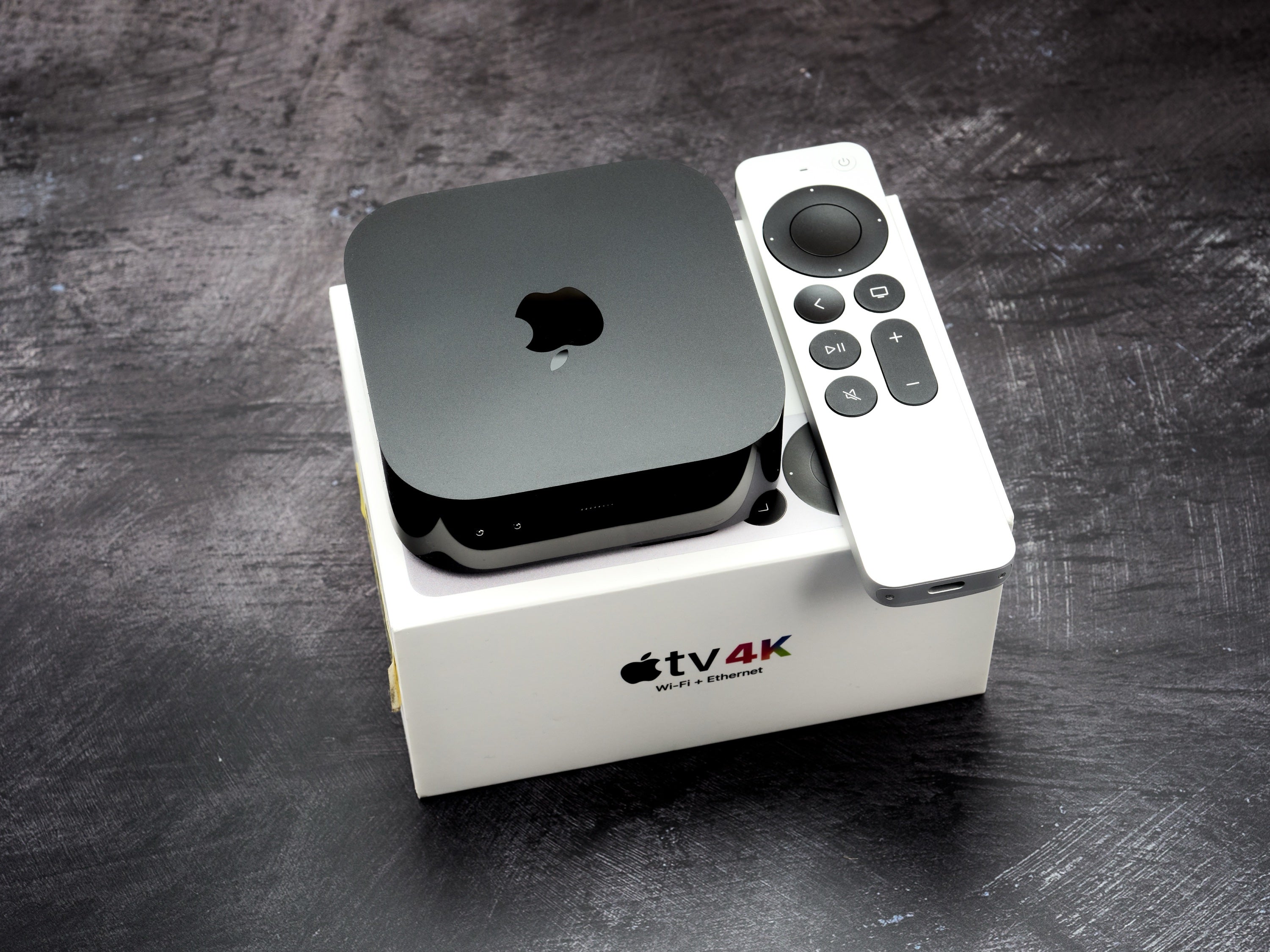
For years, when it came to buying a new TV, I was the type of guy who would go for the biggest and cheapest option possible. When I was in college, I sold TVs back in the days when plasma TVs were all the rage and LCD screens were just beginning to enter the market. From my days at Circuit City to covering the streaming industry, I have seen some pretty wild changes in the technology and hardware that keeps us entertained at home. So, I knew that in terms of what I want and need from a TV, a 75-incher I could get from Amazon or Walmart was going to be more than enough for me.
And, when it comes to the set itself, that is still absolutely true. These bargain-basement brands are using the same materials as their more prestigious and pricey competitors — heck, oftentimes they’re even made in the same factories. However, where I have abandoned my Black Friday Deal or Bust mentality is with streaming hardware, specifically my Apple TV 4K box. For years, I was completely agnostic when it came to a TV’s operating system. If I got a good deal on a Fire TV, I bought it. If I could pick up an affordable Roku, I added it to the mix. But all of that changed last year when, after reading and reporting on the benefits of Apple TV 4K, I broke down and spent a little more money on an Apple TV for myself.
What to do once you’ve set up your Apple TV
I have been blown away by how reliably the device connects and performs every time I turn it on, and as someone who is already entrenched in the Apple ecosystem, I love how seamlessly it brings all of my streaming services, purchased content, smart-home features, and Apple devices together. The interface is clean, the performance is fast, and the functionality (after you get used to the unique remote mechanics) is second to none.
So, if you are new to the world of Apple TV devices, here are a few simple things that I would recommend to help make the experience even better. After you finish the initial setup process, these are the first five things I think you should do.
1. Set up the remote to control everything
Click image to expand to full size.
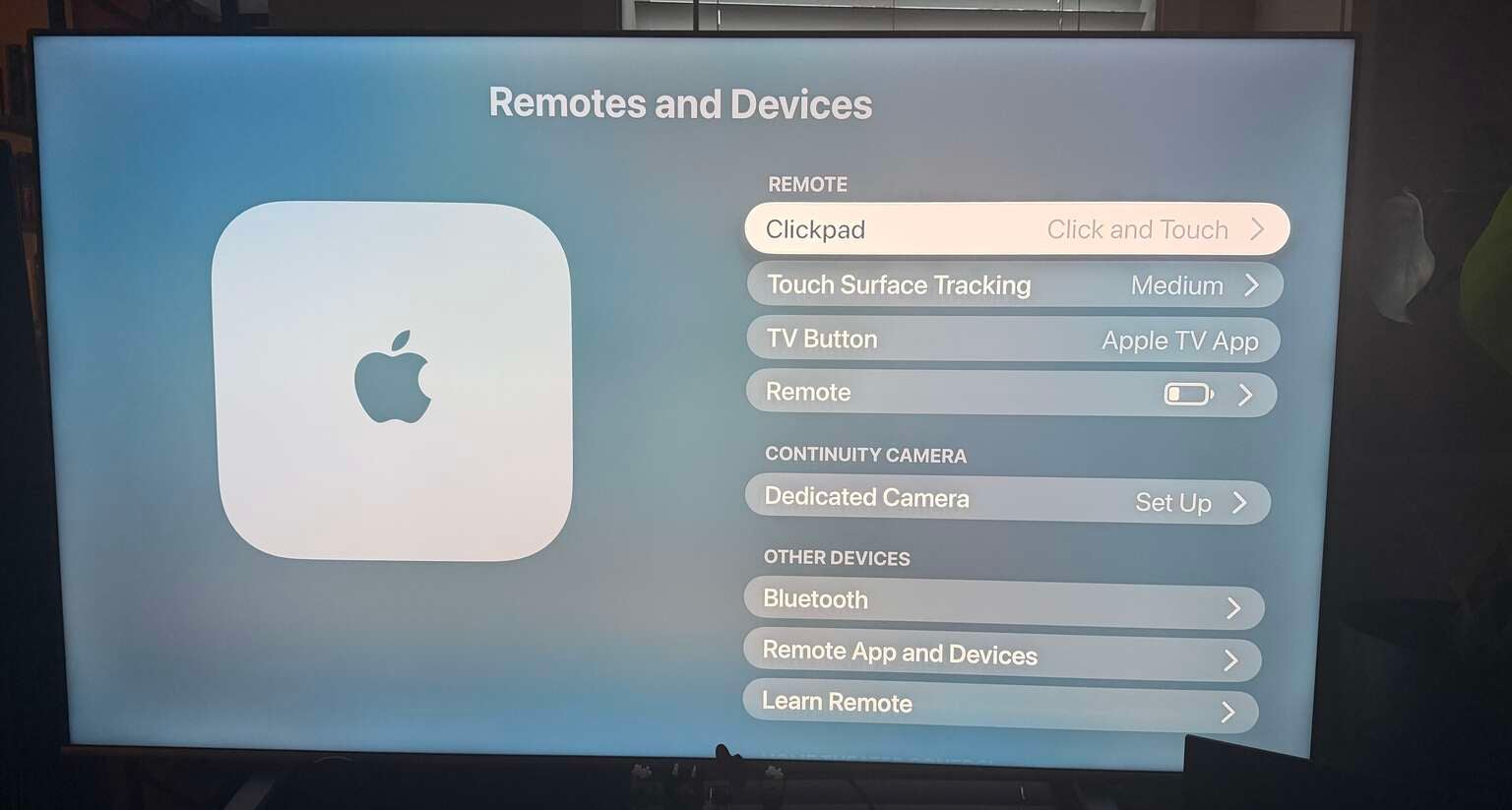
Since Apple does not yet make its own line of televisions, chances are pretty good you already have another remote you’ve been using; for example, my Apple TV 4K is hooked up to my main 75-inch Fire TV in the living room. While you can use your new Siri Remote to navigate the Apple TV menus and your original remote to control the functions of your TV, nobody wants to have to juggle multiple remotes.
- Open Settings
- Click on Remotes and Devices
- Ensure that your Siri Remote can control the television’s power and volume.
This makes it possible to use the Apple TV remote for most everyday viewing without constantly switching between multiple remotes. You can also change the TV button so that pressing it returns to the traditional Home Screen rather than automatically opening the Apple TV app. I personally did not do this, as I have no need to get to the Fire menu, but if you still prefer easy access to your TV’s native menu, that is an option as well.
2. Fix the video settings
Click image to expand to full size.
While it is true that I am not much of a hardware snob, that doesn’t mean that I don’t want to make sure that my TVs are all operating at peak performance levels.
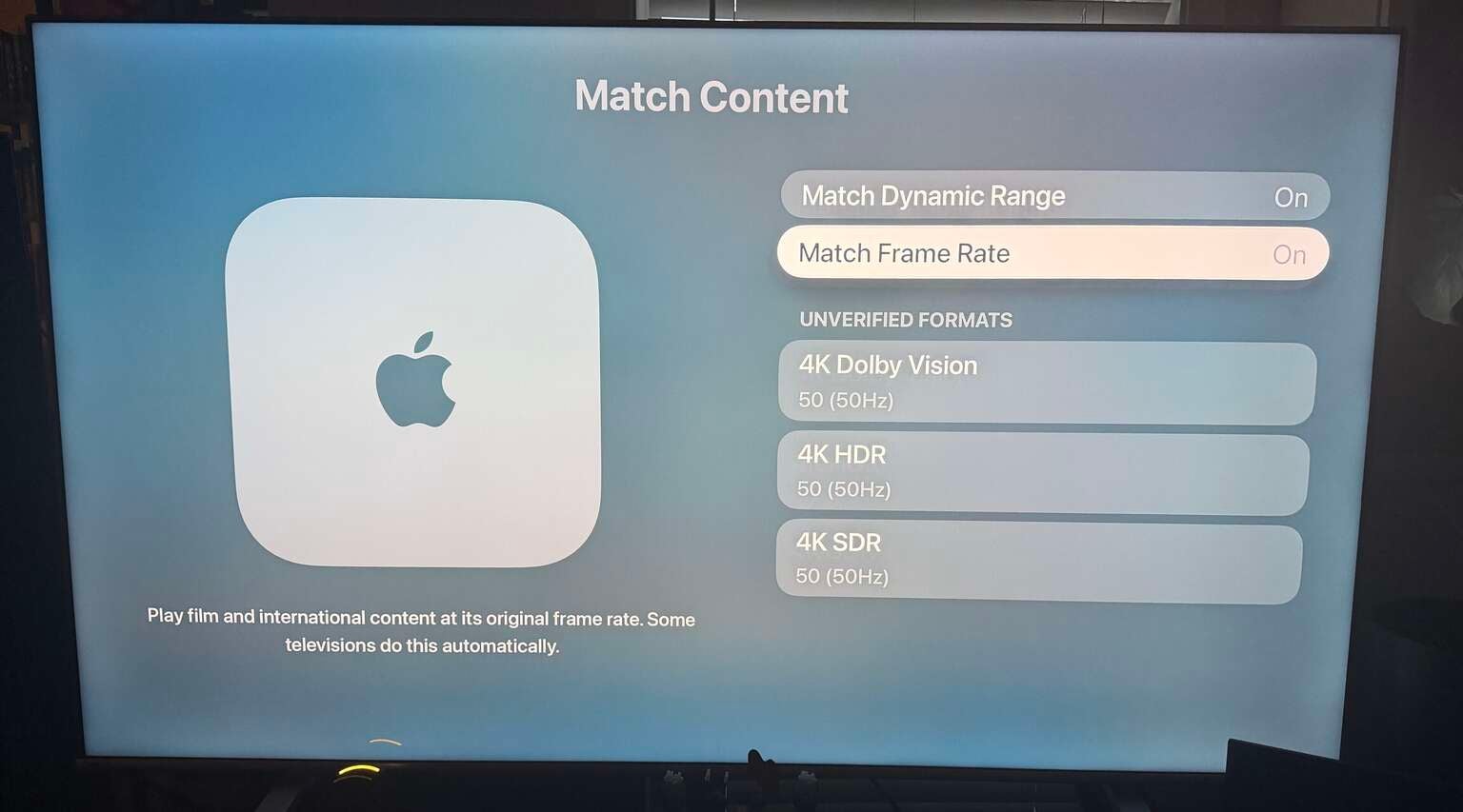
- Go to Settings
- Click on Video and Audio
- Select Match Content
- Turn on both Match Dynamic Range and Match Frame Rate
This will allow movies and shows to play in their native HDR format and frame rate instead of forcing everything into one display mode. The screen may briefly go black when a video begins or ends, but that is normally just the television switching between formats.
3. Download and sign into your streaming apps
Click image to expand to full size.
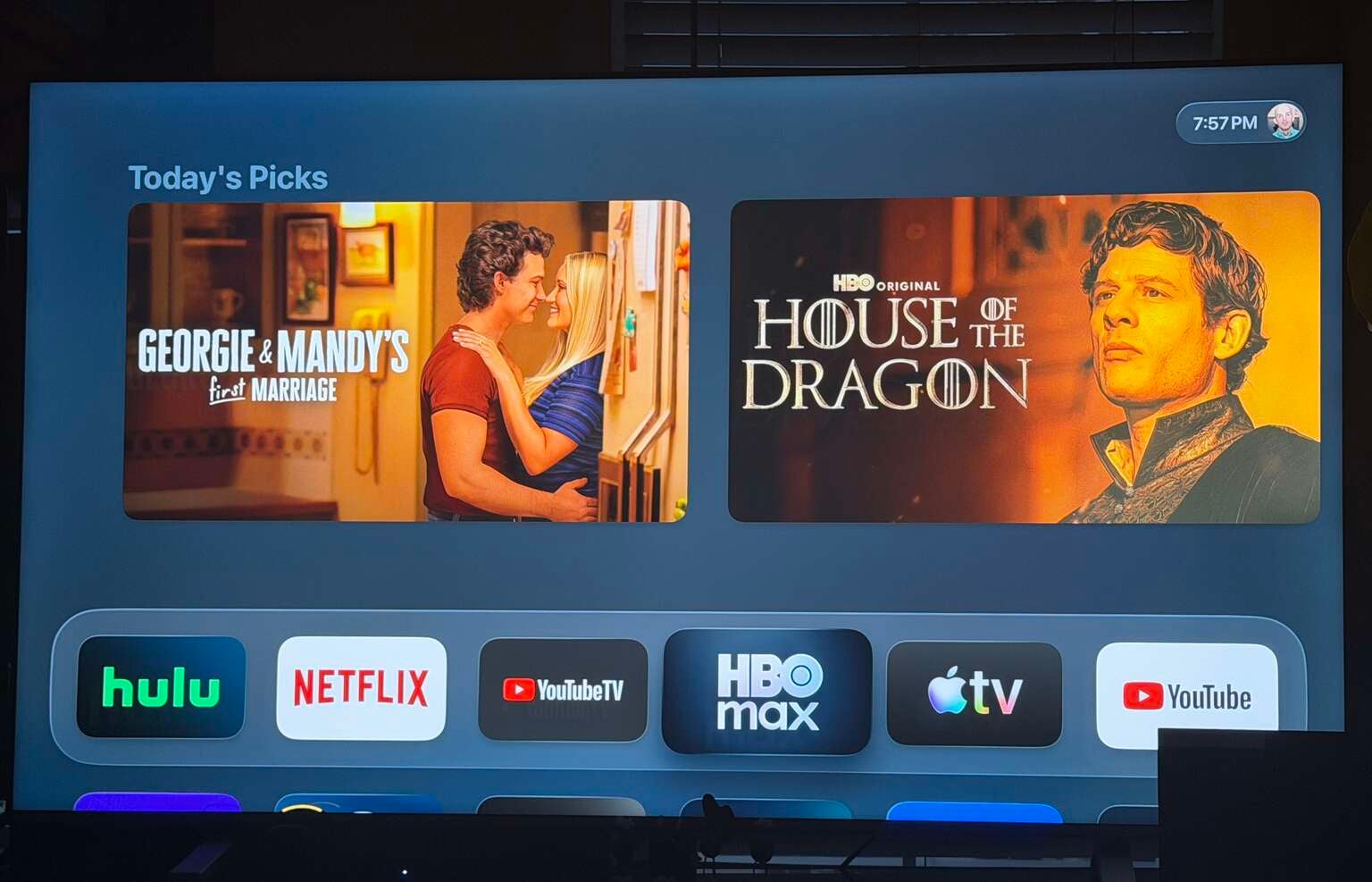
While those first two items on the to-do list are more technical, this one is fun because it’s where you start to customize your new device to provide all of the entertainment that you bought it for. You likely have a solid list of apps that you know you will need from your previous operating system, but there are certainly some obvious ones to start with.
Apple TV comes preloaded, so you are set there, but you’ll also likely want to add the must-haves like Netflix, Disney+, HBO Max, Hulu, and perhaps the live TV streaming service of your choice. For me, I also have to have Hallmark+, MLB.TV, and PokerGo.
The one app that I would love to have access to on my Apple TV 4K, but don’t, is the Roku Channel. I love all things “Bake Off,” so I like to keep up on “The Great American Baking Show.” However, Roku’s free streaming service has never been available on Apple TV devices. So, when I want to catch up on new episodes, I either have to switch over to the TV’s native Fire TV menu or watch on another device.
To download apps to your Apple TV:
- Scroll to the bottom of the menu page and select App Store
- Search for your app of choice
- Select the app and select Get
You should also connect supported apps to the Apple TV app so that their movies and shows can appear in your Continue Watching carousel, regardless of where you watched them.
These connections can be managed under Settings → Apps → TV.
4. Organize the home screen
Click image to expand to full size.
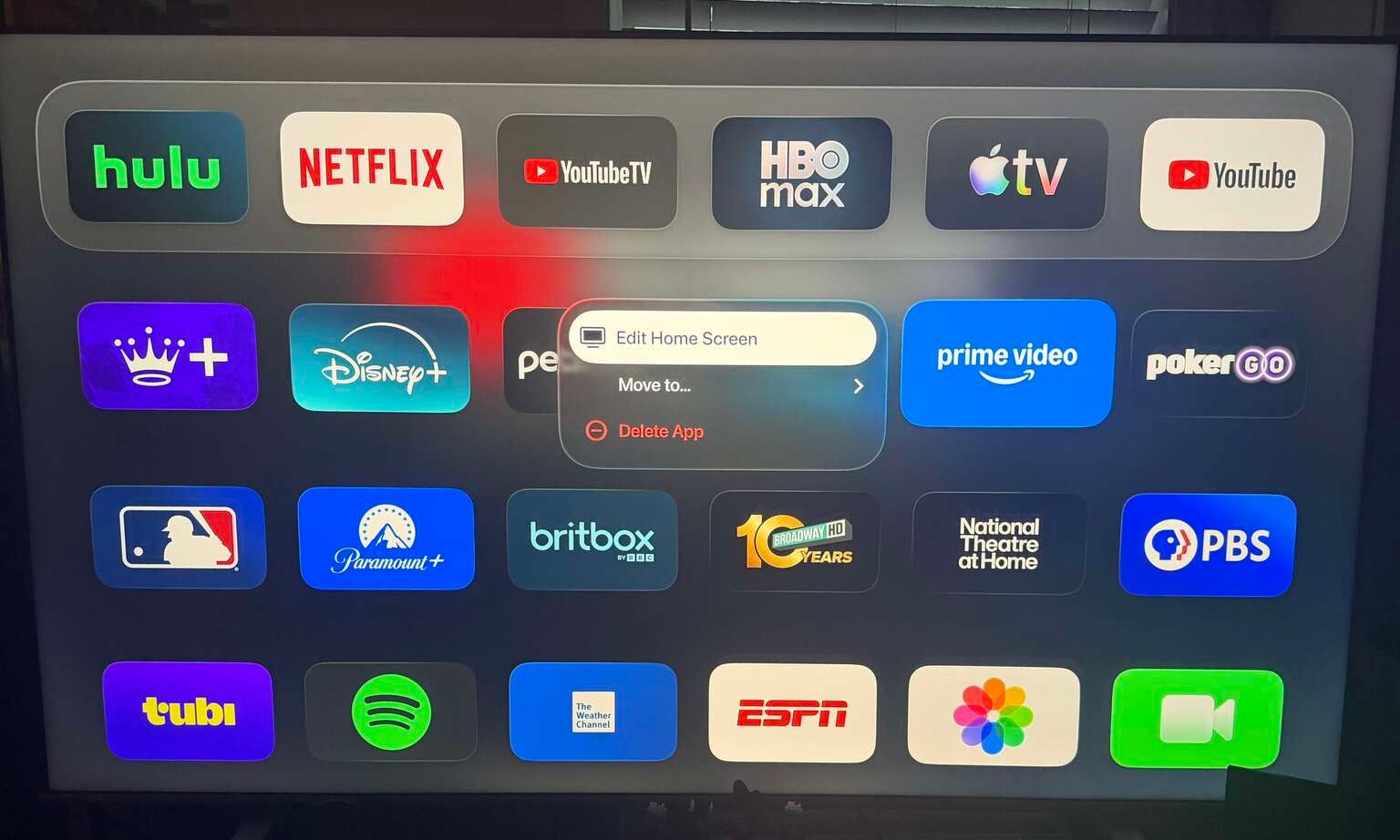
Once you have downloaded all of the apps you want to use, it’s time to organize them for easy access. You will want to move your most-used apps into the top row so they are immediately accessible whenever you turn on the Apple TV. You can also create folders for less frequently used services and delete any apps you do not need.
The top row is especially important because some apps display previews, recommendations, or personalized content above their icons when highlighted.
To organize your Apple TV home screen:
- Hold down the center of the touchpad
- Select Edit Home Screen and then use the directional pad to change the app’s position
- Select Move to… to assign it to a folder
- Select Delete App to remove the app
5. Customize profiles, screensavers, and home integration
Click image to expand to full size.
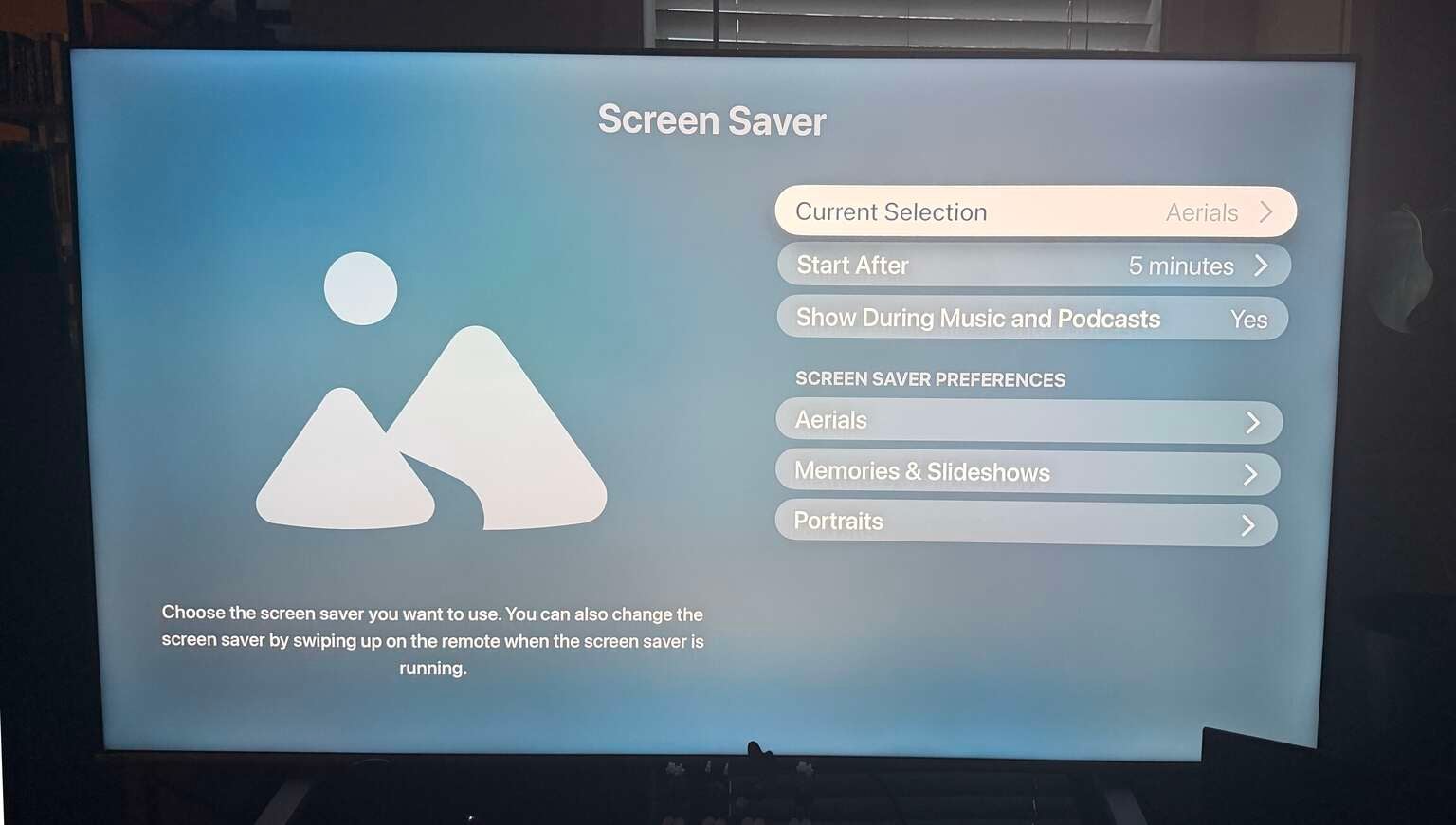
The final tip that I can give you is to personalize your device to suit your needs. That can be as small as selecting the perfect set of screensavers (everything from aerial videos of some of the world’s most gorgeous cities to personal photos to character-based screensavers) or as big as integrating your other smart home devices. While the Apple TV 4K is an incredibly powerful streaming tool, it also fits in perfectly alongside the other items in the Apple ecosystem. So, making it the hub of your home and entertainment systems is a massive upgrade.
One thing that I would recommend in order to make the most of your device is setting up individual user profiles for everybody who will be using the Apple TV. This way, each person in the household will receive personalized recommendations and maintain a separate viewing history, so Mom and Dad aren’t overwhelmed by “Bluey” and “Descendants” movies in their Continue Watching row, and the kiddos won’t accidentally click on episodes of “Breaking Bad” or “Sex and the City.” All of these things can be done via the Settings menu.

Apple TV
Apple TV (formerly known as Apple TV+) is a subscription video streaming service for $14.99 per month, offering a growing slate of original series, films, documentaries, and specials. Unlike other platforms that combine licensed titles with originals, Apple TV is built entirely around exclusive programming, making it the home of critically acclaimed hits such as “Ted Lasso,” “Severance,” “The Morning Show,” and “Silo.” Its lineup continues to expand with award-winning dramas, comedies, family-friendly shows, and blockbuster original films like “CODA,” which won the Academy Award for Best Picture.