Everything you need to know about the Apple TV 4K remote
Everything you need to know about the Apple TV 4K remote
It takes some time to get used to Apple’s Siri Remote, but once you do, it feels a lot like navigating your iPhone.

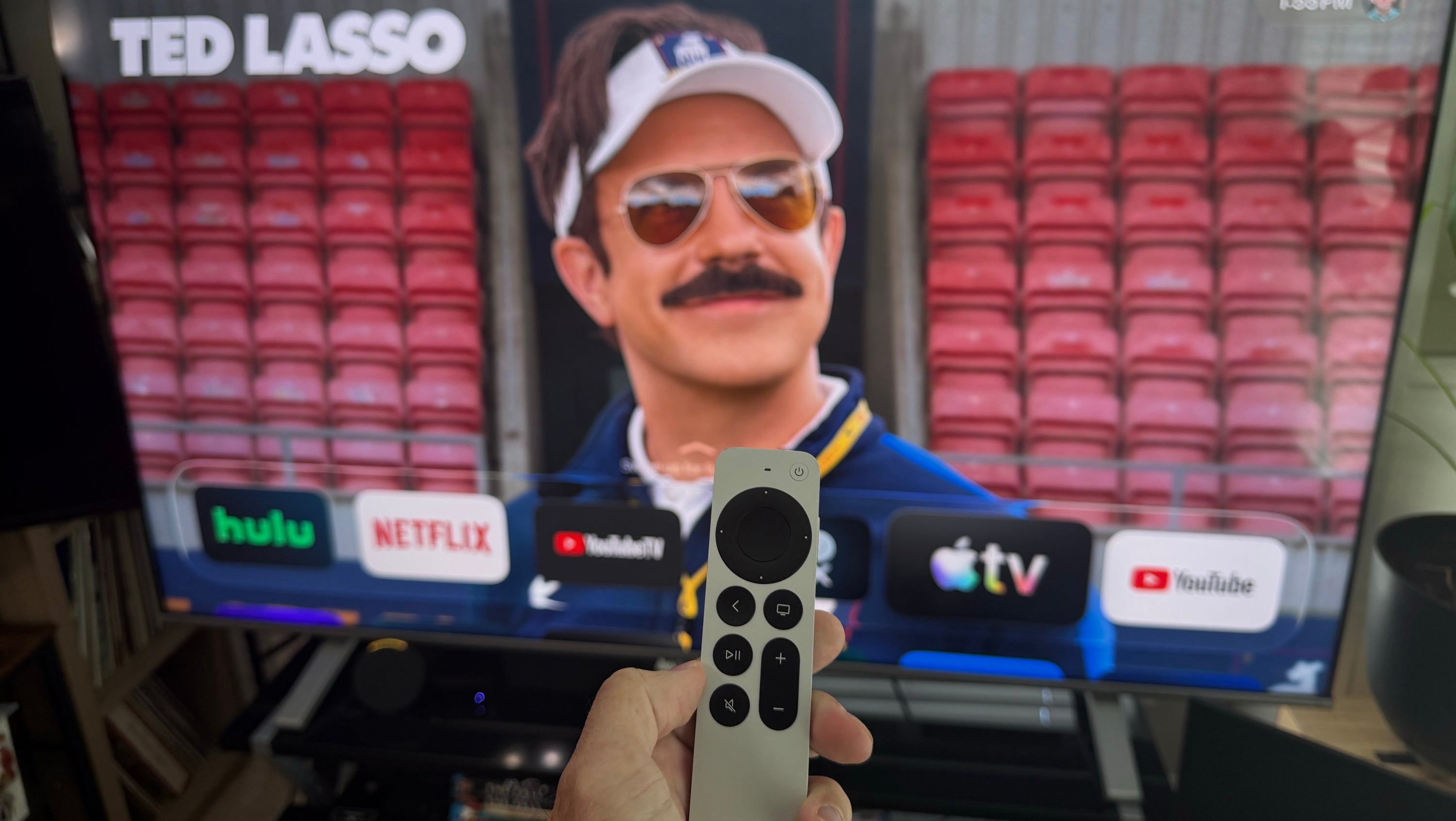
If you have spent any amount of time in the Apple ecosystem, you know that the company has never been particularly interested in doing things simply because that’s how everybody else does it. Sometimes, that results in genuinely transformative technology; other times, it results in removing a perfectly useful port from a laptop and telling us that we will eventually learn to love dongles. The Apple TV 4K remote falls somewhere in the middle.
When I first got my Apple TV, the Siri Remote was undoubtedly the part of the experience that took the most getting used to. It doesn’t look or behave quite like the Roku, Fire TV, or Google TV remotes that I was used to, and it took me a while to realize that much of the remote’s functionality mirrored that of the iPhones and iPads I have been using for nearly two decades.
The remote doesn’t have a lot of buttons (especially compared to the old cable remotes that I still long for), there is a giant circular disk at the top that doubles as both a directional pad and a touchpad, and Apple has tucked a handful of useful functions behind long presses and unique gestures that you would never know existed without being told.
However, once I got used to how it works, operating it became second nature, just like how you can fly through things without thinking on any other Apple device. So, if you are new to the world of the Apple TV 4K, first, do these five things, and come back here to learn all about your new remote.
How to use your Apple TV remote:
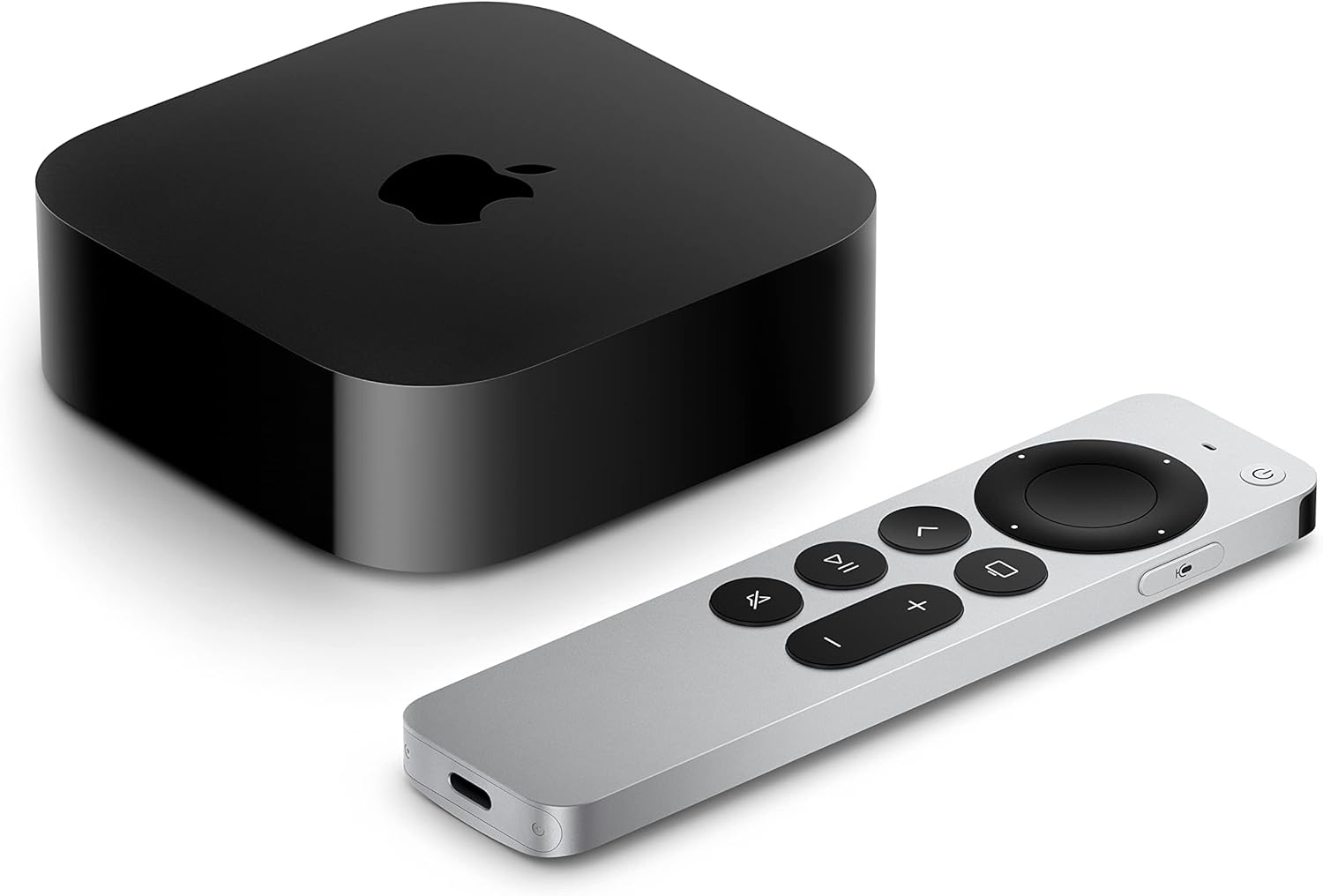
Apple TV 4K devices
Shop now
The Apple TV 4K streaming player is a highly advanced device that allows owners to watch top streaming apps, navigate using the Siri voice remote, enjoy high-quality video and audio, and integrate seamlessly with other Apple devices. Preorder the 4th Generation Apple TV 4K now; the device becomes available starting Nov. 13.
Now that you’ve taken care of my five recommended first things to do with your Apple TV device, if you still don’t have a grip on how to operate the slender, surprisingly heavy, metallic remote, don’t worry. Here is what all of the buttons do, along with some of the gestures and shortcuts that make the Siri Remote far more useful than it initially appears.
What are the buttons on the Apple TV remote?
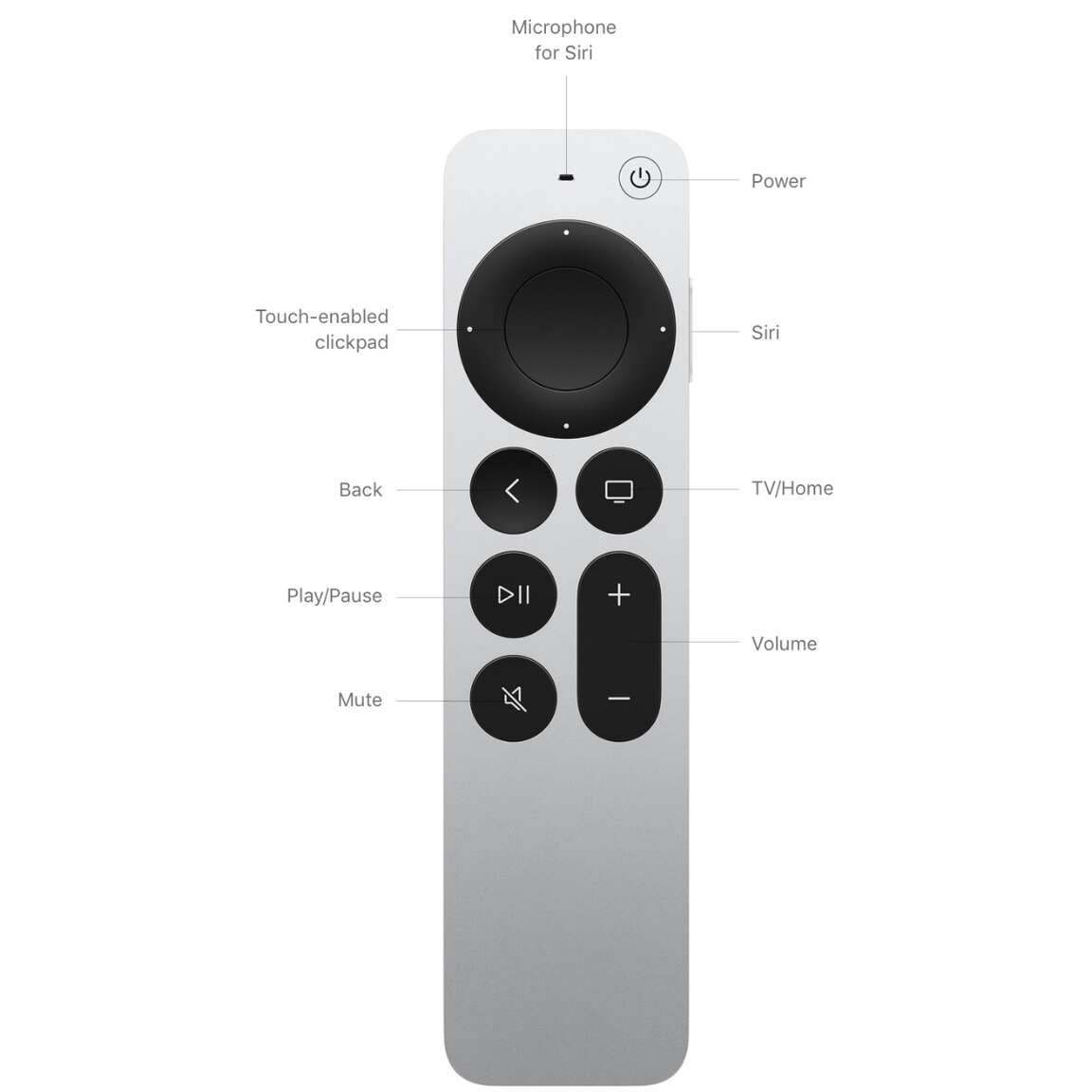
Click image to expand to full size.
The clickpad is the key to everything
The first thing that you will have to get used to is that the giant circle at the top of the Siri Remote isn’t just a directional pad. Apple calls it the clickpad, and it combines two different ways of navigating your Apple TV. First, you can use it exactly like the directional pad on practically every other streaming remote.
- Press the top to move up
- Press the bottom to move down
- Press the left side to move left
- Press the right side to move right
- Press the center to select something
However, there is more to this little circular control pad than that. The center of the clickpad is also touch-sensitive — sometimes excessively so. What that means is that instead of repeatedly clicking through rows of apps, movies, or menu items, you can swipe up, down, left, or right to move the cursor on the screen.
This is where having experience with iPhone, iPad, or MacBook makes the learning curve a little easier. Think about scrolling through a webpage on your phone or moving around using a laptop trackpad. You aren’t pushing individual buttons every time you want the screen to move; you are using your finger to tell the device where you want to go. The Apple TV works essentially the same way.
Personally, I use a combination of both methods. Swiping is great when I need to move through a large menu quickly, while clicking the directional ring is more precise when I am trying to land on one particular movie or app. Just like closing an app on your iPhone, swiping up can dismiss an app when you are in App Switcher mode.
If that type of functionality is too confusing to get used to, Apple lets you turn it off.
How to turn off the touchpad on your Apple TV remote:
- Go to Settings
- Click Remotes and Devices
- Click Clickpad
- Choose between Click and Touch or Click Only
Learn how the Back and TV buttons work
Underneath the clickpad are two buttons that you are going to use constantly. The Back button, which has the left-facing arrow, generally does exactly what you would expect: It takes you back one screen. If you are deep inside an app’s menu, you might have to hit it a few times to work your way back to where you started.
That is where the TV/Home button is a little more interesting. By default, pressing it takes you into the Apple TV app. However, you can change that behavior so that one press brings you directly to the Apple TV Home Screen instead. That is my preferred setup if you primarily think of Apple TV as the operating system for all of your streaming apps rather than just a gateway into Apple’s own streaming interface.
But there are other really useful ways that this button can help you navigate your streaming experience. For example, if you hold down the TV button, it will open Apple TV’s Control Center (which you can also do by quickly tapping the Power button), which provides quick access to things like user profiles, audio controls, connected accessories, sleep functions, and other settings.
For me, I most often use this button to enter the App Switcher functionality. If you double-tap the TV/Home button, the screen will pull back and show you all of the apps that are open, much like swiping up and to the right will on your iPhone. This allows you to quickly find an app that you have recently used, or to swipe up and close specific apps, as I mentioned before.
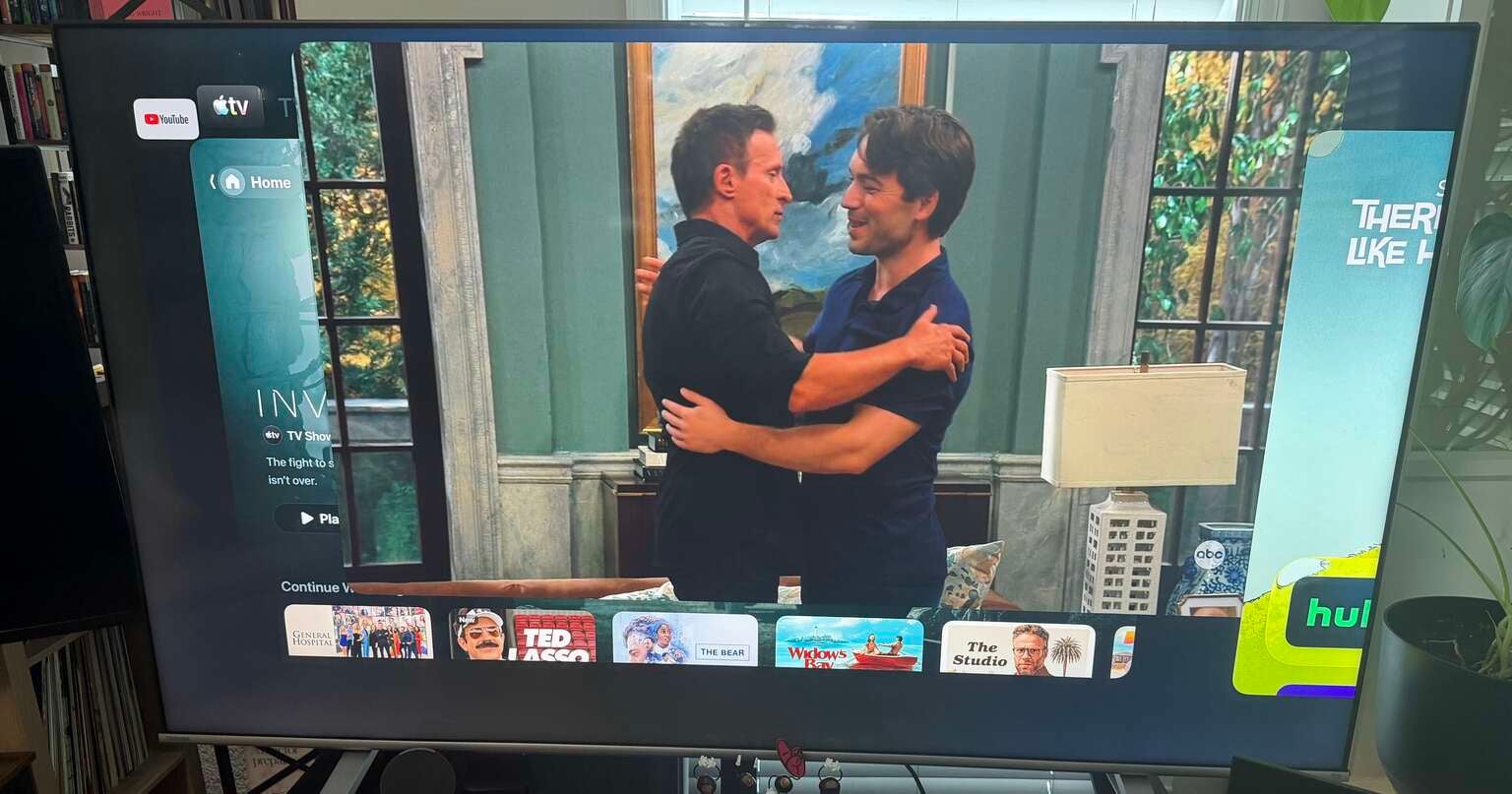
Click image to expand to full size.
Again, while it might take some time to get used to your TV operating system working like this, it should eventually feel very familiar to iPhone and iPad users. Apple essentially brought many of the concepts from its other devices over to tvOS, but rather than executing them on the screen of your device, you are using the remote instead.
There’s more to playback than the Play/Pause button
The Play/Pause button is probably the most self-explanatory button on the entire remote. Press it while watching something, and your video will either stop or start playing again. But you don’t necessarily have to use it.
Depending on the app and what you are watching, pressing the center of the clickpad can also bring up playback controls, while the directional ring provides some incredibly useful shortcuts.
For example, while watching supported video:
- Press the left side of the clickpad to jump backward 10 seconds
- Press the right side to jump forward 10 seconds
- Press and hold either side to continuously rewind or fast-forward
- Repeated presses can cycle through different rewind or fast-forward speeds
Apple also allows you to pause a video and swipe left or right across the clickpad to scrub through the timeline.
This is one of those features that I didn’t fully appreciate until I got used to it. If you missed one line of dialogue, you don’t need to bring up a giant playback menu, navigate over to rewind, and try to figure out exactly where you were. One click to the left jumps you back 10 seconds.
It is especially useful for those of us who are easily distracted and regularly realize that we have been staring at the screen for nearly three minutes, thinking about something completely unrelated, and have absolutely no idea what just happened.
The clickpad can become a tiny jog wheel
This one is a direct extension of the playback info above. For old-school Apple device users, this might be the coolest feature on the Siri Remote, and arguably the least obvious one. The circular ring around the clickpad actually works similarly to an original iPod click wheel.
When supported content is paused, you can use a circular motion around the outside edge of the clickpad to move backward or forward through a video with considerably more precision; no more hoping that repeated 10-second rewinds get you to exactly where you want to go, or worrying that holding down the right arrow will fast-forward too far.
The touch-enabled ring allows you to scroll through video to find the exact moment you are looking for. This isn’t something that I use all the time, but it is incredibly handy when you are trying to find one specific play in a football game, a particularly funny joke in a comedy, or an especially emotional scene in a movie.
For longtime Apple users, there is something wonderfully nostalgic about essentially turning your television remote into a miniature iPod.
Siri is actually useful on a TV
If you are like me, you have a love-hate relationship with Siri. Sure, she has about a two-thirds success rate when adding things to my grocery list and is actually helpful with a question about one out of every 10 times, but, believe it or not, Apple’s “intelligent” assistant does work fairly smoothly via the remote.
On the right side of the remote is the Siri button, and it works much like the side button on an iPhone. Press and hold it, tell Siri what you want, and then release the button when you are finished talking. Then Siri will search for content, launch apps, and control playback, among other functions.
For me, I mostly use Siri instead of typing. So, when I’m searching for something, rather than slowly typing out the name of a movie using an onscreen keyboard — which remains one of the least enjoyable and efficient activities mankind has ever invented — I can simply ask Siri to find it.
This becomes even more useful when searching across services because you don’t necessarily have to remember which app has the show or movie that you want to watch. You can start with what you want to see and let Apple TV help figure out where it is available.
You can also use Siri for basic playback commands, which is especially useful when your hands are occupied or when navigating manually would require several clicks.
Power, volume, and mute can replace your TV remote
The right side of the Siri Remote also has Volume Up and Volume Down buttons, while the front has dedicated Mute and Power buttons.
If you have your Apple TV and television configured properly (see those five things to do when you set up your Apple TV), those controls can operate your TV or connected receiver, meaning that you don’t have to keep another remote sitting next to you just to change the volume or turn everything off.
Apple TV can be configured under Settings → Remotes and Devices to control compatible televisions and home theater equipment. This is one of the biggest quality-of-life benefits of getting the Apple TV set up correctly.
My Apple TV 4K is connected to a Fire TV, but at this point, I very rarely need to touch the Fire TV remote. The Siri Remote powers everything up, controls the volume, navigates my streaming apps, and turns everything back off when I am finished. The fewer remotes I have to dig out from between couch cushions, the better.
Your iPhone can become a second Apple TV remote
Speaking of remotes in the couch cushions, there will inevitably come a day when, despite your best efforts, you are completely unable to find your remote. Fortunately, if you already have an iPhone or iPad, Apple has built a backup remote directly into the device.
To set it up:
- Make sure your iPhone and Apple TV 4K are connected to the same Wi-Fi network.
- On your iPhone, swipe down from the top-right corner to open Control Center.
- Tap the Apple TV Remote icon. If you don’t see it, add the Apple TV Remote control to Control Center.
- Tap Choose a TV at the top of the screen and select your Apple TV.
- The first time you connect, your Apple TV may display a four-digit passcode. Enter that code on your iPhone.
- Once paired, the iPhone becomes a full remote: you can swipe to navigate, tap to select, use Back/Home/Play-Pause controls, activate Siri, and use the iPhone keyboard when the Apple TV asks you to type.
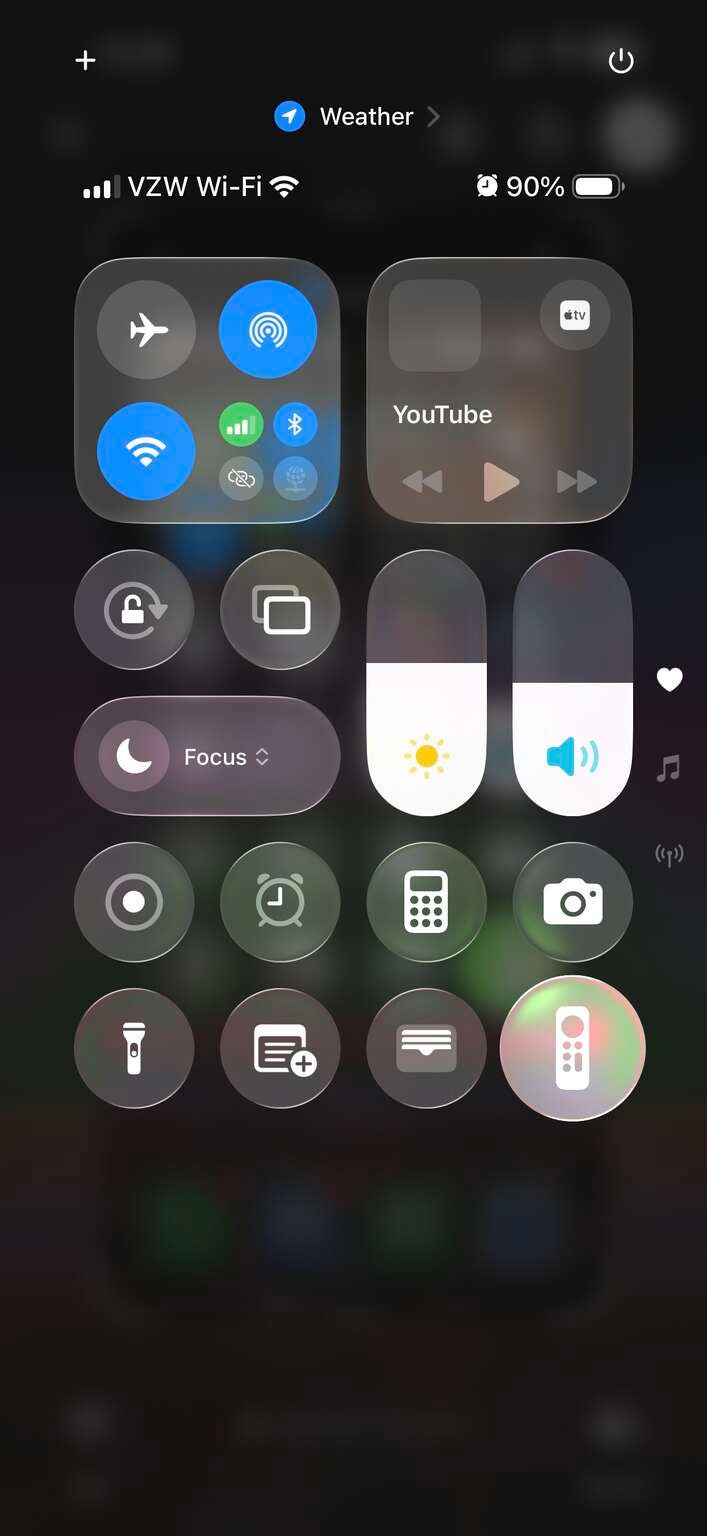
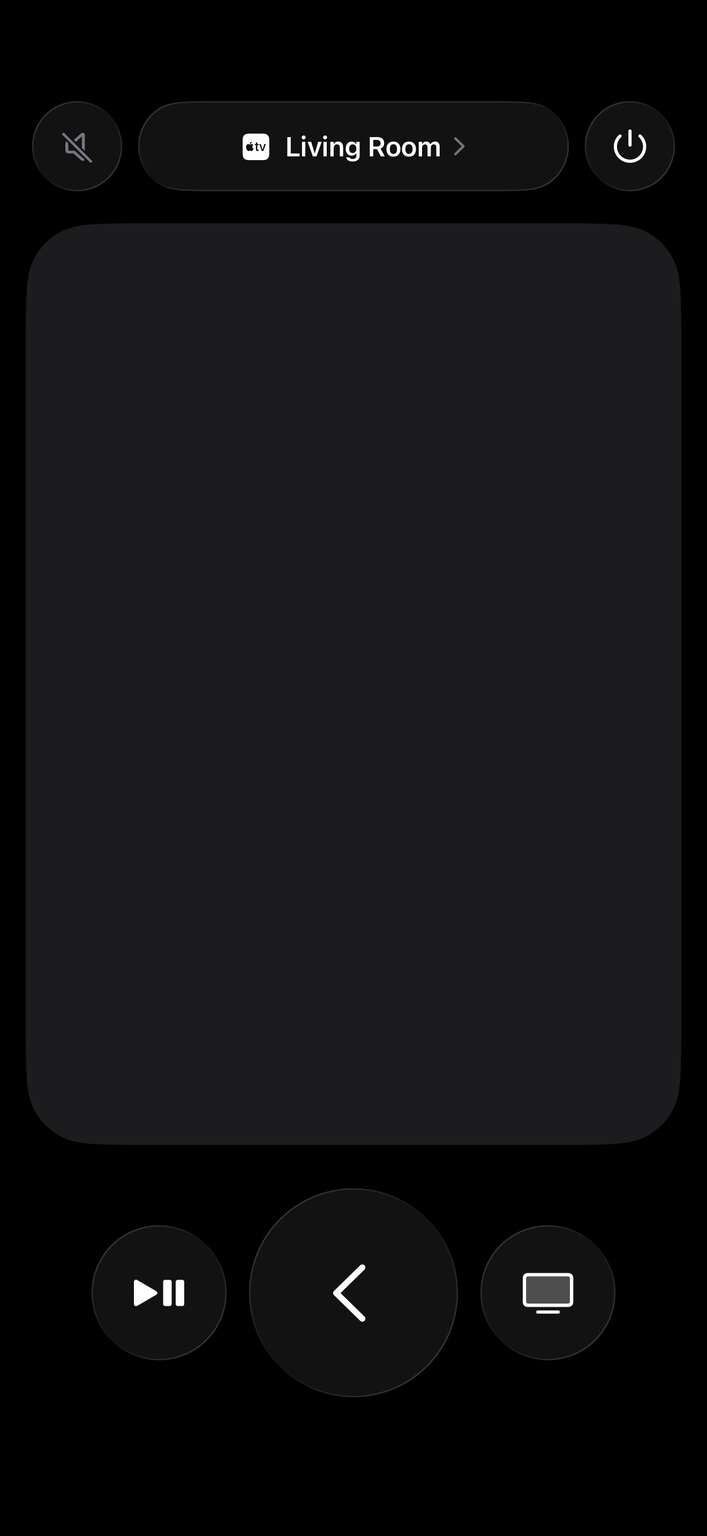
Click images to expand to full size
In addition to being a backup remote, there are a handful of other useful ways to take advantage of it. While I use Siri to search for streaming apps and titles, when it comes to entering convoluted passwords or unnecessarily long email addresses, I default to typing on my phone rather than hunting and pecking with my remote.
When Apple TV asks you to enter text, using your iPhone’s keyboard can be dramatically easier than moving around an onscreen alphabet one letter at a time. So even when my physical remote is sitting right next to me, I will grab my phone if I need to enter a long password or search term.
And since my phone is almost always within arm’s reach anyway, it is essentially a spare Apple TV remote that I never have to worry about losing. But if I do lose my actual remote, one particularly useful feature of the iPhone version is that you can use the digital remote interface to find the physical Siri Remote, like any other Apple device. It won’t play a sound or give you an exact location within inches, but it will let you know if you are getting closer to finding it.
You almost never have to charge it
Unlike most streaming remotes that run on replaceable batteries, the Siri Remote has a rechargeable battery built in, and let me tell you, the battery life is impressive.
Apple says that under typical use, you should only need to charge the remote a few times per year, and Apple TV will display an onscreen warning when the battery begins running low. You can also check the battery level manually in Settings, and the remote continues working while it is plugged in and charging.
So this isn’t like your iPhone, Apple Watch, or AirPods, where charging becomes part of your daily or weekly routine. Most of the time, you can forget that the remote even has a battery until Apple TV eventually reminds you that it is time to plug it in. Then, all you have to do is connect it to a USB-C charger, and you are all set.
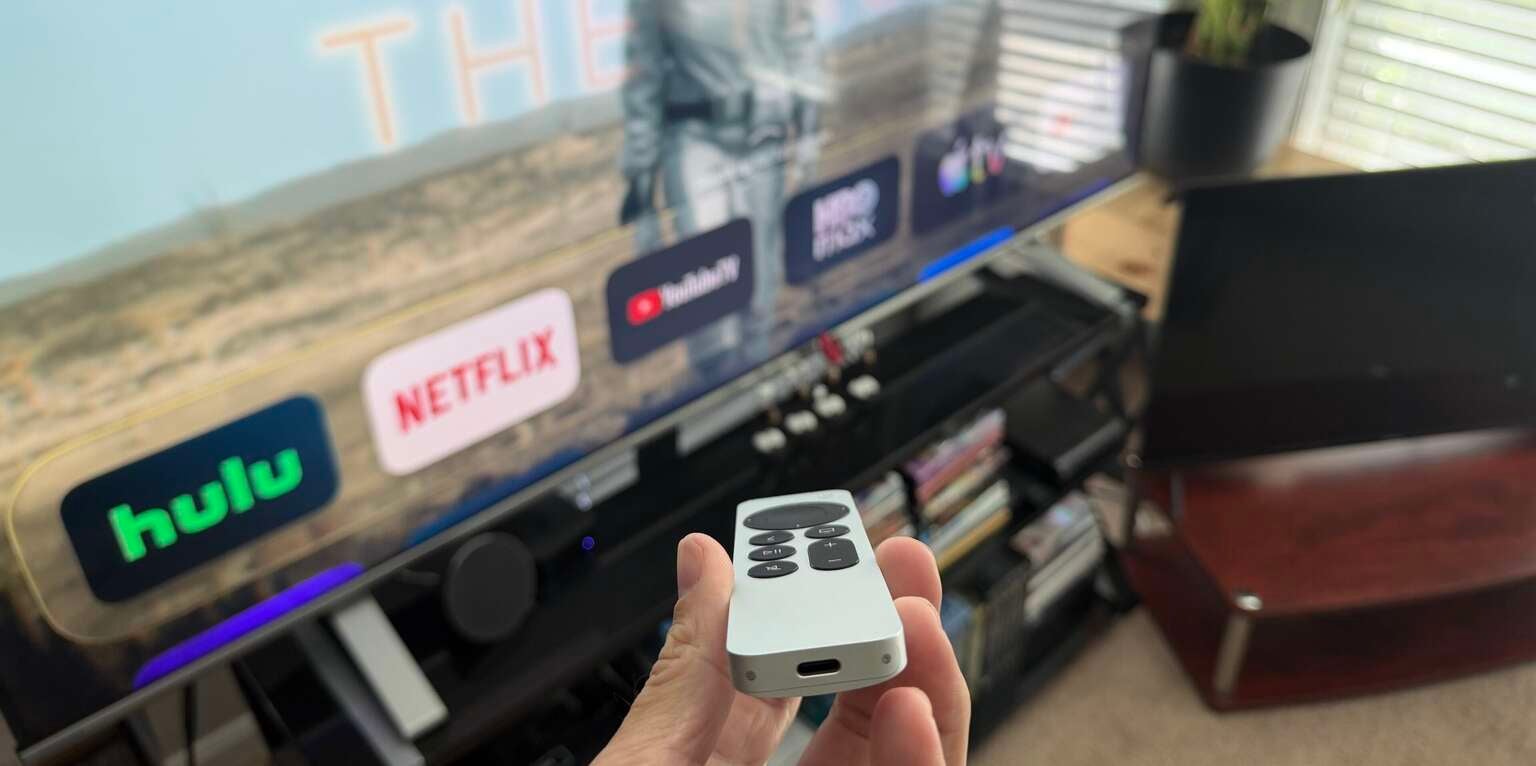
Click image to expand to full size.
Troubleshooting occasional issues
As with all technology (yes, including Apple), the Siri Remote does have occasional hiccups. Every once in a while, some of the buttons will stop working, while others remain completely functional. For me, this is almost always the volume buttons not working while everything else does.
Fortunately, there is a very easy way to resolve most of these issues.
The quickest fix is to restart the remote:
- Press and hold the TV/Control Center button and Volume Down button simultaneously for about five seconds.
- Release them when the status light on the Apple TV device turns off and back on.
- Wait about 10 to 15 seconds for a “Remote Disconnected” notification to appear on screen.
- Press any button on the remote.
- A ‘Remote Connected’ notification should appear, indicating that the remote is working again.
If that doesn’t solve it, you can pair the Siri Remote again:
- Move the remote within about 3 inches of the Apple TV.
- Press and hold Back (<) and Volume Up for about five seconds.
- If prompted, place the remote on top of the Apple TV to complete pairing.
Ultimately, the Siri Remote is probably going to feel a little weird the first time you use it. Apple has combined a traditional directional pad, a touchpad, gesture controls, Siri, and TV controls into one extremely minimalist device, and not everything about it is immediately obvious. But that is also what eventually makes it so useful.
Once you stop treating it like a normal TV remote and start thinking about it more like an extension of your iPhone or MacBook, the gestures, long presses, Control Center, and touch navigation begin to make sense. There is definitely a learning curve, but after living with the Apple TV 4K for a while, I have found that the Siri Remote has become another example of why I have increasingly bought into the Apple ecosystem. It might take a little getting used to, but once everything is working together, I don’t particularly want to go back.
Apple TV 4K devices
Shop now
The Apple TV 4K streaming player is a highly advanced device that allows owners to watch top streaming apps, navigate using the Siri voice remote, enjoy high-quality video and audio, and integrate seamlessly with other Apple devices. Preorder the 4th Generation Apple TV 4K now; the device becomes available starting Nov. 13.