Roku 101: everything a prospective buyer needs to know
Roku 101: everything a prospective buyer needs to know
Thinking about buying a Roku device for the first time? Use our beginner’s guide to answer all your questions about the Roku platform.

First-time cord-cutter? There’s no shame in admitting it, and there’s even less in admitting that jumping into the world of streaming after sticking with pay-TV for so long can be a bit intimidating. Streaming hardware and software can feel like a whole other world compared to cable, but The Streamable is here to help.
Below, you’ll find a complete beginner’s guide to the Roku operating system. Roku makes some of the most popular streaming devices on the market, but what is a Roku, and how does it work? We’ll offer all the details new cord-cutters need to know about what Roku is, how it delivers TV shows and movies to your home, and much more below.
Everything you need to know about the Roku operating system
Roku streaming players
From $40
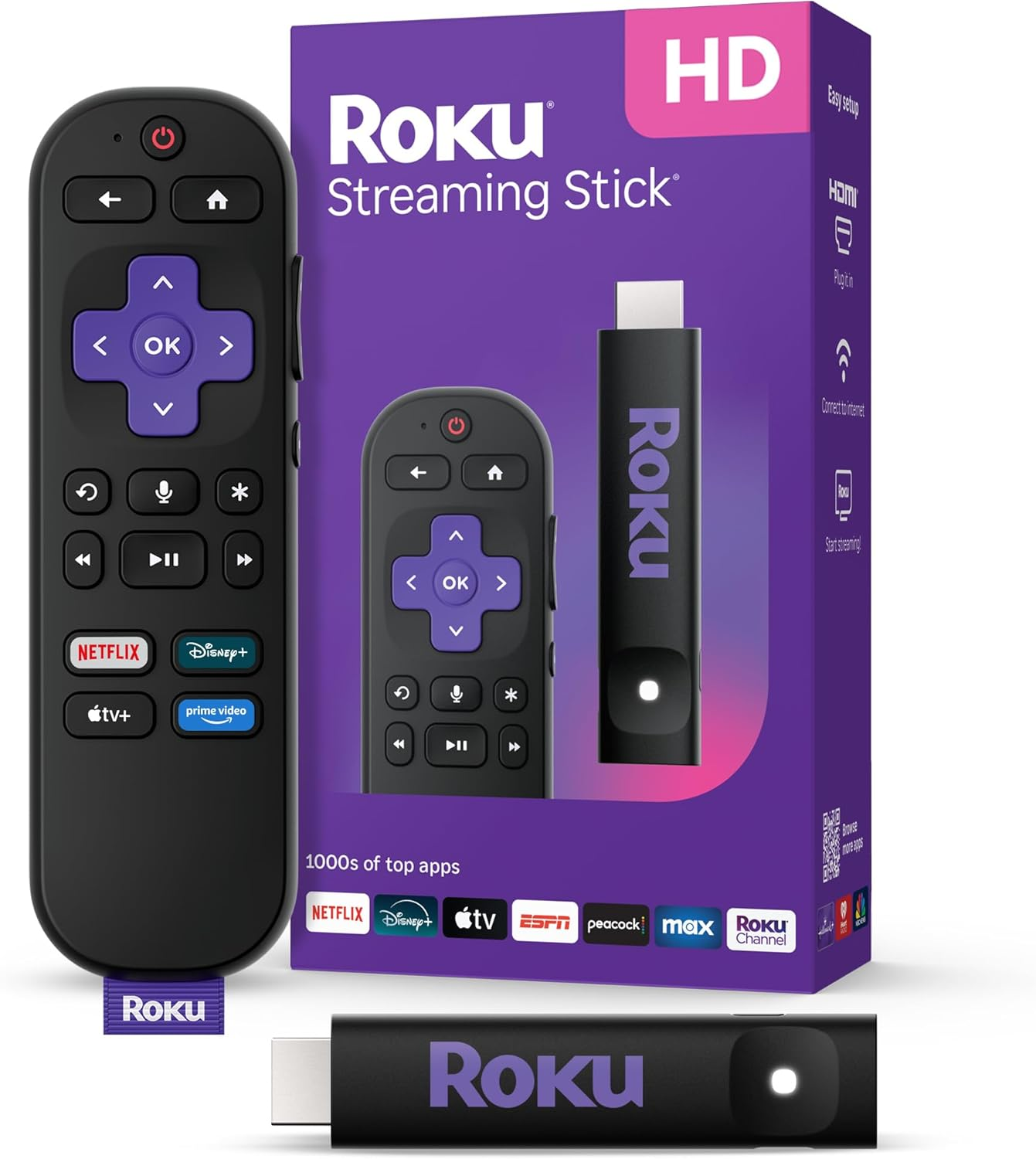
Roku streaming players make it easy to access your favorite streaming apps in one simple interface. With options for HD and 4K viewing, there’s a Roku device for every budget and setup.
What is Roku?
Roku is both the name of a company and the name of an operating system. The Roku company manufactures a range of connected devices that are used to stream TV shows and movies through modern television sets, and this hardware uses the Roku operating system (OS) as software to make it all go. Think of Roku’s OS as you think of the Windows operating system for Microsoft computers, or Apple’s OS for Mac computers.
Where to shop for Roku devices?
If you’re shopping for Roku devices, you can find them at several online and brick-and-mortar retailers. Consult the table below to find the latest Roku devices and prices from major retailers:
| Roku device name | Amazon | Best Buy | Target | Walmart | Home Depot | Lowe’s | Macy’s |
|---|---|---|---|---|---|---|---|
| Roku Streaming Stick HD | Shop now | Shop now | Shop now | Shop now | Shop now | Shop now | Shop now |
| Roku Express Spanish Edition | Shop now | N/A | Shop now | N/A | N/A | N/A | N/A |
| Roku Express 4K+ | Shop now | Shop now | N/A | Shop now | N/A | N/A | N/A |
| Roku Streaming Stick 4K | Shop now | Shop now | Shop now | Shop now | Shop now | N/A | N/A |
| Roku Streaming Stick Plus | Shop now | Shop now | Shop now | Shop now | Shop now | Shop now | Shop now |
| Roku Ultra | Shop now | Shop now | Shop now | Shop now | N/A | N/A | Shop now |
| Roku Streambar | Shop now | Shop now | Shop now | Roku Streambar | N/A | Shop now | Shop now |
What comes in the box when you buy a Roku device?
When you purchase a Roku streaming device, you will get all the ingredients necessary to set up the player and start downloading your favorite apps.
Each device comes with the following equipment:
- The device itself.
- Roku voice remote.
- Two AAA batteries for the remote.
- A USB power cable and power adapter (if needed).
Additionally, premium devices like the Roku Ultra include headphones for private listening, as well as the necessary HDMI cables in the box.
How to set up your Roku device for the first time
To set up a Roku device for the first time, all you’ll need to do is follow a few basic instructions. It’s a really easy process, and it usually only takes a few minutes. Before starting, make sure your Wi-Fi connection is stable and that your batteries are properly installed in your Roku voice remote.
To set up your Roku device
- Plug your Roku player into an available HDMI port on your TV.
- Connect to a wall power source (if needed).
- Switch inputs on your TV to the HDMI port you plugged the Roku into.
- Follow on-screen prompts to set up your Roku device.
Preview the Roku home screen
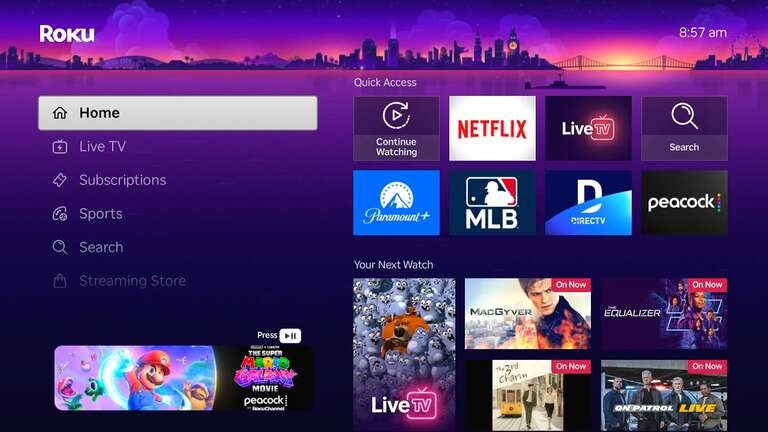
Want a quick tour of the Roku home screen and user interface before deciding whether the layout is right for you? We’ll walk you through each menu tab in the menu on the left side of the screen so that you’re familiar with its aspects before deciding to go with a Roku device.
First up is the home screen, with quick access shortcuts like Continue Watching and recently used apps. The home screen has a little bit of everything, including recommendations based on your past viewing history and browsing.
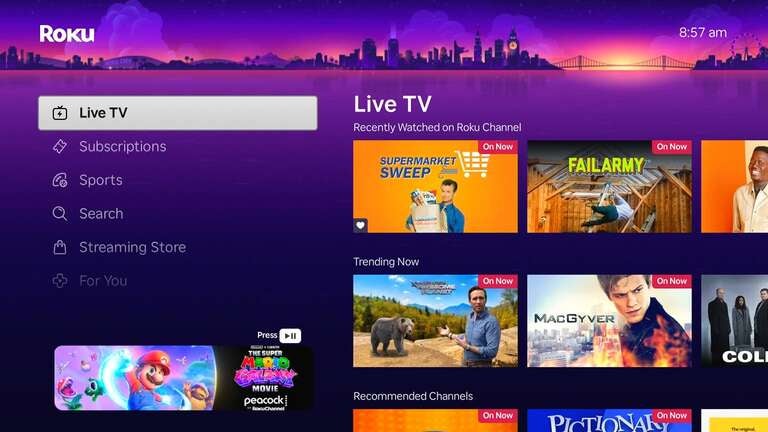
Next is the Live TV tab, which will offer a mix of free ad-supported streaming TV channels, as well as any channels you may receive with a live TV streaming service. If you have a TV with the Roku operating system installed and you plug an antenna into the TV, you will see local broadcast channels after running a channel scan.
After Live TV comes the Subscriptions tab, which will have content specifically recommended from the apps you’ve downloaded, and a Continue Watching row with titles from your various subscriptions.
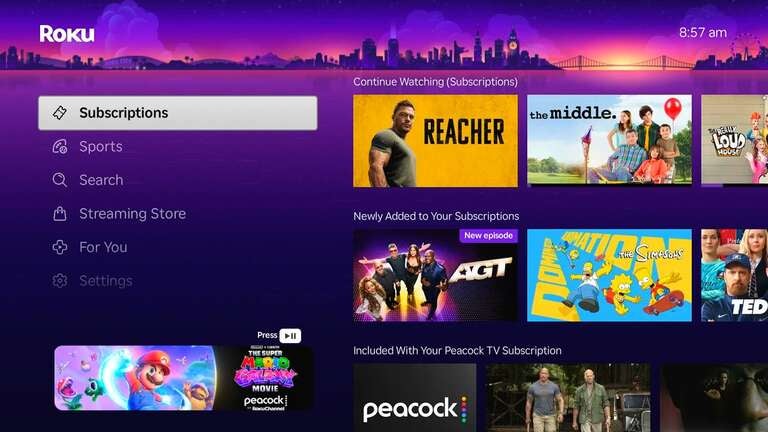
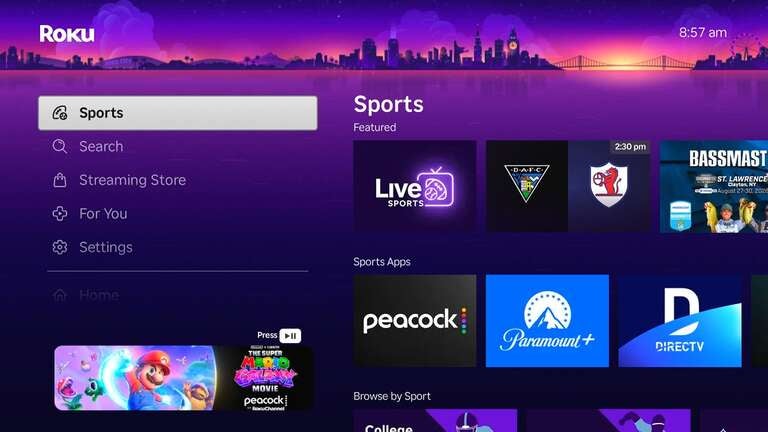
The Sports tab allows viewers to browse by sport and explore Roku’s curated sports hubs, which include highlights, scoreboards, and more. It also offers sports-related apps and allows users to check out individual events.
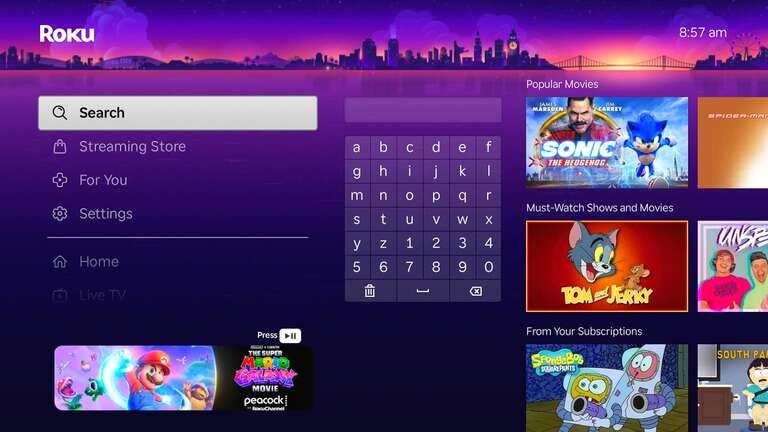
The Search tab is where you can look for movies, TV shows, specific actors or directors, or basically anything else you can stream with your Roku device. If you have your phone connected to your Roku app, you can use its keyboard to type your search terms instead of using the remote.
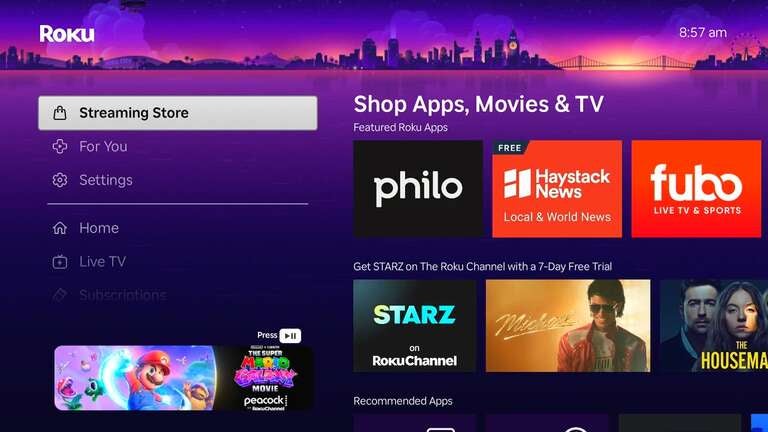
The Streaming Store tab is where you can shop for apps and channels that you can download to your Roku device. If you subscribe to a streaming service through the Roku Channel, you will be billed through Roku and will be able to manage your subscription through the Roku app.
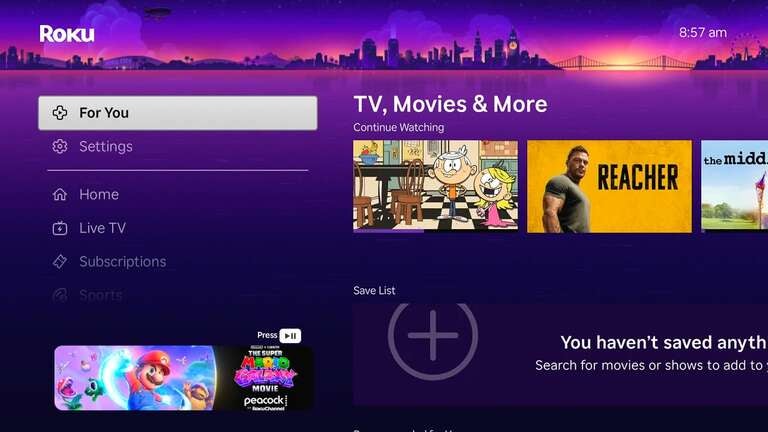
For You will have recommendations, another Continue Watching rail, and your watchlist of saved TV shows and movies for easy access.
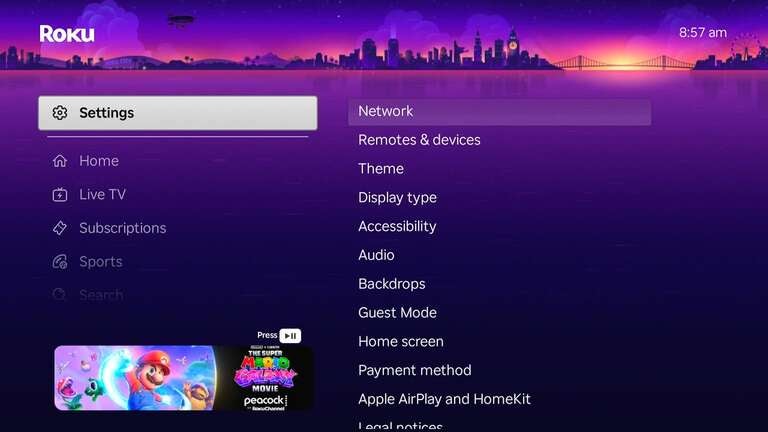
Last comes the Settings tab, where you’ll find all the adjustable settings on your Roku device. Change network and display settings, calibrate remotes and connected devices, and find all the other essential settings for controlling your Roku device in this tab.
How can you watch TV and movies with Roku?
Roku allows viewers to watch TV shows and movies from streaming services like Disney+, Fubo, Tubi, and others through the use of applications, usually shortened to “apps.” Once you have a subscription to a service like these, you can download the app onto your Roku device to watch its content.
Almost all of the most popular streaming services in the United States make a dedicated app for Roku, so you shouldn’t have any difficulty finding your favorites. The Roku operating system also supports a number of top music streaming services, in addition to video platforms.
How to download new apps on your Roku
There are a couple of ways to add a new app to your Roku streaming device. The simplest is to press and hold the microphone button on your remote, say the name of the app you want, and then download it from the Roku app library. Alternatively, you can use your voice remote to download apps with Roku.
- Press the Home button on your Roku remote.
- Scroll to the Streaming Store option.
- Browse categories, or search for the specific app you want.
- Click Add app to begin downloading.
How to search for anything with Roku
Roku makes it easy to find shows and movies, actors or directors, or genres with its interface. Users with a Roku voice remote can simply hold down the microphone button, speak the name of the person, genre, or title they’re searching for, and Roku will do the rest.
Alternatively, Roku owners can press the Home button on the Roku remote, then scroll to Search to start browsing for the content they want to stream.
Can you watch live TV with a Roku device?
Absolutely. Viewers can subscribe to a number of live TV streaming services like DIRECTV, Frndly TV, Fubo, Hulu + Live TV, Sling TV, Philo, or YouTube TV to watch any and all live channels included in their package with a Roku device.
Unfortunately, owning a Roku player won’t simply grant access to these channels by itself. Viewers will still need to subscribe to a service that offers the channels they want to watch live, then download that service’s app to watch via a Roku player.
Is there a subscription required to use Roku?
There is no subscription fee or any other charge associated with using the Roku operating system. You will have to sign up for a Roku account to allow your device to remember your preferences, downloaded apps, and other settings, but this is always free to do.
How do recommendations work on Roku?
Roku’s software uses built-in algorithms that study a user’s viewing history, as well as any feedback given and saved items, to generate recommendations for future viewing. This can be very helpful for some viewers, while it may leave others feeling like their device is watching them.
The good news for the latter kind of viewer is that Roku allows owners to turn off recommendations.
- Press the Home button on your Roku remote.
- Go to Settings.
- Choose Home screen.
- Select Recommendation rows, then Hide.
Can you set up multiple profiles with Roku?
No, at the moment, Roku does not offer any way to set up multiple user profiles so that multiple viewers in the same house can keep their viewing histories and recommendations separate. Roku owners who live in a home with multiple people using one device should make sure to use the profile feature included with almost every major streaming service.
How does Roku work with its voice assistant?
All modern Roku devices come with a voice assistant-enabled remote control that will help users search for new TV shows and movies, open and play specific titles, and more. Roku devices can also be linked with Amazon Alexa and Google Home devices for greater smart home integration.
What features do Roku devices have?
Depending on which model of Roku streaming player you purchase, you can enjoy premium features including:
- Ultra-High-Definition 4K video quality
- HDR10
- HDR10+
- Dolby Vision
- Dolby Atmos
- Private listening mode
Parents can also set and adjust parental controls on their Roku device, limiting kids’ ability to access content that isn’t age-appropriate or make new streaming purchases.
How to customize your Roku
The Roku home screen actually offers a number of customization options that will allow viewers to put their own personal stamp on it. To learn absolutely everything you need to know about renovating your Roku home screen to your liking. click here.
How to adjust the settings on your Roku
Roku makes it easy to change up settings on its devices and smart TVs. To access the Settings menu, press Home on the Roku remote, then select Settings from the menu that pops up. From here, you’ll be able to change network settings, adjust audio and visual preferences, and more.
Troubleshooting your Roku device and FAQs
What’s the difference between Roku and The Roku Channel? Roku is both the name of the company and the name of the smart TV and streaming player operating system that powers its devices. The Roku Channel is a free streaming service owned by Roku and available on all Roku streaming players, as well as through the Roku app on a host of devices.
How do you rent or buy movies or new streaming services with Roku? All you have to do to purchase a new movie or show with Roku is to use its search function to find out where it’s available. You can even purchase new streaming apps and channels through Roku, and watch their content directly through the Roku app.
Can you cast to a Roku device? Roku devices support Apple AirPlay, making it easy to cast video from an iOS device to a Roku streaming player. Roku does not support Google Cast natively, but screen mirroring will allow viewers to connect their Roku device to an Android phone.
Troubleshooting
Roku won’t connect to the internet: Reboot your router and Roku devices, and make sure your Roku has the right Wi-Fi password stored from your network.
Apps won’t load or play slowly: Double-check that your internet connection is steady, and restart your modem and router if necessary. Close any unused apps, and reduce video quality to improve loading times if needed.
Roku remote won’t work: Try installing fresh batteries and restarting your Roku devices. Check here for more troubleshooting tips.
Roku is running slowly or freezing: Uninstall unused apps to clear more space. Clear the device cache and make sure your device is running the latest software version. Consider a factory reset only as a last resort.
Roku streaming players
From $40
Roku streaming players make it easy to access your favorite streaming apps in one simple interface. With options for HD and 4K viewing, there’s a Roku device for every budget and setup.