Fire TV 101: A complete beginner’s guide
Fire TV 101: A complete beginner’s guide
Learn everything you need to know about the Fire TV operating system and start browsing like a pro.

It’s hard to believe that Amazon was once little more than a digital bookstore. Now one of the world’s largest companies, Amazon does a little bit of everything, including making one of the most-used smart TV and streaming device operating systems in the United States.
According to a July 2026 survey, Amazon Fire TV is the second-most-used TV operating system (OS) in the United States. Amazon makes a line of its own streaming players equipped with the Fire TV OS, and also licenses the operating system to multiple TV manufacturers for installation in their smart TV sets.
If you’ve never used a Fire TV device before and need a beginner’s guide to learning the operating system, The Streamable has you covered. Learn everything you need to know about using your Fire TV device, including which devices are available, how to set yours up, and much more below.
Everything you need to know about the Fire TV operating system
Fire TV streaming players
From $35
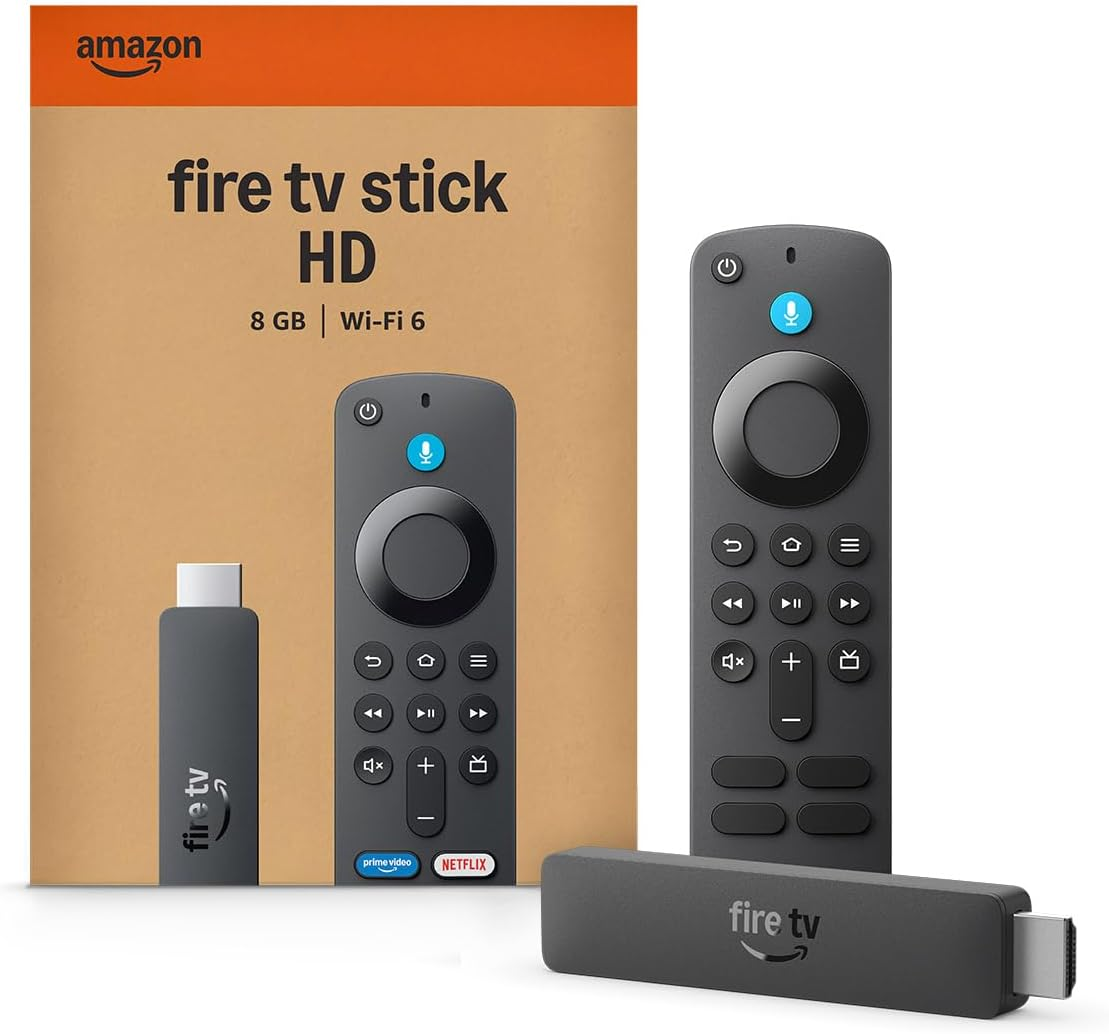
Fire TV streaming players bring together your favorite apps, live TV, and Alexa voice controls in one convenient device. Available in HD and 4K models, Fire TV offers options to suit a variety of entertainment needs and budgets.
What is Fire TV?
Fire TV is Amazon’s smart TV and streaming player operating system. It’s the platform that allows a user to find new streaming apps, rent or buy TV shows and movies, watch live TV, and access audio streaming services using your home Wi-Fi connection. The Fire TV operating system is often built directly into TVs built by manufacturers like Hisense, Insignia, Toshiba, and others, but can also be found in a line of digital media players made by Amazon.
Where to shop for Fire TV devices
If you’re not sure where to shop for Fire TV devices, you can find a complete guide here. Amazon sells several Fire TV devices, ranging from the entry-level Fire TV Stick HD to the advanced Fire TV Cube. The more you spend, the more features you’ll get with your Fire TV device. Many devices are equipped with high-quality visual and audio formats like Ultra-High-Definition 4K, Dolby Atmos, and more.
Use the table below to see where you can find Fire TV hardware:
| Fire TV device name | Amazon | Best Buy | Target | Walmart | Lowe’s | Home Depot |
|---|---|---|---|---|---|---|
| Amazon Fire TV Stick HD | Shop now | Shop now | N/A | N/A | Shop now | Shop now |
| Amazon Fire TV Stick 4K Select | Shop now | Shop now | Shop now | N/A | Shop now | Shop now |
| Amazon Fire TV Stick 4K Plus | Shop now | Shop now | Shop now | N/A | Shop now | Shop now |
| Amazon Fire TV Stick 4K Max | Shop now | Shop now | Shop now | N/A | Shop now | Shop now |
| Amazon Fire TV Cube | Shop now | Shop now | N/A | N/A | N/A | Shop now |
What comes in the box when you buy a Fire TV device?
When you purchase a Fire TV device, you will find the following hardware in the box:
- The Fire TV streaming device
- texthttps://thestreamable.com/fire-tv-remote-101: Alexa voice remote
- 2 AAA batteries
- Power cable adapter
- Quick start guide
How to set up your Fire TV device for the first time
The setup process for a Fire TV device can usually be completed in just a few minutes. Before setting up, make sure you have your Fire TV device, all needed power adapters and cables, a remote with working batteries, an Amazon account, and a working Wi-Fi connection.
To set up your Fire TV device:
- Plug your Fire TV player into your TV’s HDMI port.
- Connect to a wall power source (if needed).
- Switch inputs to the HDMI port using the Fire TV device.
- Follow on-screen prompts to connect to your Wi-Fi and Amazon Account.
Preview the Fire TV home screen
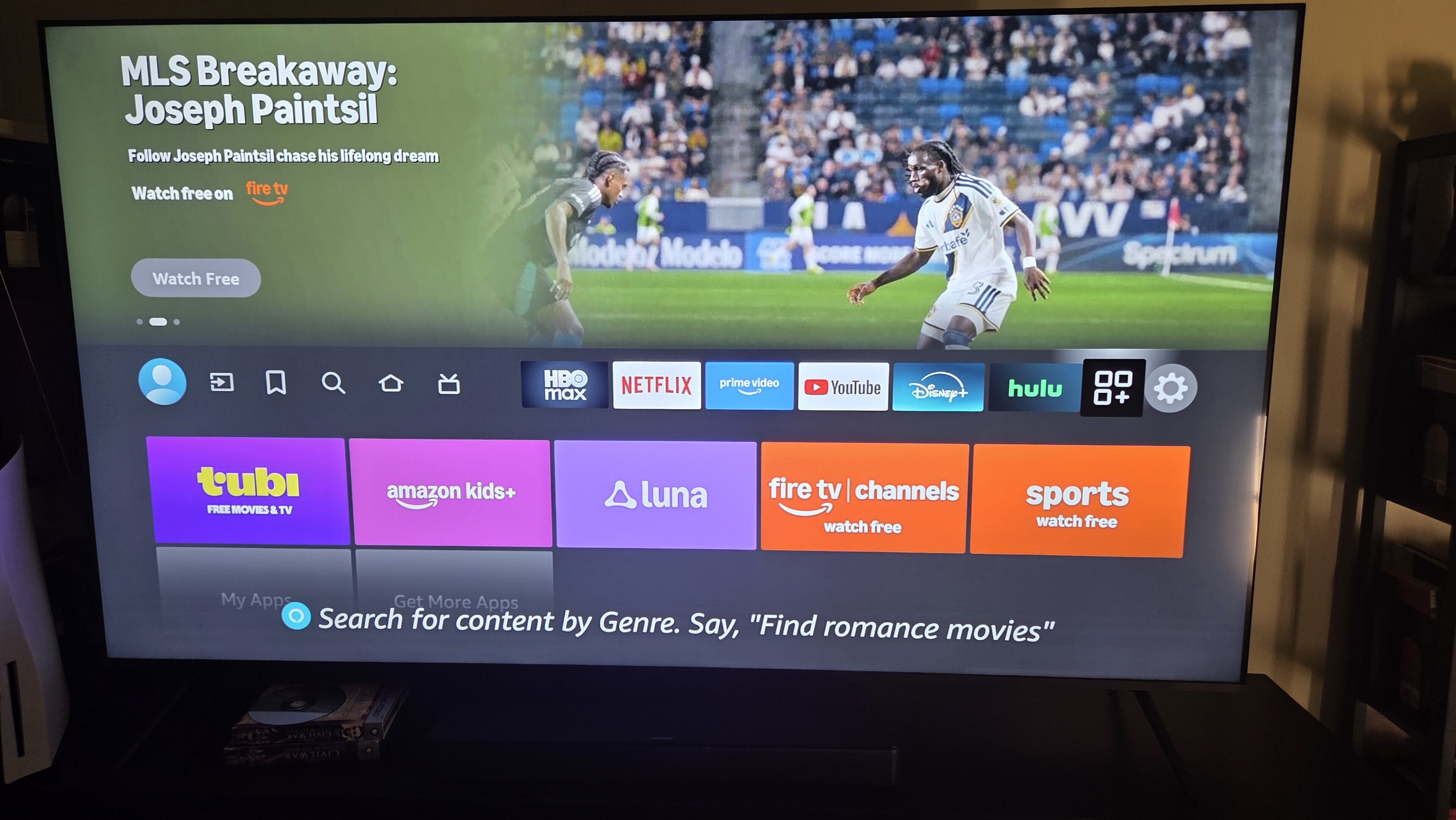
The Fire TV home screen is laid out to help you move quickly between programming categories. Fire TV remotes have a dedicated home screen button to take you instantly to the home screen, and from here you can scroll down to see content recommendations, view recently streamed shows and movies from select apps, and browse your recently visited apps.
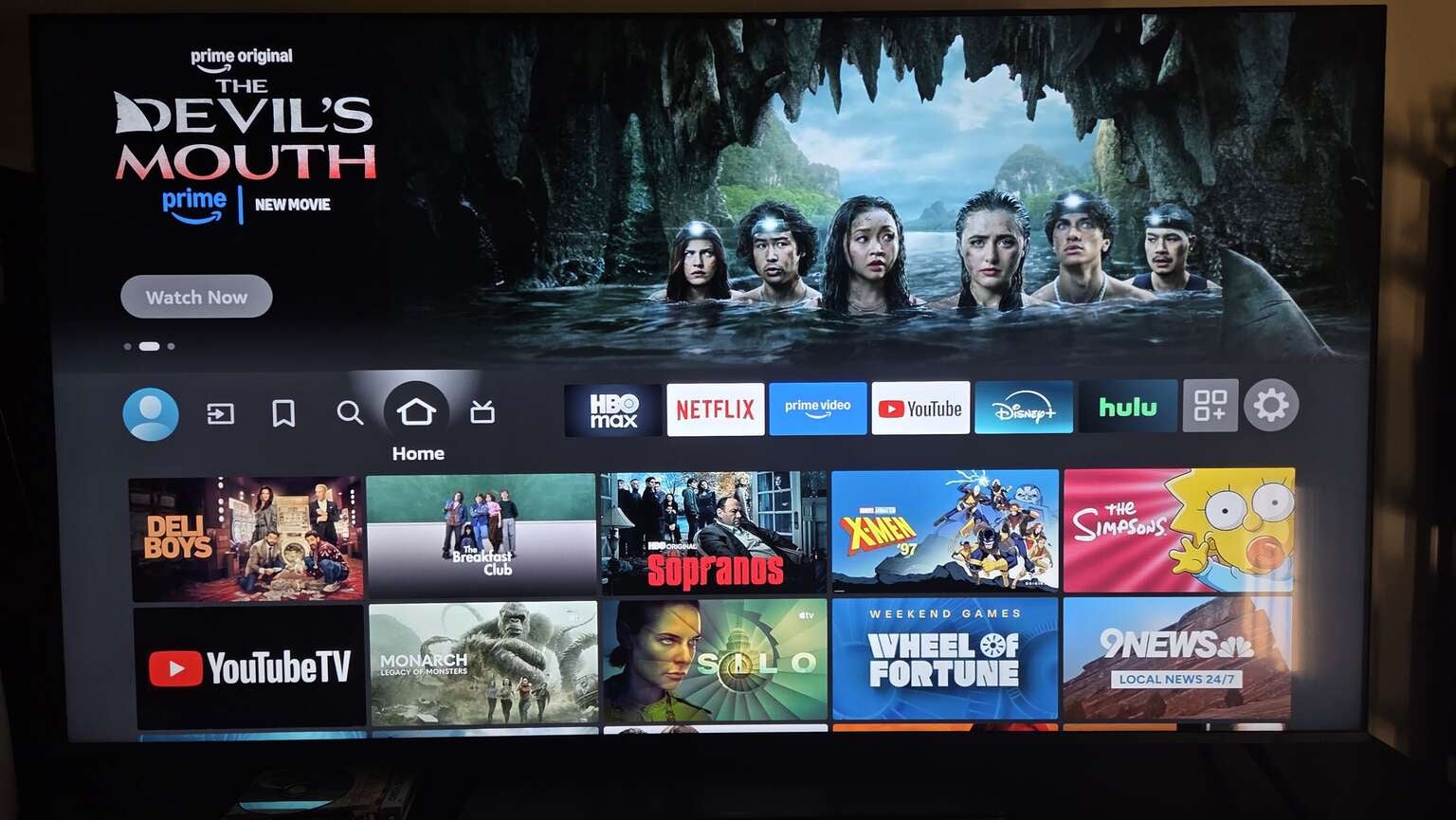
The Fire TV home screen. Click to expand.
As pictured above, the top row on the Fire TV home screen also allows users to scroll left and right. Scrolling right will bring them to a quick-access row of favorite apps, the Fire TV Appstore, and the Settings menu, while going left offers options like profile switching, Fire TV’s search function, and other tabs.
The first item in this home row is the Profile button. This one is pretty simple; if multiple people use your Fire TV device, each can set up their own individual user profile with favorite apps and other personalized settings. Heading to the Profile screen will allow owners to not only set up new profiles, but switch between existing profiles.
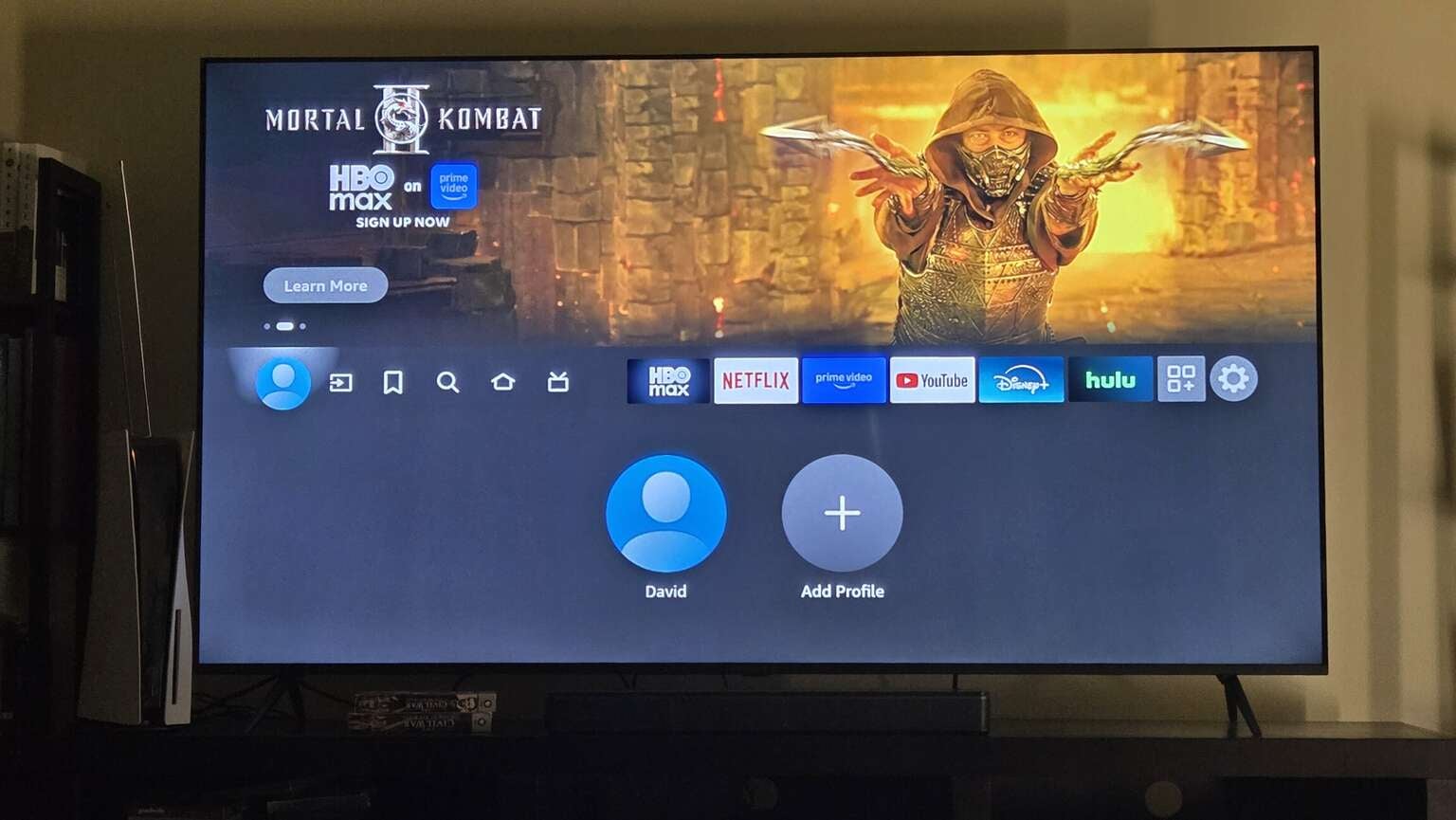
The Fire TV profile selection screen. Click to expand.
If you have a smart TV that uses the Fire TV operating system, the next icon in the row is the Inputs tab, which allows users to switch between HDMI ports and other inputs on their TV set. Most Fire TV Stick owners will not see the Inputs tab, though it is found on the Fire TV Cube, which has an HDMI-in port.
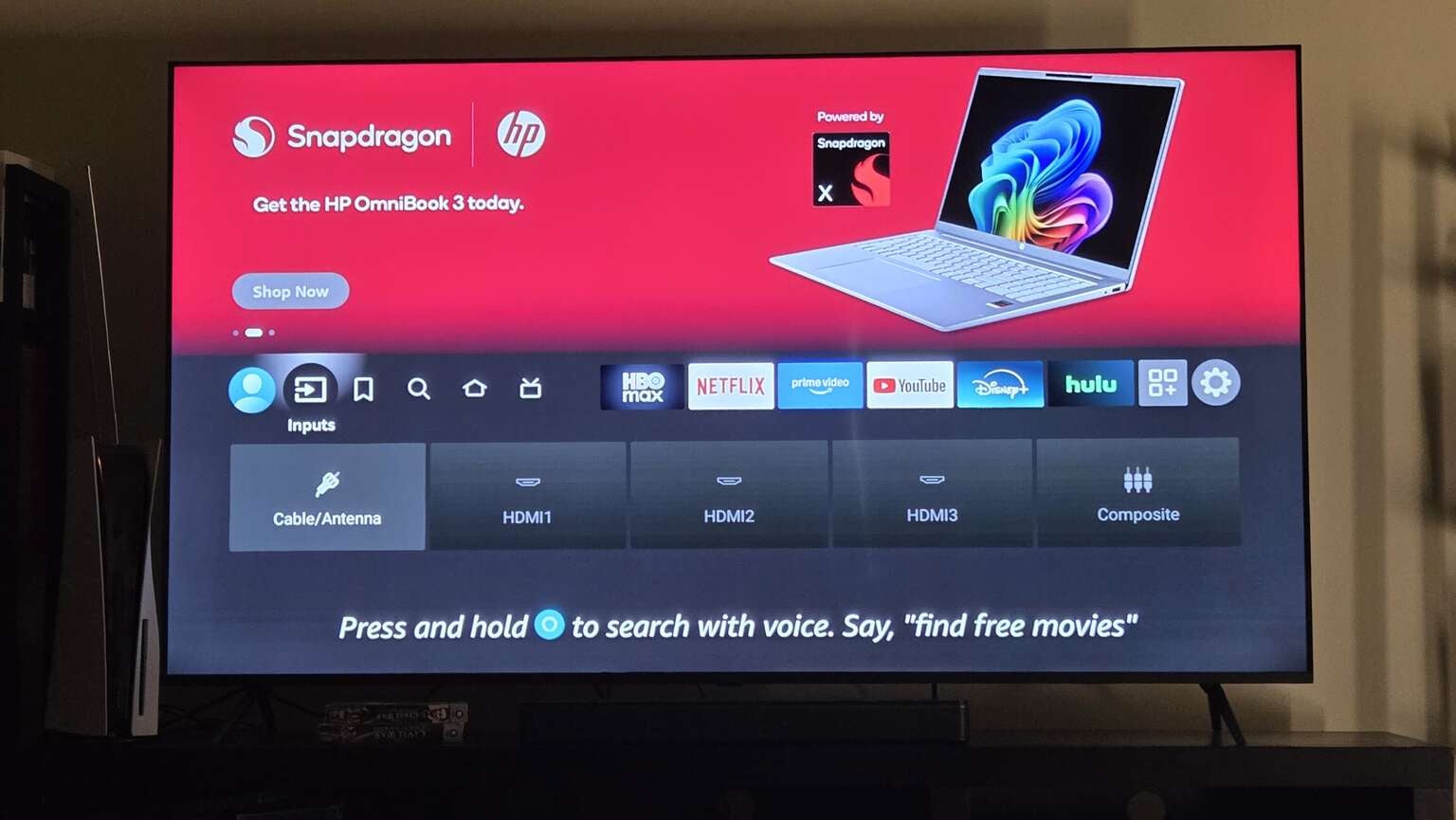
The Inputs tab on Fire TV-equipped smart TVs. Click to expand.
All Fire TV users get the My Stuff menu, which links to the Amazon account used to set up the Fire TV initially. This allows users to find their Prime Video Watchlist, purchases, and rentals all in a single place.
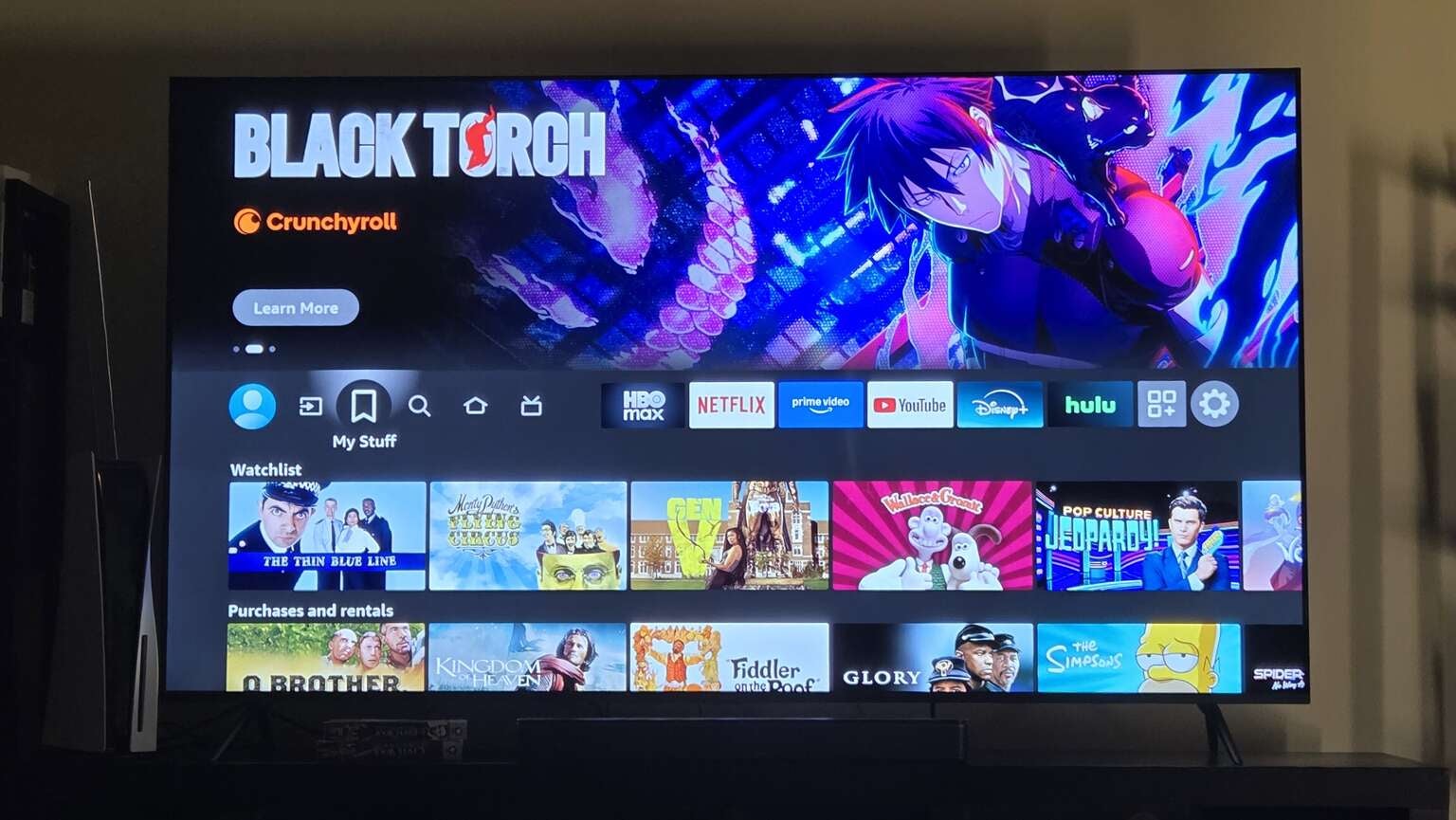
The My Stuff tab on the Fire TV home screen. Click to expand.
The Find tab will let viewers browse content by category. It offers a shortcut to the Fire TV Appstore, and also lets users jump into broad categories like Free content, Movies, and TV Shows. Viewers can also browse by Genre like Sports, Action Movies, etc. in this tab.
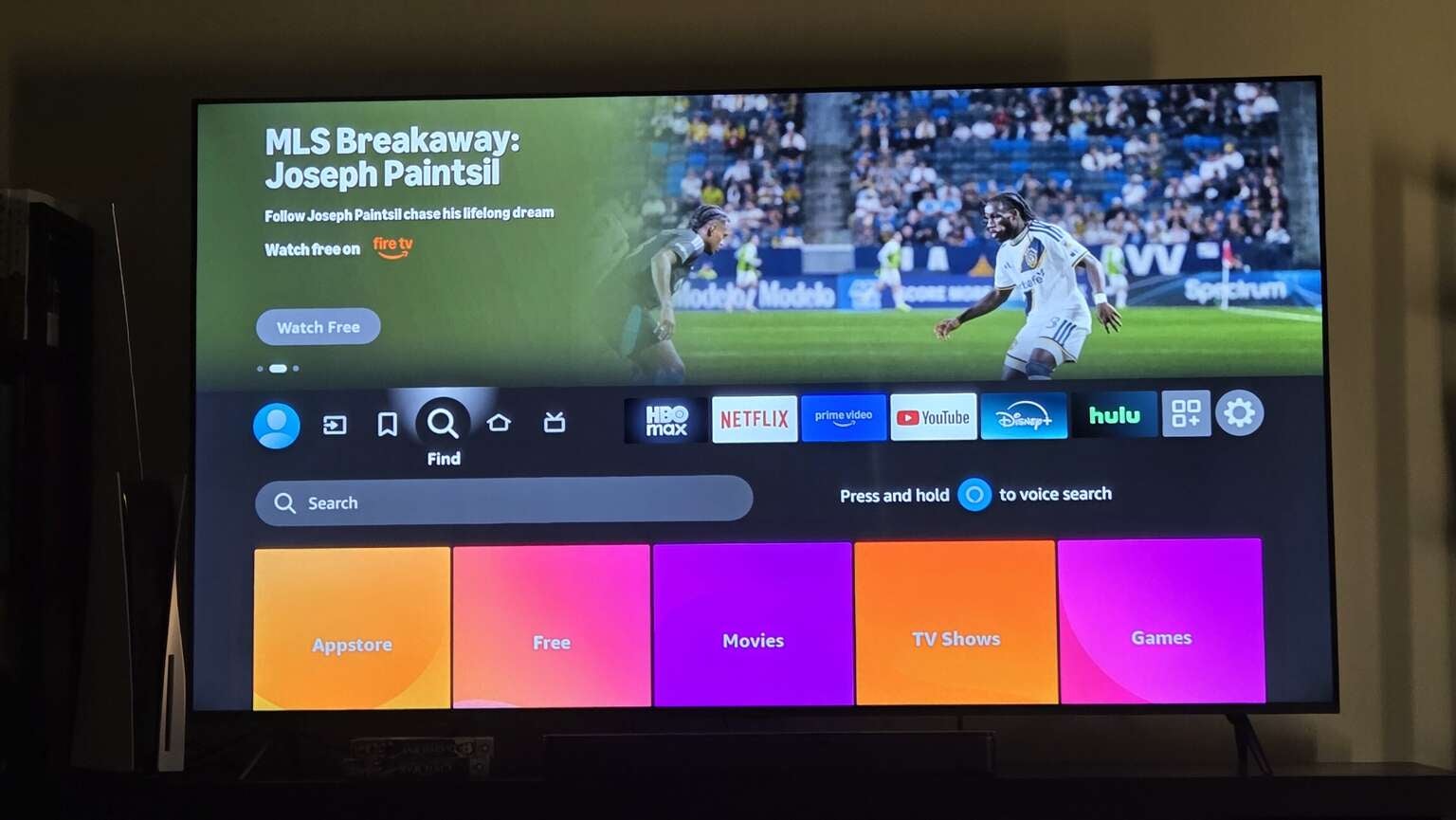
The Fire TV Find tab. Click to expand.
Last comes the Live TV tab, which includes the Fire TV live channel guide. This guide will pull in channels from any live TV streaming apps a Fire TV owner is subscribed to, as well as free streaming channels in a grid that allows viewers to filter by channel set favorites, and more. The Live tab also contains channel and app badges to show viewers where they can find additional live programming.
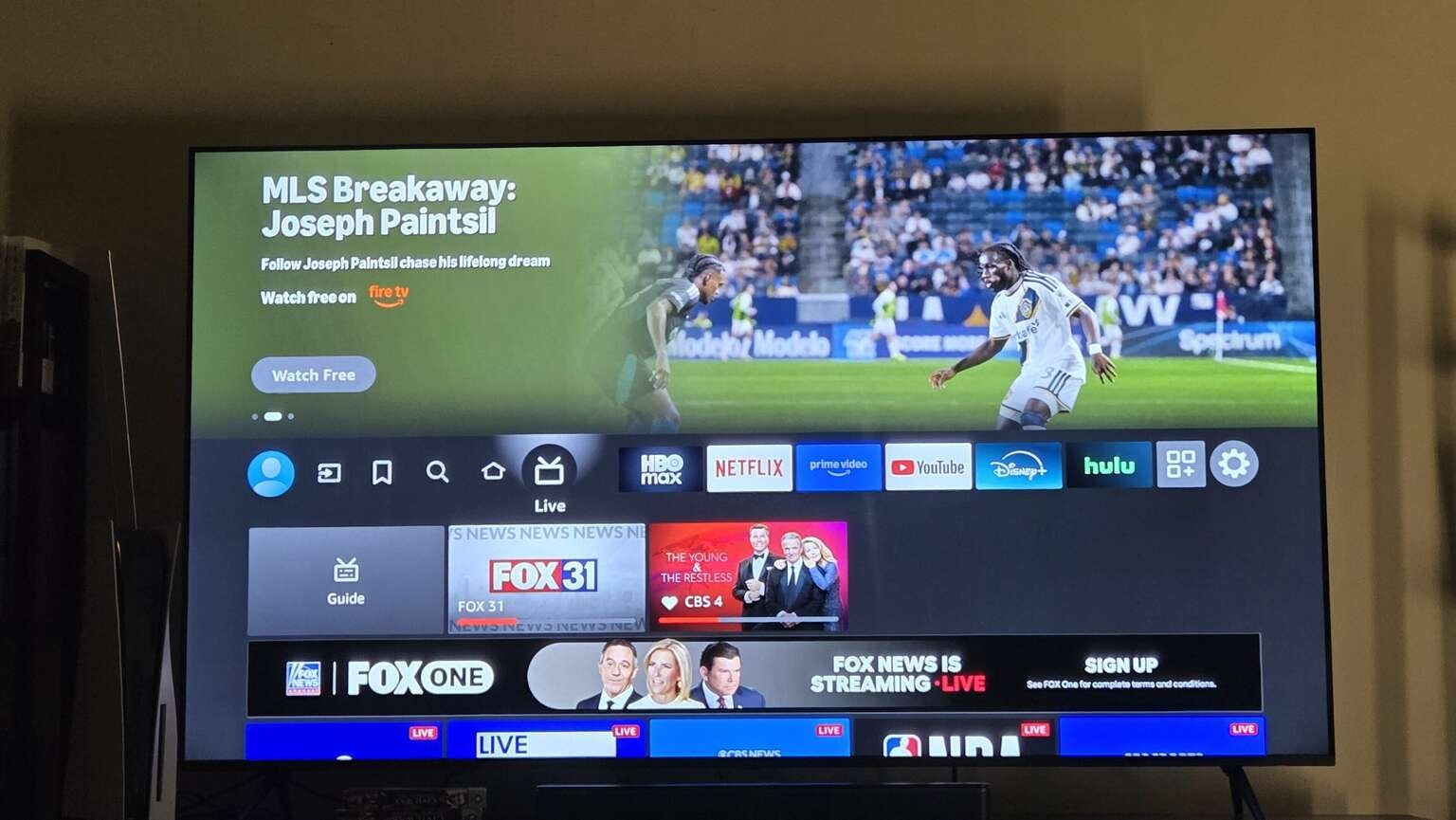
The Live tab on a Fire TV device. Click to expand.
How does Fire TV allow you to watch TV and movies?
Once your Fire TV device is all set up, you can use it to download streaming apps that will let you watch favorite TV shows and movies on the big screen. The Fire TV App Store has thousands of video streaming apps, including Apple TV, Disney+, HBO Max, Hulu, Netflix, Paramount+, Peacock, and of course, Prime Video.
Audio streaming apps like [Apple Music], [Spotify], [YouTube Music], and many more are also available for download on your Fire TV device. It’s free to download most apps on the Fire TV operating system, though separate subscription fees are usually required to use the services those apps contain.
How to download new apps on your Fire TV
It’s easy to find and download new apps on your Fire TV device once the initial setup is complete.
- Head to the Fire TV home screen.
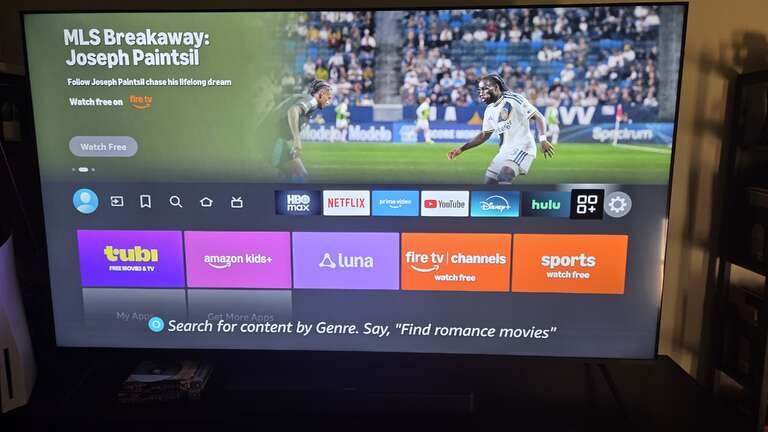
- Scroll right along the top row until you reach the Apps screen (pictured below).
![]()
- Click Get More Apps.
- Choose a new app, or scroll down to the search bar to locate the app you’re looking for.
How do app subscriptions work on Fire TV?
There are a couple of ways to use app subscriptions with a Fire TV device. If you subscribed to a video or music streaming service before buying a Fire TV device, you typically don’t have to take any additional subscription steps to use that service with Fire TV. As long as the app is in the Fire TV Appstore, you can download it on your device, sign in to your existing account, and use it as normal.
There are a host of streaming apps that allow Amazon to bill customers for their services, instead of billing viewers directly. Some apps allow customers to choose which way they’re billed, and if they choose Amazon, they can keep all of these invoices in a single place, with one platform for managing and canceling subscriptions. If you subscribe to an app on Fire TV through Amazon, Amazon will store your payment method and will be the place you go to manage your account.
Not all apps you can watch on a Fire TV device allow you to be billed through Amazon, however. Some, like Disney+ and Netflix, will require you to subscribe directly through their own platforms, even though you can still watch their apps on a Fire TV streaming player or smart TV.
How to search for anything on Fire TV
There are a few ways to search for content on Fire TV. The easiest way is to use your Alexa voice remote; pushing and holding the Alexa button on your Fire TV remote will allow you to speak the name of a TV show, movie, or streaming app into the remote, and Alexa will do her best to track it down for you.
If you’d rather type search results into your Fire TV interface with your remote, you can do that too. As outlined, you can scroll to the Find tab in the home row of icons on your Fire TV device to search for anything you’re looking for, including specific titles or apps.
Can you watch live TV with a Fire TV device?
Yes! Fire TV makes watching live TV a pretty simple process, in fact. As discussed above, the home app row has a dedicated live TV icon. The best feature of this tab is the Guide, which will show you any live channels included in live TV subscriptions such as DIRECTV, Hulu + Live TV, Sling TV, and YouTube TV. If you get a channel like ABC or ESPN in your live TV streaming plan, you’ll be able to find it in the Fire TV live programming guide.
You can also use this guide to pick favorite channels that will appear near the top of the screen of the Live tab for much quicker access. If you scroll down past the Guide in the Live tab, you’ll see curated content rows such as Breaking News, Sports, and channels from your subscriptions. If you have a smart TV with the Fire TV operating system installed, you will also be able to see over-the-air channels in this tab if you have an antenna attached.
Do you need an Amazon Prime membership with Fire TV?
No, you do not need to be subscribed to Amazon Prime to use a Fire TV device. You will need an Amazon account, but this is free to sign up for, so there is no subscription fee attached to using a Fire TV smart TV or streaming player. However, having a Prime subscription will allow you to find Prime Video content on your Fire TV much more quickly, and allow you to access Prime Video content and, in some cases, subscriptions purchased through Amazon.
How do recommendations work on Fire TV?
Fire TV keeps track of the titles you choose to watch to offer personalized content recommendations of shows and movies you might want to try next. The Fire TV interface will also show a selection of sponsored recommendations advertised by channels and streamers it partners with.
If you never find what you want to watch in such rows, Fire TV also has a row of recently used apps on its home screen, letting you jump right back into your last watch. The Fire TV home screen will also display specific titles you watched recently from across your streaming subscriptions at the top of the screen; that means you can see your most recent watches from Disney+ and Netflix all in one row, and jump back into those apps just by clicking the content tile.
Can you set up multiple profiles with Fire TV?
Yes, modern Fire TV devices allow customers to set up as many as six individual profiles. Using different profiles allows household members to customize their Fire TV experience and pick up with their most recently used apps more quickly than using one profile for all viewers would. For more information on setting up and using profiles on Fire TV, click here.
How does Fire TV work with Alexa?
Fire TV was designed to work with Amazon’s home voice assistant Alexa. Owners can use Alexa to search for new content or apps, as discussed above, but she can help Fire TV owners do much more, including:
- Control playback of media.
- Play music.
- Command compatible smart home devices.
In addition, customers who have an Amazon Prime subscription will be able to use Alexa+ with their Fire TV device at no extra cost. Alexa+ adds another layer of artificial intelligence to the assistant, allowing users to use conversational prompts and much more.
What features do Fire TV devices offer?
Depending on how much you want to spend for a Fire TV device, you can use your Fire TV device to watch with premium audio and visual formats such as:
- 4K
- HDR10
- HDR10+
- Dolby Vision
- Dolby Atmos
Fire TV devices also allow viewers to set parental controls, letting parents restrict kids’ ability to purchase new content or subscriptions, or see TV shows and movies that aren’t appropriate to their age group.
What customization options does Fire TV offer?
While the Fire TV home screen is reasonably intuitive and easy to use as soon as you pull it out of the box, it also offers various customization options. Click here to check out our complete guide on how to customize your Fire TV home screen, including instructions and available options.
How to change settings on your Fire TV
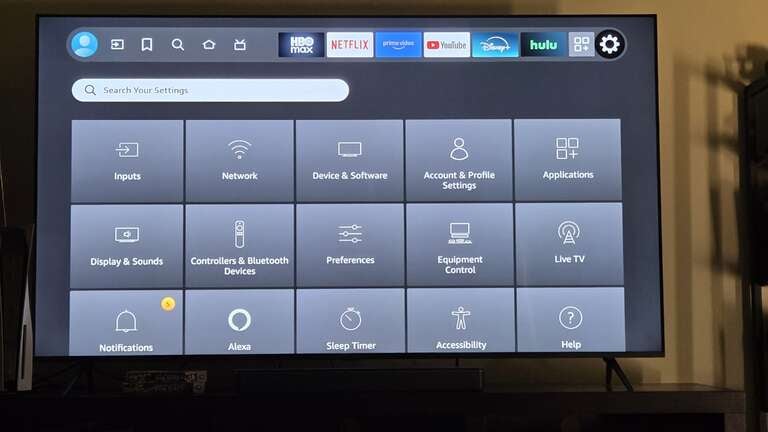
If you need to switch up the settings on your Fire TV, all you have to do is scroll all the way to the right of the home screen to the gear-shaped Settings icon. Here, you can alter network settings, see your applications, control connected equipment, adjust accessibility options, and control all other settings of your Fire TV device.
If you’re in an app and already watching a chosen title, you can also access a quick settings menu by pressing and holding the Home button on your Fire TV device for three to five seconds. You can also say “Open Settings” into your Alexa voice remote to make needed adjustments.
Troubleshooting your Fire TV device and FAQs
FAQs
Does Fire TV require a monthly fee? No, there is no subscription fee just for using a Fire TV device. You will have to pay additional fees for subscription services accessed with your Fire TV device.
How do you rent or buy movies with Fire TV? You can search for individual titles with a Fire TV device, and rent or buy them directly through the Fire TV interface using the payment information stored on file in your Amazon account.
Can you cast to a Fire TV device? Fire TV devices use MiraCast, with some support for AirPlay 2 and Matter Casting on select models. Fire TV does not typically offer Google Cast support.
—
Troubleshooting
Fire TV won’t connect to internet: Reboot your router and Fire TV devices, and make sure your Fire TV has the right Wi-Fi password stored from your network.
Apps won’t load or play slowly: Double-check that your internet connection is steady, and restart your modem and router if necessary. Close any unused apps, and reduce video quality to improve loading times if needed.
Fire TV remote won’t work: Try installing fresh batteries and restarting your Fire TV devices. Check here for more troubleshooting tips.
Fire TV is running slowly or freezing: Uninstall unused apps to clear more space. Clear the device cache, and make sure your device is running the latest software version. Consider a factory reset only as a last resort.
Fire TV streaming players
From $35
Fire TV streaming players bring together your favorite apps, live TV, and Alexa voice controls in one convenient device. Available in HD and 4K models, Fire TV offers options to suit a variety of entertainment needs and budgets.