How to use your Roku remote to control TV volume and power
How to use your Roku remote to control TV volume and power
Want to cut down on the number of remotes you have to use to stream TV or music with a Roku device? We can help.

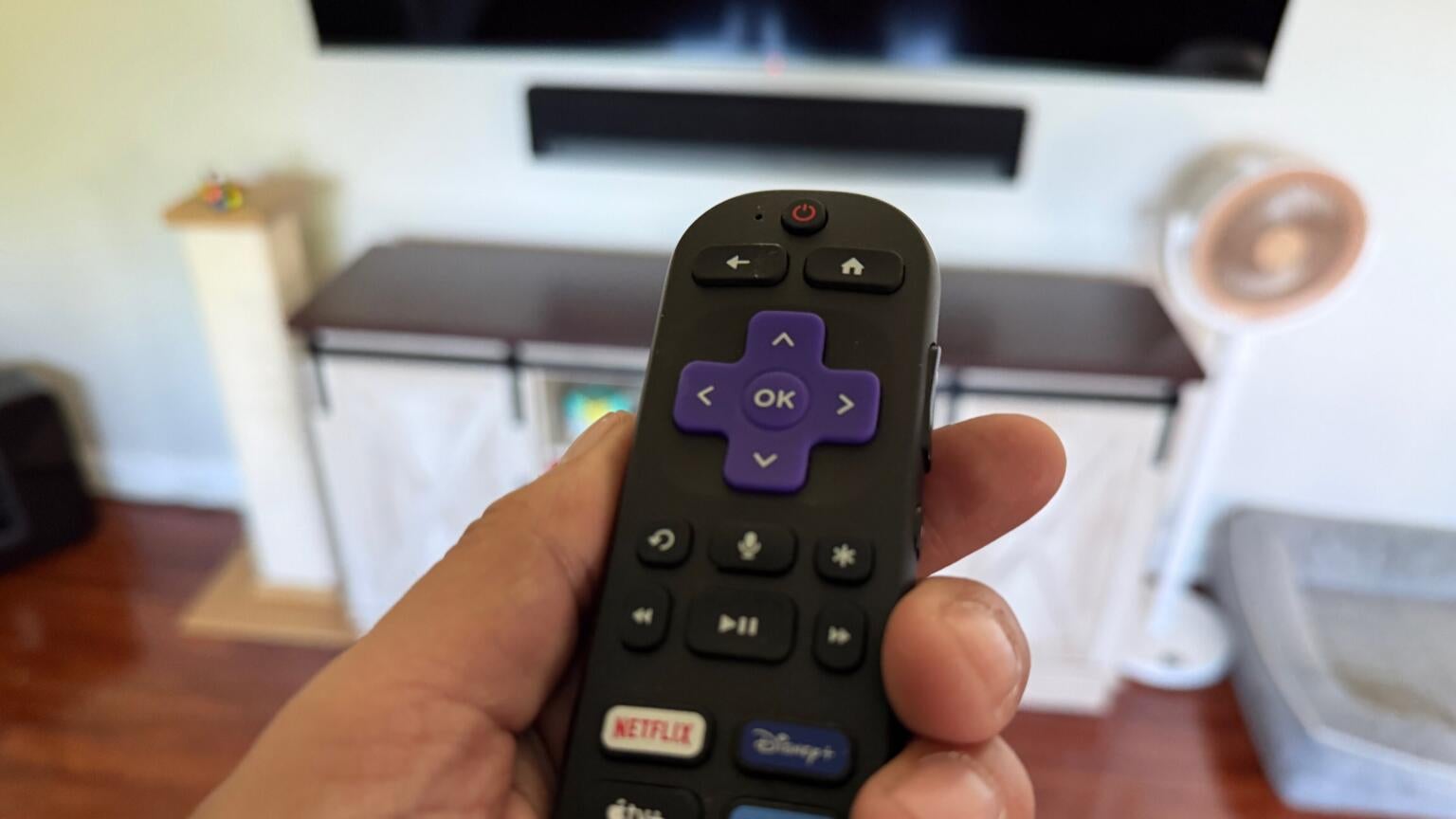
Connecting a Roku streaming player to your TV means you can use the big screen to watch live sports, TV shows, movies, and more with video streaming apps, and listen to all your favorite tracks, artists, and albums with audio streamers, as well.
There are a ton of other great features that come with having a Roku device, including customization options, an intuitive voice assistant, and a remote that can let you control your TV’s power and volume — even if it wasn’t made by Roku!
But how do you set up a Roku remote to control basic TV functions? We’ll lay out a complete beginner’s guide to using your Roku remote to control your TV’s volume and power below.
How to use your Roku remote to control your TV’s volume and power
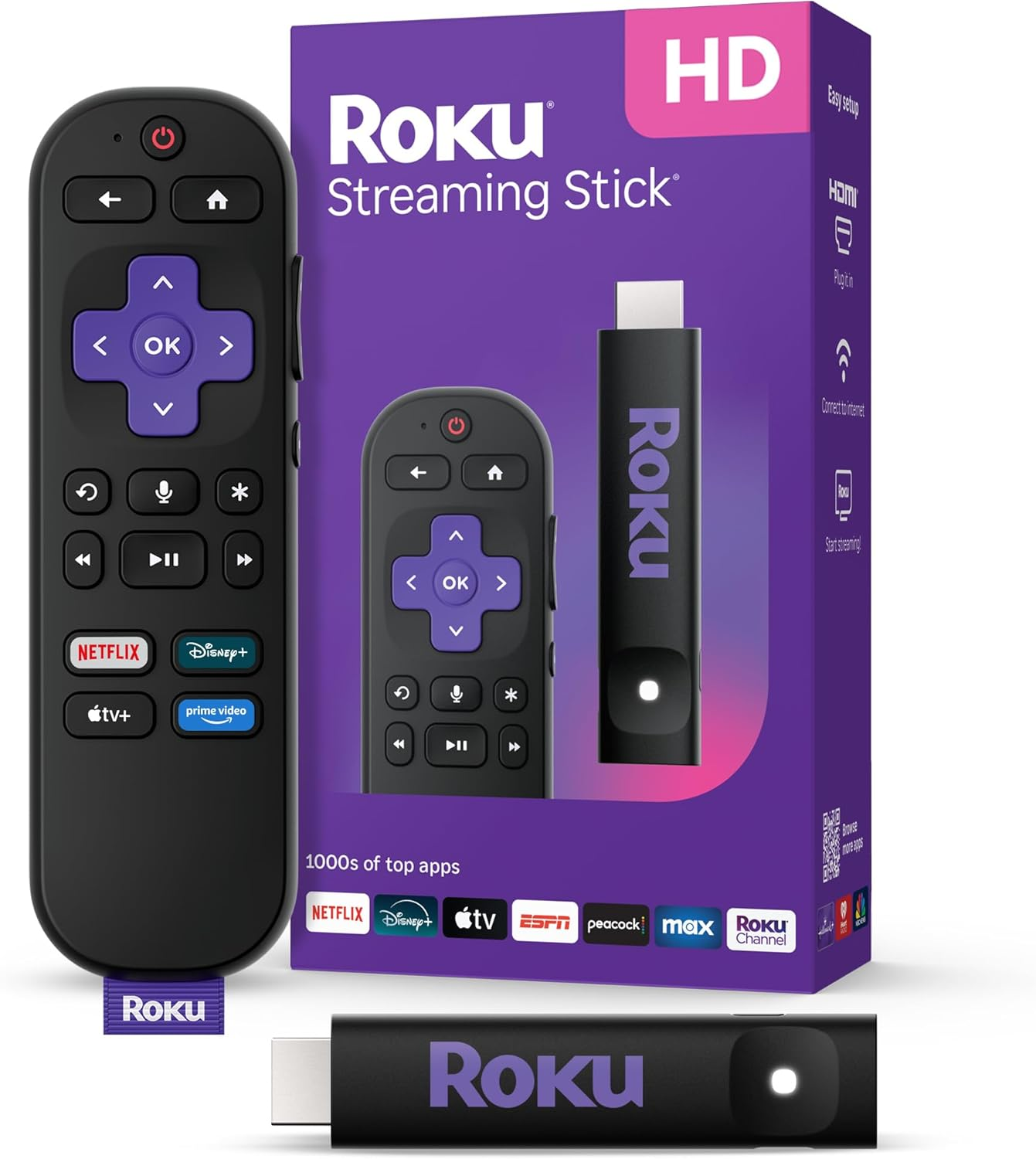
Roku streaming players
From $40
Which TVs allow you to control power and volume with a Roku remote?
A huge number of modern smart TVs will allow users to control the set’s power and volume through a Roku remote, including those made by Hisense, Insignia, LG, Panasonic, Philips, Samsung, Sharp, VIZIO, and more. This is made possible in large part by HDMI-CEC integration, which allows users to control compatible HDMI-connected devices with just a single remote. Viewers do not need to have a TV with the Roku operating system installed to control the set’s power and volume with a Roku remote.
How to set up your Roku as a TV remote
Once you’ve got your Roku connected to your TV and optimized for your use, you can turn to advanced settings like using your Roku remote to control your set’s power and volume at any time.
- Power up your Roku device.
- Press Home on the remote.
- Open Settings, then navigate to Remotes & devices.
- Choose Remote, then pick your Roku voice remote.
- Click Set up remote for TV control.
- Follow on-screen prompts to finish setting up.
Do all Roku remotes support TV controls?
All modern Roku Voice Remote and Voice Remote Pros feature dedicated power and volume buttons that can be programmed to control corresponding functions on their TV set. Older Roku remote device compatibility can vary, so for the best cross-device experience, make sure you have a current-generation Roku remote.
How to enable Roku remote control on your TV
If you want to be able to control your TV’s power and volume with the remote from your connected Roku streaming player, you will have to ensure HDMI-CEC is enabled on your TV. Different manufacturers have different names for HDMI-CEC, so click here to learn more about how the setting is labeled on your TV and how to turn it on.
What else can the Roku remote do?
If you’re still new to Roku and want to use your Roku Voice Remote or Voice Remote Pro like a seasoned professional, you can find our complete beginner's guide to Roku remotes here. While the Roku remote will not allow users to control soundbars or other connected devices, Voice Remote Pro owners can plug into the remote’s headphone jack for private listening and enjoy a list of other great features.
Roku streaming players
From $40
Roku streaming players make it easy to access your favorite streaming apps in one simple interface. With options for HD and 4K viewing, there’s a Roku device for every budget and setup.