How to connect a Roku device to your TV
How to connect a Roku device to your TV
Need a little help getting your Roku streaming player set up? We’ll explain everything you need to know here.


Owning a Roku device means you have one of the most popular streaming players in the United States. Roku’s streaming devices lay out a viewer’s apps in a customizable, easy-to-navigate interface, and adding new services is as easy as a few taps of the remote.
If you’ve just purchased your first Roku device, however, and aren’t 100% sure what to do when you pull it out of the box, The Streamable’s knowledgeable pros are here to help. Check out our beginner’s guide to setting up a new Roku device for the first time, including how to connect it to your TV and what to do next below!
Everything you need to know to connect your Roku to a TV
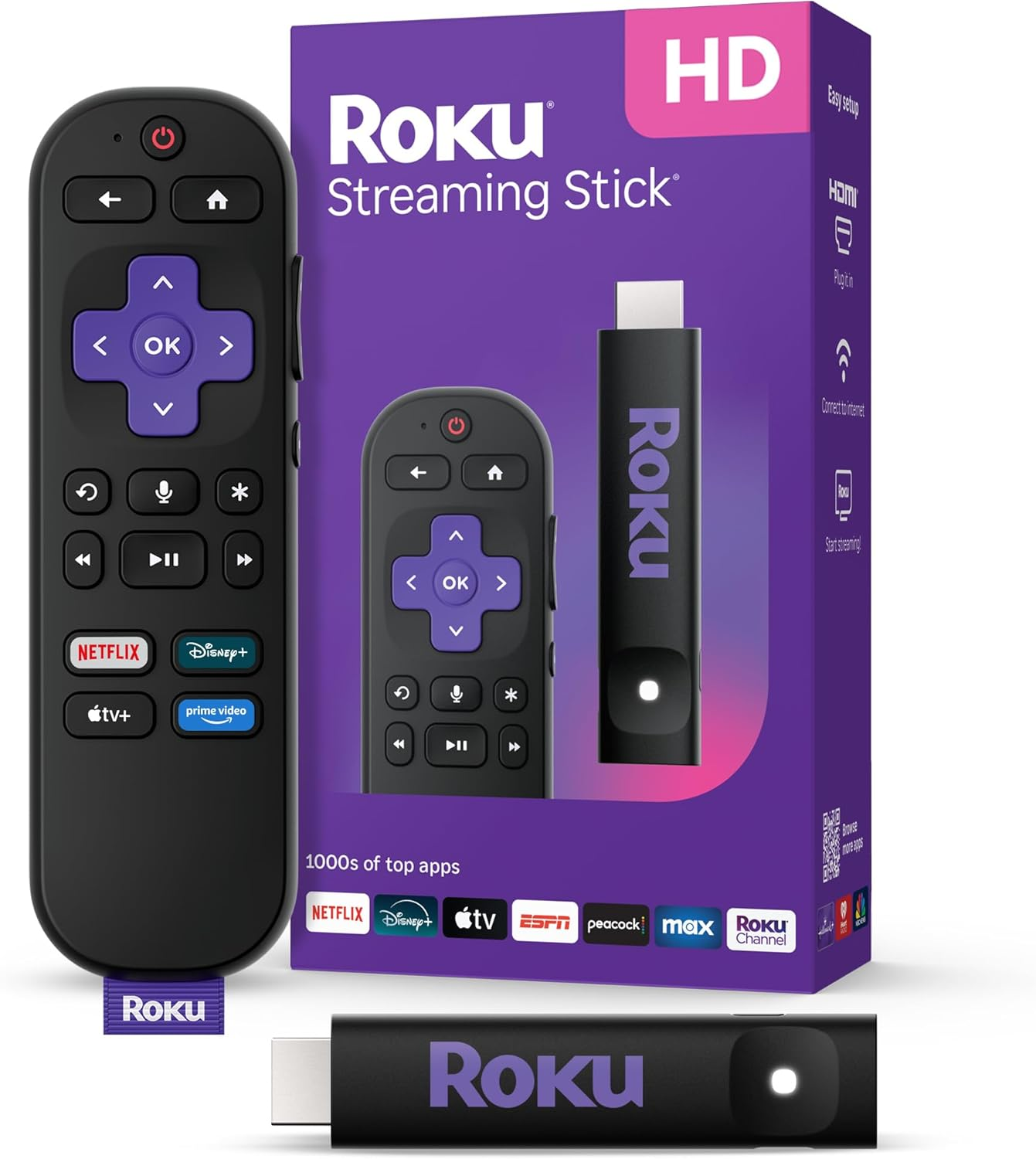
Roku streaming players
From $40
Roku streaming players make it easy to access your favorite streaming apps in one simple interface. With options for HD and 4K viewing, there’s a Roku device for every budget and setup.
What kind of port is needed to connect a Roku to a TV?
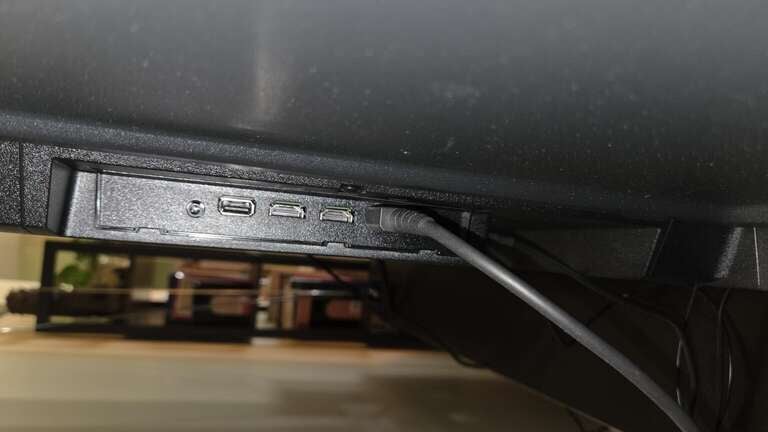
Your Roku connects to your television set via an HDMI port. If you’ve never owned an HDMI device before, you can click here to get the full scoop on what HDMI is and its uses. But suffice it to say, HDMI is the most modern method of transmitting high-resolution video and high-quality audio signals between two devices.
The distinctive shape of an HDMI port is easy to identify, and the connector on your Roku player should fit easily into the port of most modern smart TVs. If your TV doesn’t have an HDMI port, you can easily find an adapter to help get your Roku up and running.
Most Roku streaming devices are powered by plugging a USB cable into a port on your set. However, devices like the Roku Ultra and Roku Streambar require the user to plug into a wall power outlet. If an adapter is needed to plug your Roku device
What you need to connect a Roku to your TV
- A TV with a free HDMI port or compatible A/V ports with an adapter.
- A free USB port on your TV or compatible adapter.
- Roku device.
- Device remote with batteries.
- Wall power adapter (some models).
- A working Wi-Fi connection.
How to connect a Roku to your TV
To connect your Roku to your TV
- Make sure your Roku remote has batteries installed.
- Plug the Roku device into your TV’s HDMI port.
- Connect your Roku’s power source.
- Turn on your TV and switch the screen to the HDMI input matching the port you plugged your device into.
- Use your Roku remote to choose your language.
- Connect your Roku to your home Wi-Fi.
- Activate your Roku account, or connect to an existing account.
- Follow on-screen prompts to finish setting up your Roku device.
What to do once your Roku is connected to your TV
Once you’ve got your Roku streaming player successfully connected to your TV and set up, it’s time to start downloading streaming apps! You can use the Roku digital store to get all the top streaming apps in the United States, and you can rearrange the Roku home screen to suit your exact preferences, as well.
Knowing the ins and outs of your Roku remote is crucial for getting the best user experience every time you watch. The Roku remote is pretty simple and straightforward, but if you have any questions about making it work, find our guide here.
Most modern Roku devices are now equipped with a voice search function that lets viewers browse for apps, control playback, and more without having to press buttons. Click here to learn more about how to familiarize yourself with Roku’s voice search and all the benefits of using it.
You can also configure your Wi-Fi settings for optimized performance, tweak your audio and video settings, and even download the Roku companion app for your phone if you want to use it as a remote or connect to your Roku for private listening. Now that you’ve got your Roku successfully connected to your TV, you can get down to streaming all your favorite music and video apps!
Roku streaming players
From $40
Roku streaming players make it easy to access your favorite streaming apps in one simple interface. With options for HD and 4K viewing, there’s a Roku device for every budget and setup.