Google TV 101: Our beginner’s guide
Google TV 101: Our beginner’s guide
Everything a first-time Google TV owner needs to know about using their new device.

Getting used to a new operating system on a piece of consumer electronics is always a process of trial and error. Usually, smart TV operating systems are simple enough to get a handle on, but trying to figure out the ins and outs of software like Google TV can be a tricky journey to take on your own. The Streamable wants to help. We’ll run through the ins and outs of getting started with a Google TV device below to help the uninitiated learn the operating system like pros. Learn how to get started with our beginner’s guide to Google TV, and find the answers to all your questions about using your device.
Google TV 101: Everything you need to know
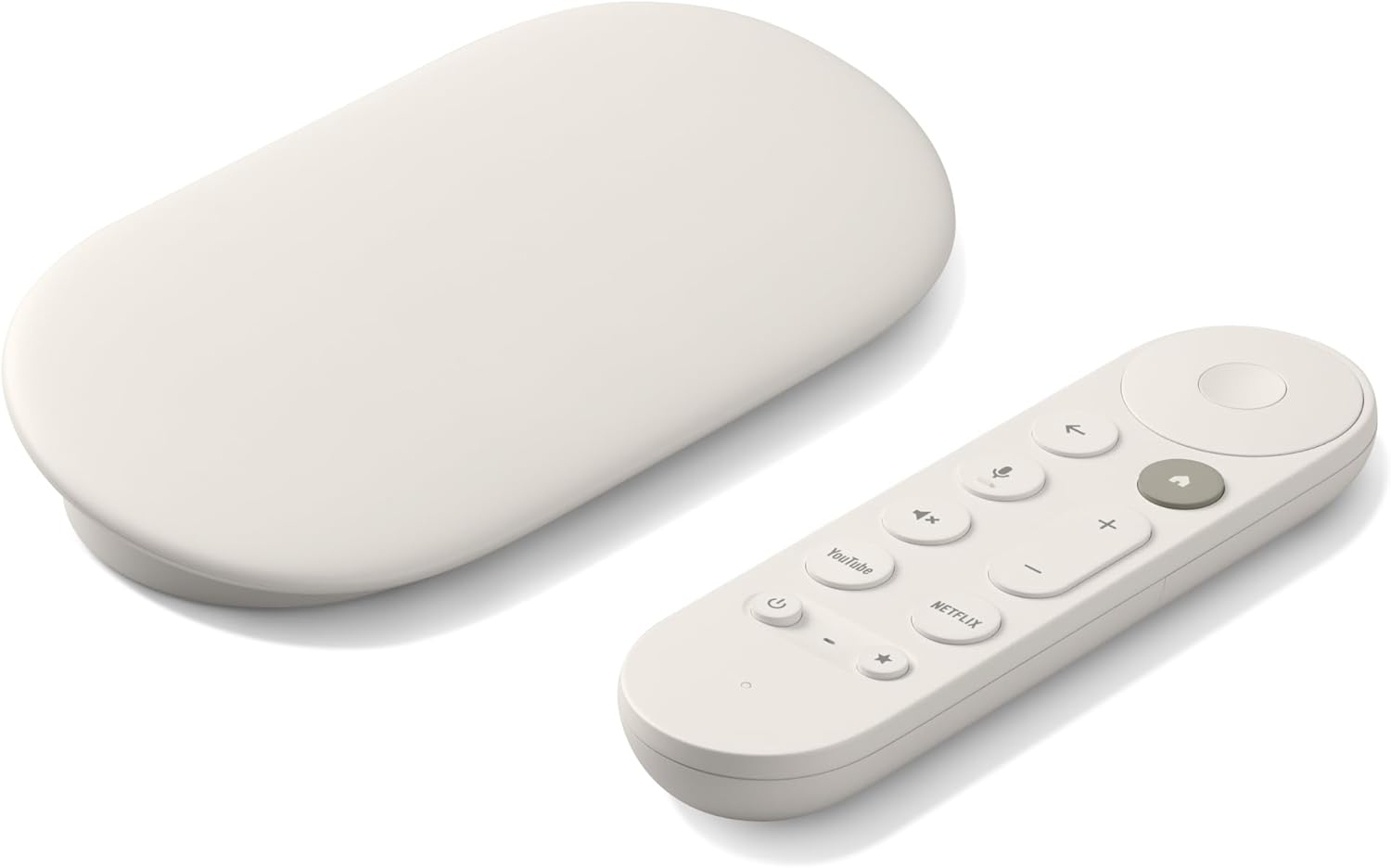
Google TV Streamer 4K
Normally $150
What is Google TV?
Google TV is the name of the smart TV operating system that comes installed in the Google TV Streamer 4K, as well as smart TVs from manufacturers like TCL and more. The Google TV OS allows viewers to watch free TV, download music and video streaming apps, and cast from mobile devices via Apple’s AirPlay.
Google TV runs on top of the Android TV operating system; both use the same base software, but Google TV has more bells and whistles built in, such as personalized content recommendations from downloaded streaming apps.
Where to shop for Google TV devices?
The Google TV Streamer 4K is currently the only connected streaming player being sold by Google that includes the Google TV operating system. Readers can compare prices for the Google TV Streamer at major retailers like Amazon, Best Buy, Target, and Walmart below:
| Amazon | Best Buy | Target | Walmart |
|---|---|---|---|
| Shop the Google TV Streamer now | Shop the Google TV Streamer now | Shop the Google TV Streamer now | Shop the Google TV Streamer now |
Walmart’s budget-friendly Onn-branded streaming players also use the Google TV operating system, with prices ranging from $30 to $60 per device. These players are only available at Walmart, but shoppers can purchase them online or in stores.
Finally, the Google TV operating system comes installed on TVs from a number of manufacturers, including Hisense, Sony, and TCL. Purchasing one of these TVs means viewers don’t need to buy a connected streaming player with the Google TV operating system to use it; simply plug in the TV, set things up, and you’re ready to go!
What comes in the box with Google TV devices?
A Google TV Streamer comes with the device itself, a voice remote, a power adapter and cable, and a quick-start guide for setting the device up in just a few minutes. The Google TV Streamer remote even comes with two AAA batteries, so you don’t have to supply your own to use it.
Onn devices from Walmart have the same basic equipment in the box, making setup a fast process.
How to set up a Google TV device for the first time
There are a couple of ways to set up a Google TV Streamer 4K for the first time. The first is to connect it to your Google Home device, which will allow you to embed your Google TV player with your other smart home devices. To do so:
- Download the Google Home app on your phone.
- Make sure you have a Google account set up.
- Plug your Google TV device into an available HDMI port on your TV.
- Turn on the TV and switch to that input.
- Plug in the power adapter for your Google TV device (if any).
- Wait for your remote to pair. It should happen automatically, but if the screen says “Start pairing,” press and hold the Back and Home buttons on the remote until the light begins to blink.
- Follow on-screen prompts to open Google Home on your phone.
- Tap Devices > Add > Google Nest or partner device Google Nest or partner device.
- Tap “Choose a home” or “Add another home.” Tap Next.
- “Looking for devices…” will appear. If the Google TV Streamer is plugged in, “Google TV Streamer found” will show on the phone screen.
- Answer “Yes” when asked if you want to set up the Google TV Streamer.
- Scan the QR code on your TV with your phone.
- Wait for the connection process to finish.
- Scroll down to read the Terms of Service and Google Privacy Policy, and tap Accept.
- Choose which room the TV is in. Tap Next.
- Select the Wi-Fi network. This should be the same one the Google TV Streamer is connected to. Enter the network password when prompted. Tap Next.
17.“Sign in with your Google Account.” Tap Continue. Perform 2-step verification if prompted. - Follow the steps on how to set up and use Google Assistant on your TV until you reach “Setup here is finished,” then continue with the TV and remote.
You can also set up a Google TV Streamer without the Google Home app if you choose.
Simply follow the instructions above through step 6, then:
- Click “Set Up on TV” at the bottom of the screen.
- Connect to Wi-Fi.
- Sign in to your Google account and accept the terms of service.
- Follow on-screen prompts.
If you have any further questions about setting up a Google TV Streamer 4K or another Google TV device, click here for extra help.
How to navigate the Google TV home screen
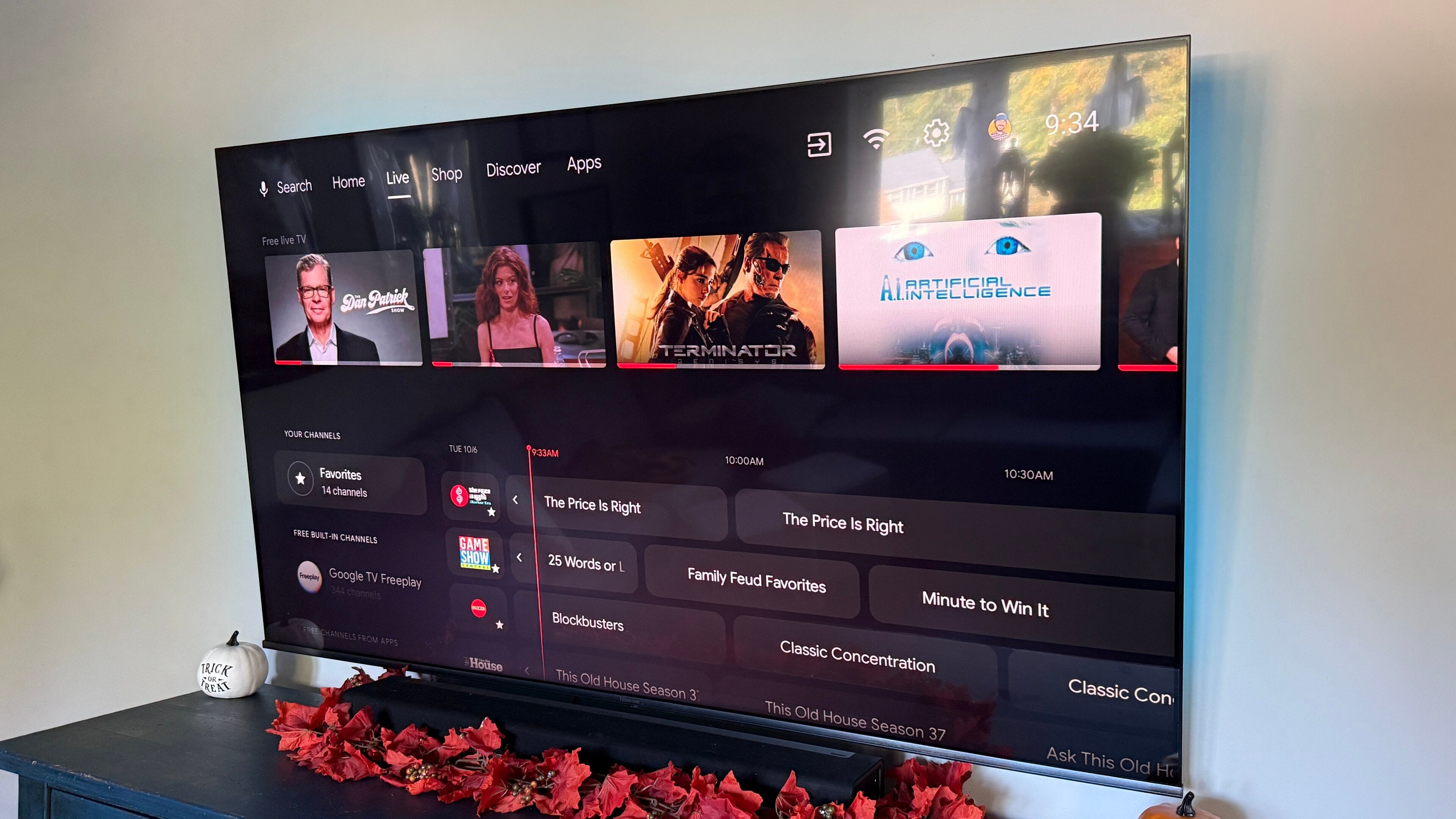
Once your Google TV device is all set up for the first time, you’ll need to know how to navigate the Google TV home screen. Google TV likes to keep things simple, offering just four main tabs at the top of the screen for navigation: Gemini, Home, Live, and Apps. Gemini is the name of Google’s AI agent and allows viewers to search for shows and movies using natural language, deep dive into sports and other topics, and even generate videos and photos.
The Home page includes a little bit of everything, including quick access to viewers’ favorite apps, plus recommendations for new TV shows, movies, and more generated by Google TV based on your history and preferences.
The Live tab is where viewers will find any live channels they can watch with a live TV streaming subscription like YouTube TV. In addition, the Live tab contains hundreds of free streaming channels, including selections offered by Google TV itself and supplemental apps like Pluto TV and Tubi.
The Shop tab is a Google TV owner’s one-stop spot to rent or purchase movies through Google TV that aren’t included in their subscriptions, including blockbuster new releases.
The Discover tab is a place to seek out even more recommendations from Google TV, including titles from your streaming subscriptions, shows and movies you can watch for free, and more.
The Apps tab is where viewers will find all their downloaded streaming applications, and where they can shop for new apps. App badges are sorted into categories, and viewers can even reorder them to suit their preferences.
How to add new TV and movie apps on Google TV
There are multiple ways to find and add new apps to a Google TV device. All a viewer needs to do is hold down the Google Assistant button on the Google TV remote and speak the app name, or scroll to the Apps tab to search for new applications and download them to Google TV devices.
How do app subscriptions work on Google TV
Some subscription services, including many video streaming services, allow viewers to sign up for a subscription through their Google account. For the customer, this adds a layer of convenience, using Google as a one-stop subscription management platform, providing one portal for signing up for, managing, and canceling various services.
When searching for apps with Google TV, look for a button that says “Subscribe & Install” when signing up. If you see one, you’ll know that the service is eligible to be billed through your Google account, and the payment method you’ve stored on file will be used to pay for the subscription. If you only see “Install,” you may have to sign up for a subscription to that service separately before you can use the app on your Google TV. For more questions about managing subscriptions on your Google TV device, click here.
How to search for anything on Google TV
There are several methods for searching for content on Google TV, including:
- Gemini.
- Voice search.
- Typing search terms with your Google remote.
- Typing search terms using your phone as a Google remote.
The Gemini tab can be used for in-depth, detailed searches, including queries requesting a certain genre, mood, or theme of content, titles with a specific star or director, and much more. Google Assistant can also process search queries via voice search using the Google TV remote.
Viewers can always look for apps and titles the old-fashioned way by typing them into the appropriate search bar on the Google TV interface, but Android mobile device owners can also use their phone as a Google TV remote, which makes typing search terms into a text field much easier.
Can you watch live TV with a Google TV device?
Absolutely. As noted, the Live tab on a Google TV device collates live TV channels from any live TV streaming subscriptions such as Philo, Sling TV, and YouTube TV. It’s a lot like an electronic programming guide from an old-school cable box, and lays out your channels with an easy-to-navigate framework that allows viewers to customize their view.
The Live tab also offers a selection of hundreds of free ad-supported streaming TV (FAST) channels from Google TV Freeplay, Plex, Pluto TV, The Roku Channel, Tubi, and Xumo Play. As long as these apps are downloaded on your Google TV device, you’ll be able to see the channels in the Live tab.
Customers with a smart TV that runs on Google TV will also be able to plug in an over-the-air antenna and see their local broadcast channels in the Live tab.
Do you need a Google account with Google TV?
That depends on which device using Google TV you have. Integrated smart TVs that use the Google TV operating system have what is called Basic TV Mode, which allows the owner to use the TV without a Google account or internet connection. Viewers will be able to access a limited set of pre-installed apps, but will need a connected device like a cable or satellite box, or an antenna to watch live TV.
Viewers who purchase a Google TV Streamer 4K or other connected device that runs on the Google TV OS will have to have a Google account to use the device, however.
How do recommendations work with Google TV?
Google TV tracks your activity and preferences while signed in with your Google account to recommend new TV shows and movies for you to watch from downloaded apps. It looks at your watch history, titles saved to viewing lists for the future, as well as interactions and ratings given by the user on chosen content to assemble these recommendations, along with other factors.
Customers who want to stop Google TV from tracking their history and preferences can do so by switching on Apps Only mode. To do so, open Settings > Accounts & Profiles > Your account > Apps Only mode. Doing so will still allow you to see the apps installed on your Google TV, but the OS will not generate any recommendations.
Can you set up multiple profiles with Google TV?
Yes, customers can set up multiple profiles on Google TV if they want to keep their viewing histories, recommendations, and watchlists separate from others in the household.
To set up new profiles on Google TV:
- Power up your Google TV device.
- From the Google TV home screen, find your profile picture or initial.
- Select your name, then click Add Account.
- Choose Add an Account, then press down, or scan the QR code on the screen with your phone.
- Sign in to the Google Account you want to add.
- Follow on-screen prompts to finish profile setup.
How does Google TV work with Google Assistant?
Google Assistant is built into the Google TV voice remote, allowing viewers to search for new apps (as mentioned above), control playback, and ask questions about weather, sports scores, currency markets, or even general trivia.
Viewers can also use Google Assistant with the Google TV remote to control smart home devices that support Google Home, including connected smart lights, thermostats, or security cameras.
What customization options does Google TV offer?
There’s a ton of customization options available on Google TV, from basic to advanced, to help make it feel like your device is truly your own. In fact, there are too many choices to list here, so click here for a complete guide on customizing your Google TV.
How to adjust settings on your Google TV
You can tinker with settings on your Google TV any time by simply booting up the device, clicking your profile icon at the top-right of the screen, and scrolling to Settings.
Troubleshooting your Google TV
There are some tried-and-true methods for troubleshooting your Google TV’s minor issues. If you’re experiencing the following problems, try the steps listed before taking more drastic measures:
-
Check your Wi-Fi connection: If you aren’t able to stream TV shows, music, or movies, or see your recommendations and access apps, it’s likely an issue with your Wi-Fi connection. Make sure your Google TV device is connected to the right network, and ensure your network is connected to the internet.
-
Check for system updates: When your Google TV is running slowly, one of the most likely culprits is an out-of-date software version. Viewers can check their Google TV software for available updates by going to System > About > System Update > Check for update.
-
Restart your device: If all else fails and your Google TV still isn’t responding the way you want, you can always restart it. Open Settings > System > Restart, and if this fails, a hard reset can be performed by unplugging your Google TV for 30 seconds to a minute and plugging it back in.
Google TV Streamer 4K
Normally $150
The Google TV Streamer 4K is a high-quality streaming player. It uses the Google TV operating system and allows viewers to download top live and on-demand streaming apps, as well as hundreds of free streaming channels.