How to use your phone as a streaming remote
How to use your phone as a streaming remote
If you want or need to use your phone to control your smart TV, we’ll explain everything you need to know to do so here!

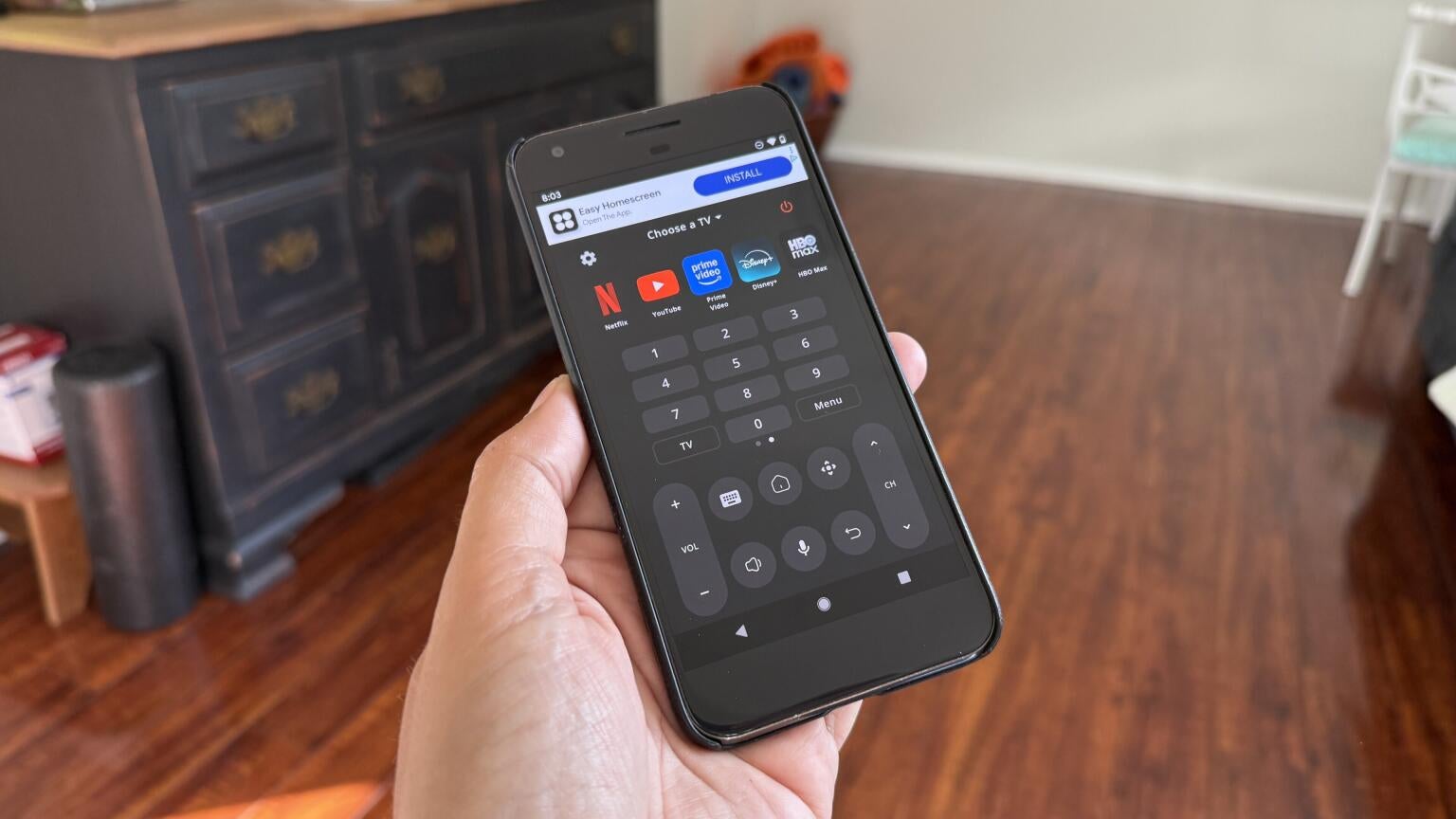
Nearly every smart TV and streaming device made these days includes a physical remote to use, but there’s something very… 20th century about using a remote control. Why not use your phone as a remote instead? Most smart TV and streaming operating systems support a remote control app compatible with Android and iOS devices, and using these apps can make browsing a much more intuitive experience.
But how do you use your phone as a remote with major operating systems? Find instructions for pairing Android and iPhone devices to major platforms like Amazon Fire TV, Apple TV, Roku, and more below, and learn more about why you might want to use your phone as a remote instead of fumbling with the device’s remote.
Everything you need to know about using your phone as a remote
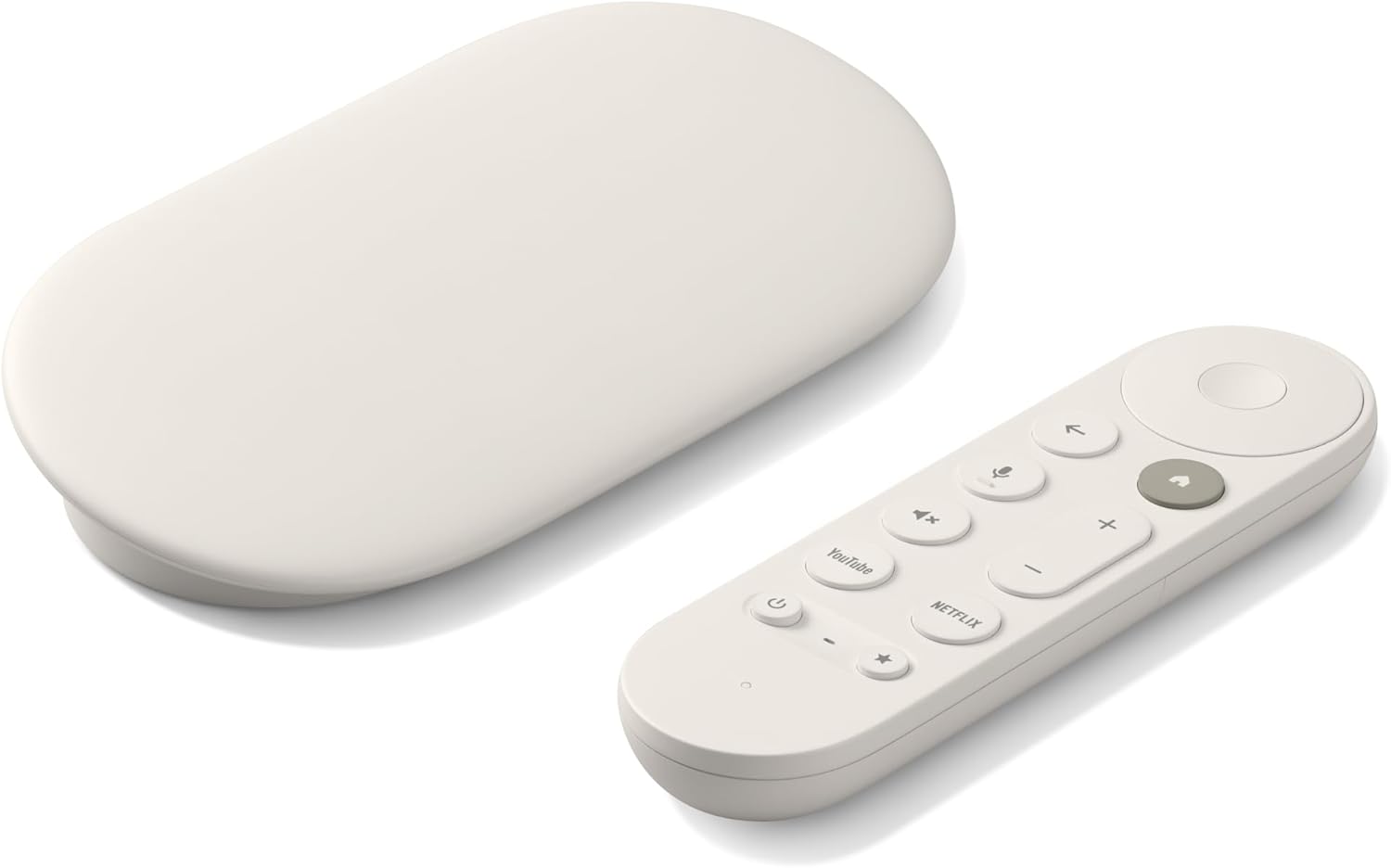
Google TV Streamer 4K
Normally $150
The Google TV Streamer 4K is a high-quality streaming player. It uses the Google TV operating system and allows viewers to download top live and on-demand streaming apps, as well as hundreds of free streaming channels.
How to use your Android phone as a TV remote
How to use your Android as an Apple TV remote
Although cross-device collaboration between Apple and Android has increased in recent years, Apple does not make an Apple TV remote app for Android as of yet. There are third-party apps for Apple TV remote use in the Google Play Store, however. If you download one of these apps, you will need to:
- Ensure your phone and Apple TV device are on the same network.
- Pair your devices using a PIN code displayed on the screen.
How to use your Android as a Fire TV remote
It’s quite easy to use your Android phone as a Fire TV remote, as Amazon does make a dedicated Fire TV app for Android devices. To use your Android as a Fire TV remote:
- Ensure your phone and the Fire TV are connected to the same Wi-Fi network.
- Open the Fire TV app on your Android.
- Sign in to your Amazon account.
- Select the remote icon at the bottom of the screen.
- Pick your TV from the list that pops up.
- Follow on-screen prompts to finish pairing.
How to use your Android as a Google TV remote
Since Android and Google TV are both owned by Alphabet, Inc., using their tech together is often a simple matter. To use your Android phone as a Google TV remote, you’ll have to download the Google Home app on your Android device. Then, to set up your virtual remote from the Google Home app:
- Turn on your TV and Google TV device.
- On your Android phone, open the Google Home app.
- Choose the device you want to control to turn the virtual remote on or off.
To set up a virtual remote with the Google TV app:
- Open the Google TV app on your Android phone.
- Seek the Connect TV button near the bottom-right of the screen.
- Choose the device you want to connect to.
- Enter the code that appears on your TV screen into your phone.
- Tap Pair.
How to use your Android as an LG TV remote
You’ll need the LG ThinQ app on your Android device to use it as a remote. Once you’ve downloaded the app, and your Android device is using the same Wi-Fi network as your LG smart TV:
- Turn the TV on.
- Open the LG ThinQ app.
- Log in.
- Tap the plus sign or Add Device.
- Choose TV, and wait for the app to locate your set.
- Type in the code from your TV screen to your phone.
How to use your Android as a Roku remote
Roku’s mobile app is available for multiple devices, and it includes a digital remote feature. Download the Roku app from the Google Play Store, and connect your Android phone to the same Wi-Fi network as your Roku smart TV or player. Then:
- Turn on your Roku smart TV or streaming device and TV.
- Open the app, and sign into your Roku account.
- Tap Devices or Remote at the bottom of the screen.
- Wait until your Roku device is discovered.
- Tap it to pair with your phone.
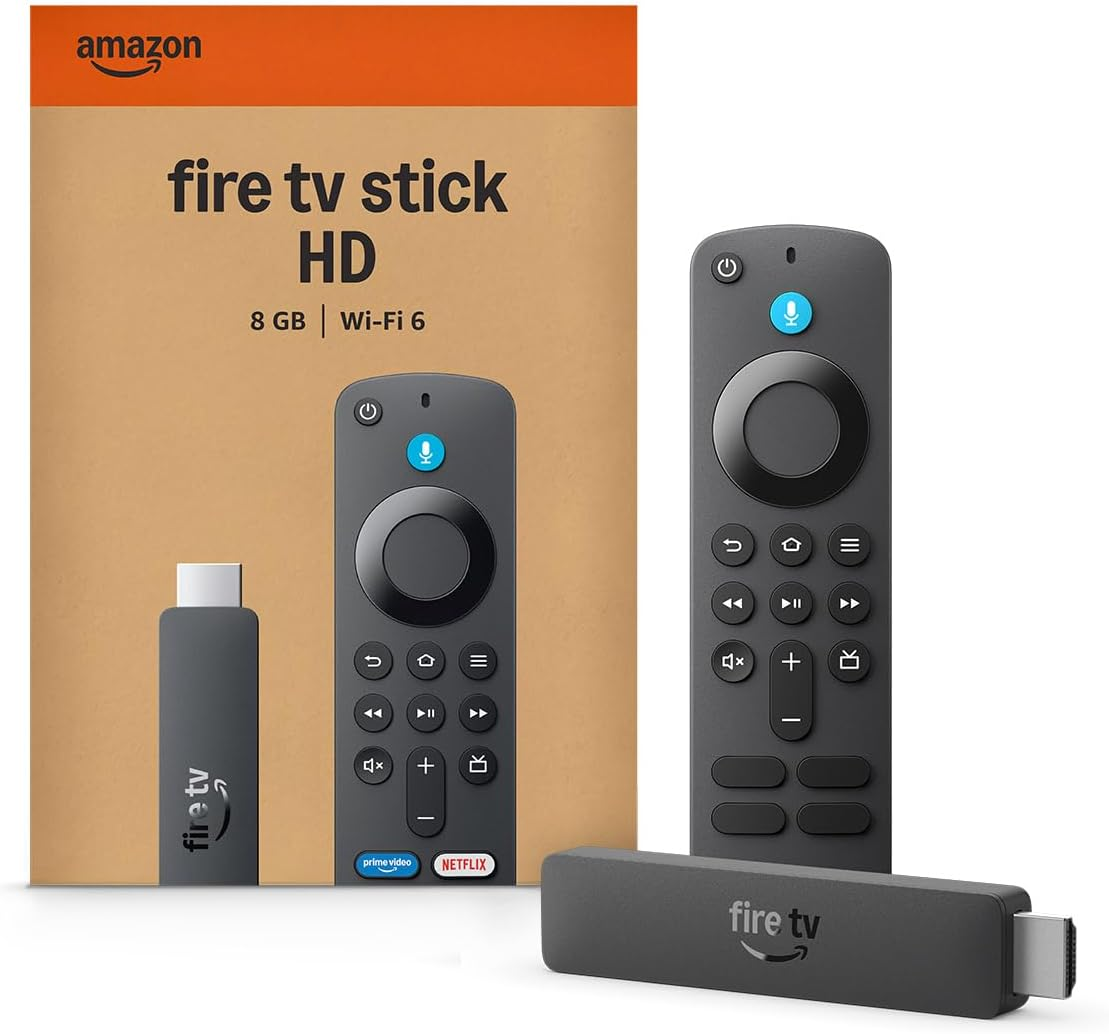
Fire TV streaming players
From $35
Fire TV streaming players bring together your favorite apps, live TV, and Alexa voice controls in one convenient device. Available in HD and 4K models, Fire TV offers options to suit a variety of entertainment needs and budgets.
How to use your Android as a Samsung remote
Samsung allows digital remote access on Android and iOS phones through the SmartThings app. Download the app from the Google Play Store, and connect your Android phone to the same Wi-Fi network as your Samsung smart TV. Once you’ve done that, you should:
- Turn the TV on.
- Open the SmartThings app on your phone.
- Tap the Devices tab, or the plus icon.
- Choose Add device or Scan nearby to locate your Samsung TV.
- Select your TV from the list.
- Type the verification PIN appearing on the TV screen into your phone.
How to use your Android as a VIZIO remote
There’s almost nothing to using your Android as a VIZIO smart TV remote, once you’ve downloaded the VIZIO mobile app from the Google Play Store. Use the same Wi-Fi network to connect both devices, then:
- Turn on the TV.
- Open the VIZIO app on your phone and sign in.
- Choose Device Name at the top of the screen to find nearby hardware.
- Find your VIZIO smart TV.
- Check the TV screen for a displayed PIN number.
- Enter the PIN into your phone to finish pairing.
How to use your iPhone as a TV remote
How to use your iPhone as an Apple TV remote
Setting up your iPhone as an Apple TV remote is a simple process. To add an Apple TV remote to your iPhone for the first time:
- On your iPhone, swipe down from the top-right corner to open Control Center.
- Tap Add Controls.
- Choose Add a Control.
- Scroll down to Remote, or use the Search Controls bar to find it.
Once you’ve added a remote to your iPhone, use the instructions below to switch your phone to remote mode.
On your iPhone, swipe down from the top-right corner to open Control Center.
Tap the Apple TV remote button.
Choose your Apple TV or smart TV from the list.
If prompted, follow on-screen instructions and enter your passcode.
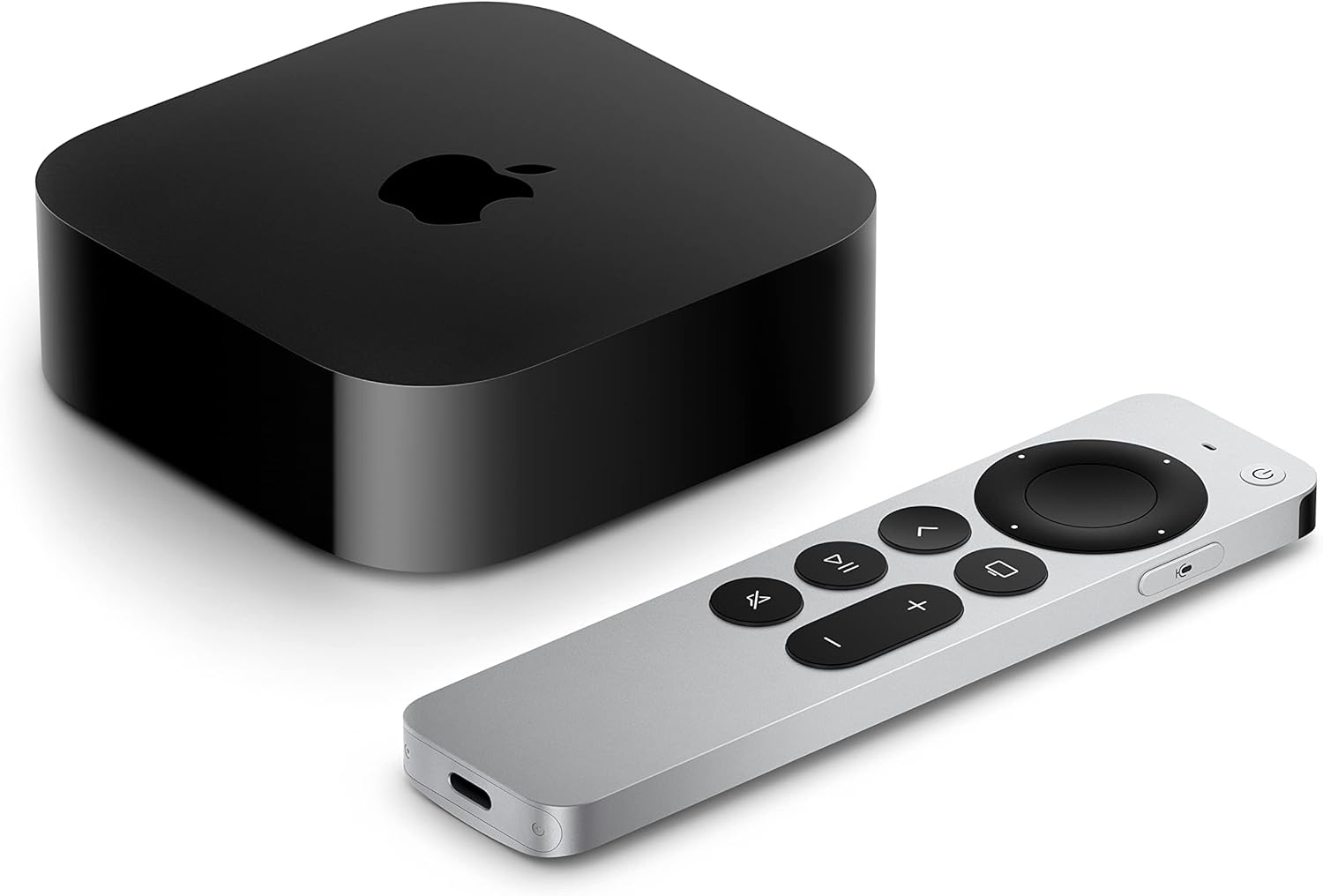
Apple TV 4K devices
Shop now
The Apple TV 4K streaming player is a highly advanced device that allows owners to watch top streaming apps, navigate using the Siri voice remote, enjoy high-quality video and audio, and integrate seamlessly with other Apple devices. Preorder the 4th Generation Apple TV 4K now; the device becomes available starting Nov. 13.
How to use your iPhone as a Fire TV remote
Users of iPhones and Android devices can use their phone to control their Fire TV. Simply:
- Download the Fire TV app on your iPhone through the Apple App Store.
- Connect to the same Wi-Fi network as your Fire TV.
- Open the app on your iPhone and sign into your Amazon account.
- Find the remote icon at the bottom of the screen, then choose Set Up New Fire TV.
- Follow on-screen prompts to finish setting up.
How to use your iPhone as a Google TV remote
Google TV devices make it easy to connect an Apple phone to use as a remote. To do so:
- Ensure that your iPhone and Google TV are using the same Wi-Fi network.
- Turn on your Google TV.
- Open the Google Home app on your iPhone.
- Sign in to your Google account.
- Open the Devices tab and locate your TV.
- Tap the TV name, then tap Open remote.
- Pair your phone to your Google TV with an on-screen code.
How to use your iPhone as an LG TV remote
Instructions for using your iPhone as an LG smart TV remote are the same as those for Android. Simply download the LG ThinQ app on your iOS device, then make sure your phone and TV are using the same Wi-Fi network. From there:
- Turn the TV on.
- Open the LG ThinQ app.
- Log in.
- Tap the plus sign or Add Device.
- Choose TV, and wait for the app to locate your set.
- Type in the code from your TV screen to your phone.
How to use your iPhone as a Roku remote
The Roku app is easily available through the Apple App Store. Download it, and connect your iPhone to the same Wi-Fi network as your Roku device. Then:
- Turn on your TV or Roku device.
- Open the app, and sign into your Roku account.
- Tap Devices or Remote at the bottom of the screen.
- Wait until your Roku device is discovered.
- Tap it to pair with your phone.
How to use your iPhone as a Samsung remote
The Samsung SmartThings app in the Apple App Store will allow iPhone users to control their Samsung smart TV with their phone. Download the app, and ensure the TV is using the same Wi-Fi network as your iPhone, then use these steps to set up your digital remote:
- Turn the TV on.
- Open the SmartThings app on your phone.
- Tap the Devices tab, or the plus icon.
- Choose Add device or Scan nearby to locate your Samsung TV.
- Select your TV from the list.
- Type the verification PIN appearing on the TV screen into your phone.
How to use your iPhone as a VIZIO remote
Setting up your iPhone as a VIZIO smart TV remote is a very quick process. First, you’ll need to download the VIZIO mobile app from the Apple App Store, then connect both your iPhone and TV to the same Wi-Fi network. After that, follow these simple steps:
- Turn on the TV.
- Open the VIZIO app on your phone and sign in.
- Choose Device Name at the top of the screen to find nearby hardware.
- Find your VIZIO smart TV.
- Check the TV screen for a displayed PIN number.
- Enter the PIN into your phone to finish pairing.
Are there universal remote apps for phones?
There are several “universal” remote apps available that will allow users to turn their phone into a remote that can control multiple smart TV and streaming device brands. Options include TVRem and AnyMote, though user experiences and compatibility of specific operating systems can vary.
Why use your phone as a smart TV remote?
There are several compelling reasons to use your smartphone as a TV or streaming remote instead of the remote that came in the box. Chief among these is that typing in passwords or search terms is so much easier with a phone remote, since it calls up a digital keyboard to type with. Contrast that with a physical device remote, which will make you type in passwords by tediously navigating from one character to another using a keyboard on the TV screen.
Using your phone as a remote often allows you to make the screen a touchpad, which makes navigating and browsing the web with your connected TV device much easier. And some devices will allow you to connect headphones to your phone through the digital remote for a private listening experience. Plus, smartphone remote apps still let users access the voice search features that come with most modern TV and streaming device remotes for easy browsing.
Having a smartphone handy is also a good idea if you frequently lose your physical remote. There’s nothing worse than missing a new episode of your favorite show because you can’t turn on the TV, and since most modern sets don’t come with physical buttons anymore, having a smartphone as backup for your device’s remote can mean the difference between watching and missing it altogether.
Troubleshooting while using your phone as a smart TV remote
-
TV not showing up in app discovery list: This can commonly happen when the phone and the device aren’t using the same Wi-Fi network. Make sure they are connected to the exact same network, and turn off any VPNs that mask IP addresses on your devices.
-
TV settings are blocking external control: If your TV won’t appear in pairing lists, ensure device connection is enabled. Some TVs disallow control by another device out of the box as a security measure; search your TV settings for device connection or app control to ensure your phone can control your set.
-
Remote controls on phone lag: If your phone remote is unresponsive or freezes, make sure you’ve disabled any battery-saving or optimizing settings on your phone. You can also clear cached pairing data from the TV’s settings to try and clean up the connection.
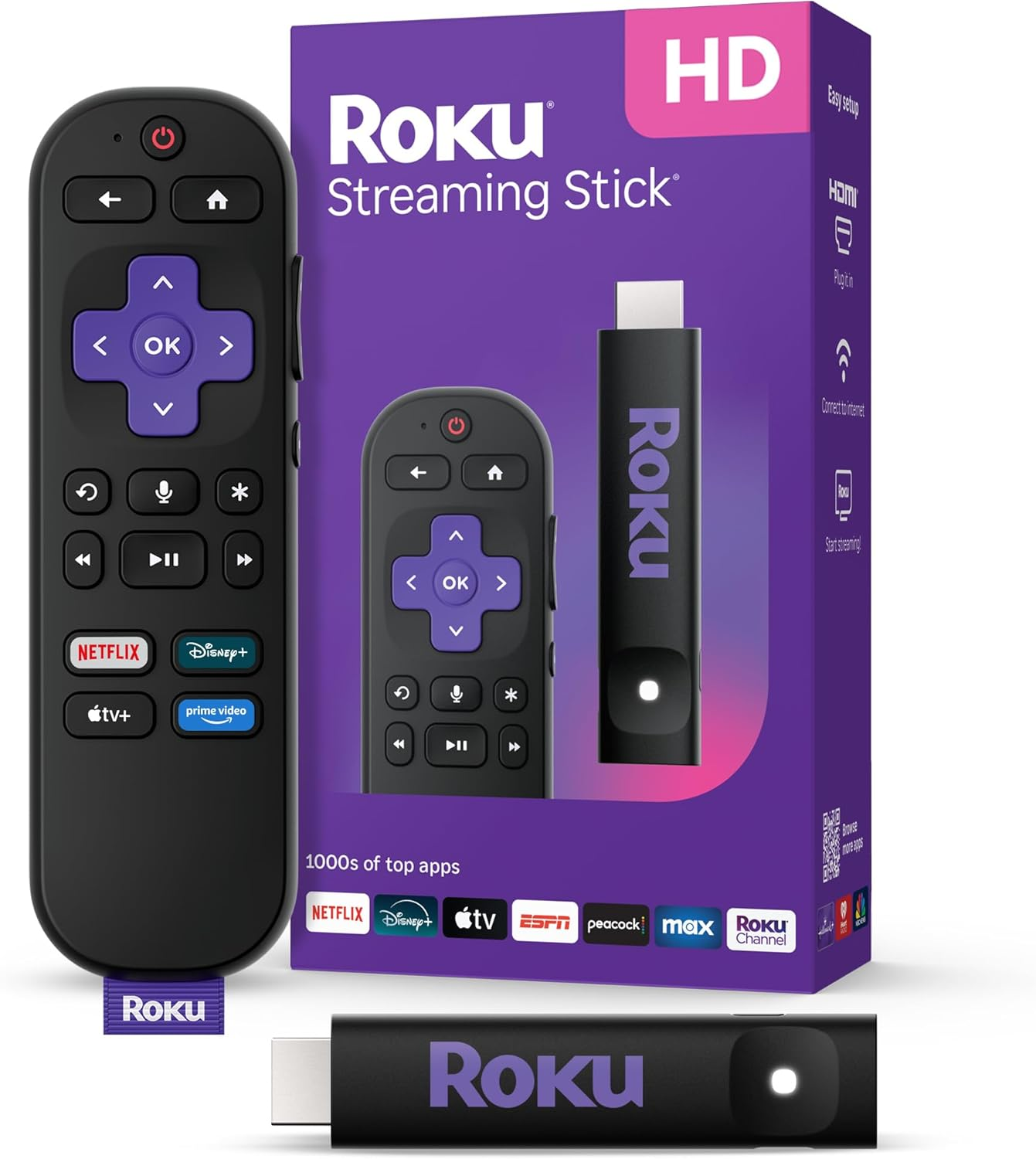
Roku streaming players
From $40
Roku streaming players make it easy to access your favorite streaming apps in one simple interface. With options for HD and 4K viewing, there’s a Roku device for every budget and setup.